22 User manual
NetHome Plus APP for heat pumps Multi Split Aquami
EN
3. USER REGISTRATION
• Please ensure your mobile device is connected to Wireless router. Also, the Wireless router has already
connected to Internet before doing user registration and network conguration.
• It is better to log in your email box and active your registration account by clicking link in case you forget the
password. You can log in with the third party accounts.
Cautions
• It is necessary to forget any other around network and make sure the Android or iOS device just connect to the
Wireless network you want to congure.
• Make sure the Android or i OS device Wireless function works well and can be connected back to your original
Wireless network automatically.
• User must nish all the steps in 8 minutes after powering on air conditioner, otherwise you need to power on it again.
4.1. Using Android AND IOS device to do network conguration
1. Make sure your mobile device has already been connect to the Wireless network which you want to use.
Also, you need to forget other irrelevant Wireless network in case it inuences your conguration process.
2. Disconnect the power supply of AC.
3. Connect the power supply of AC, activate the AP mode (The pictures in the manual are for explanation
purpose only. Your machine may be slightly dierent. Read the WIRELESS MODE IN USER’S MANUAL or
INSTRUCTION MANUAL for detailed operations.).
4. When AP appears in the display, It means that the AC WIRELESS has already entered into AP Mode. User can
do the next step conguration.
4. NETWORK CONFIGURATION
PART 2. APPLICATION CONFIGURATION AND USAGE
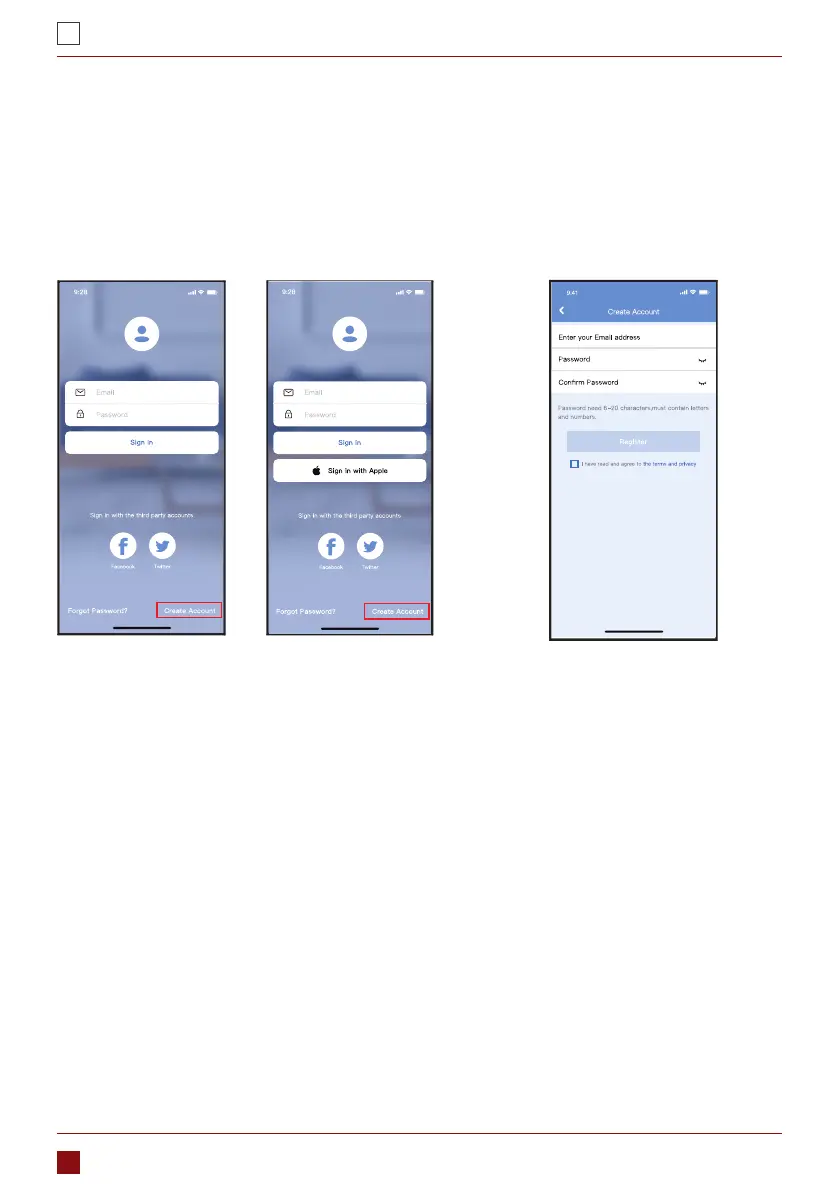
1. Click “Create Account” (Pic. 3.1)
2. Enter your email address
and password, and then click
“Register”.
Pic. 3.1
0
Android iOS
Pic. 3.2


 To Next Page