Toast 6 Titanium Getting Started Guide
Editing a Slideshow in the Video Content Area
91
Video/Photo
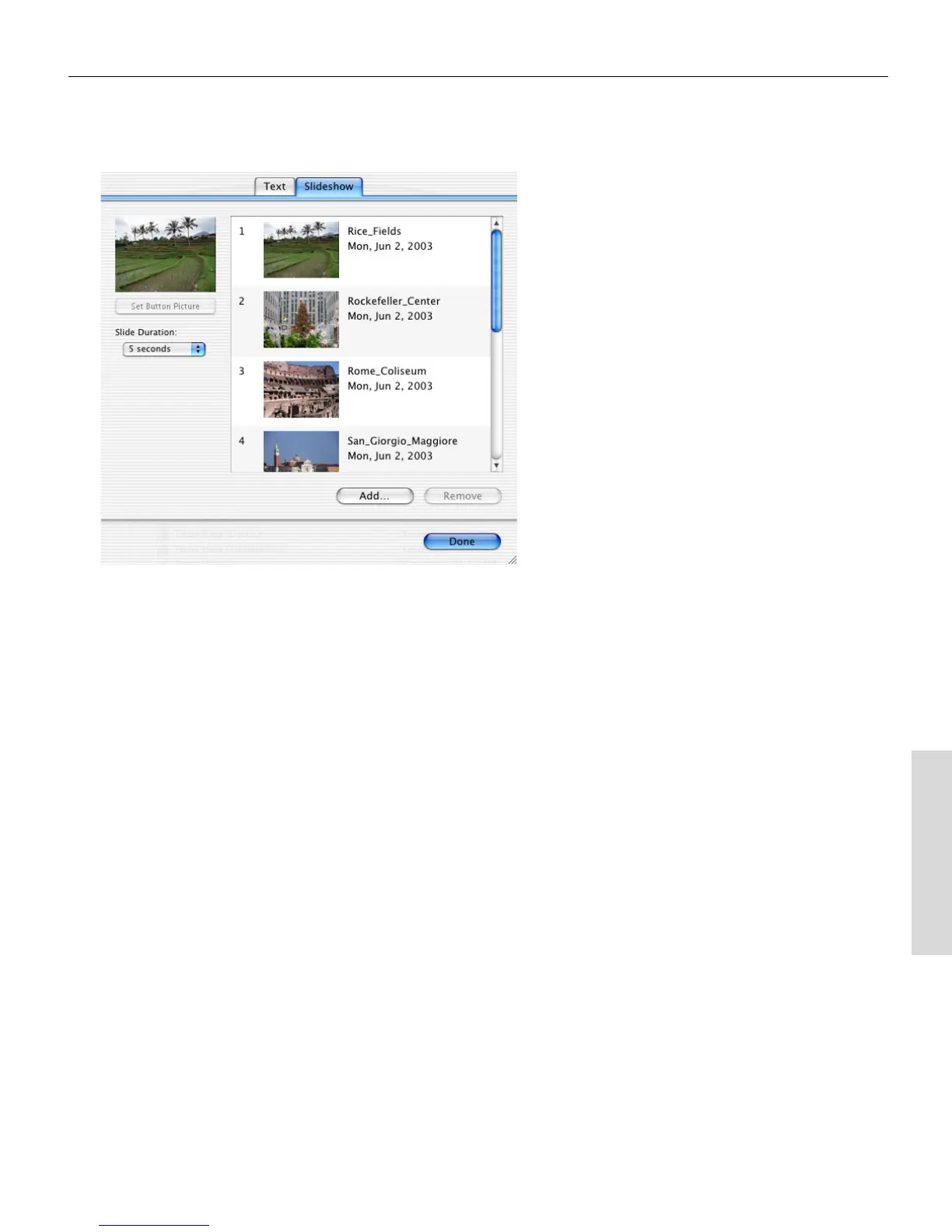
2 In the Edit sheet, click the Slideshow tab.
3 Set the picture of the menu button for this slideshow:
■
In the list of photos, click the photo you want to use as the menu
button picture, then click the Set Button Picture button.
The photo you selected appears in the Button Preview.
4 From the Slide Duration pop-up menu, choose the time period that a
slide displays before it transitions to the next photo in the slideshow:
■
If you want automatic transitions based on number of seconds,
choose the number of seconds.
■
If you do not want slides to automatically transition, choose
Manual. When viewing the final disc, you will be able to advance
to the next slide by using your DVD player’s remote control.
5 You can add photos in either of these ways:
■
Drag one or more photos from the hard disk into the Slideshow
tab.
Toast 6_0 GSG.book Page 91 Tuesday, July 8, 2003 5:32 PM



 To Next Page