Toast 6 Titanium Getting Started Guide
Connecting Your DV Camcorder to the Computer
99
Video/Photo
Overview of Plug & Burn with Additional Content and
Full Editing
1 Plug. Connect your DV camcorder to the computer.
2
Import. Import the video from the camcorder into Toast.
3
Add. Add any other video or slideshows.
4
Edit. Choose which portions of the video files from the DV camcorder
you want Toast to put on the final disc.
5
Burn. Record your video disc.
Connecting Your DV Camcorder to the
Computer
To connect your DV camcorder to the computer:
1 Click the Video tab.
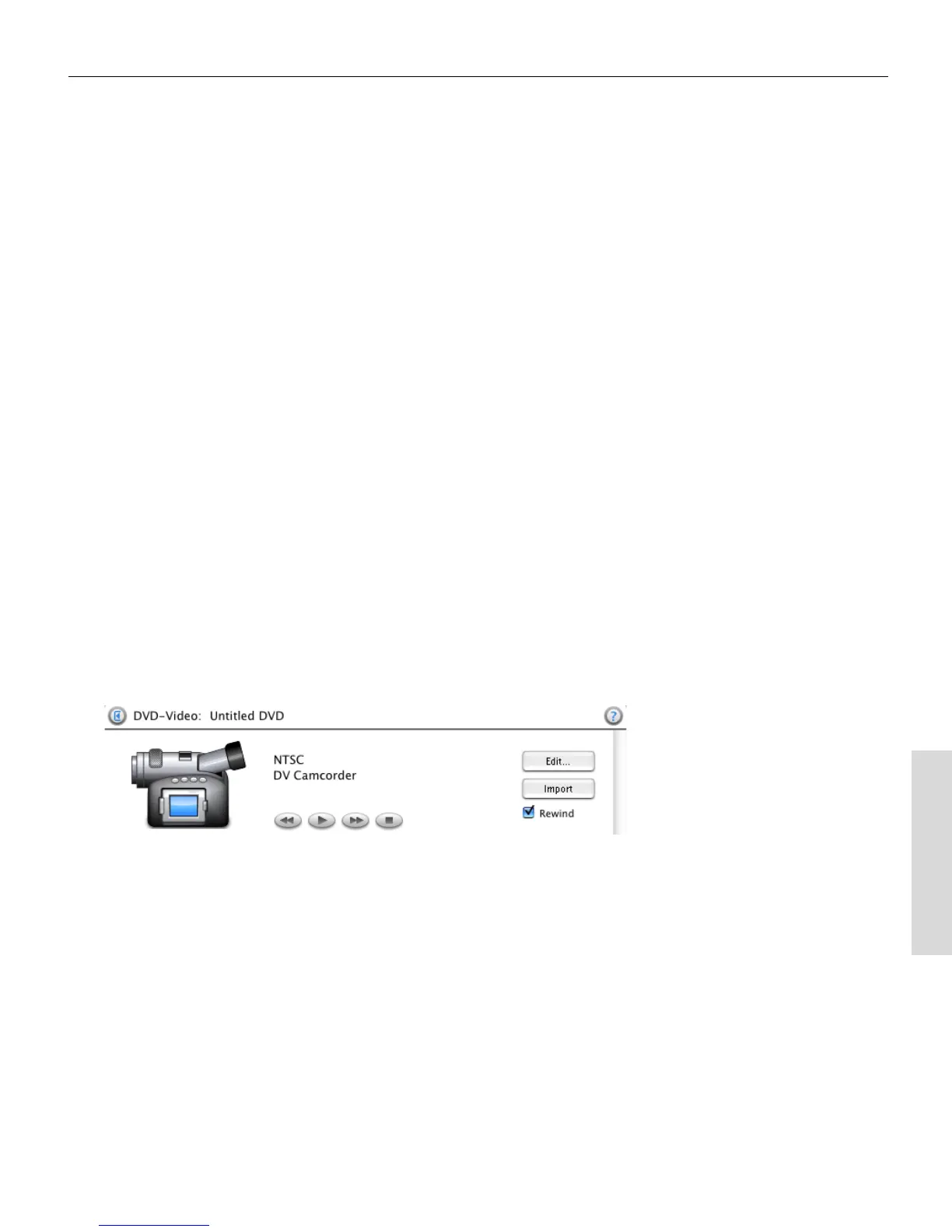
2 Connect your DV camcorder to your computer via a Firewire cable.
Make sure it is turned on and switched to playback mode.
When Toast detects the DV camcorder, an icon appears in the Video
content area.
Toast 6_0 GSG.book Page 99 Tuesday, July 8, 2003 5:32 PM



 To Next Page