4. CONNECTING TO MEDIA- HDMI
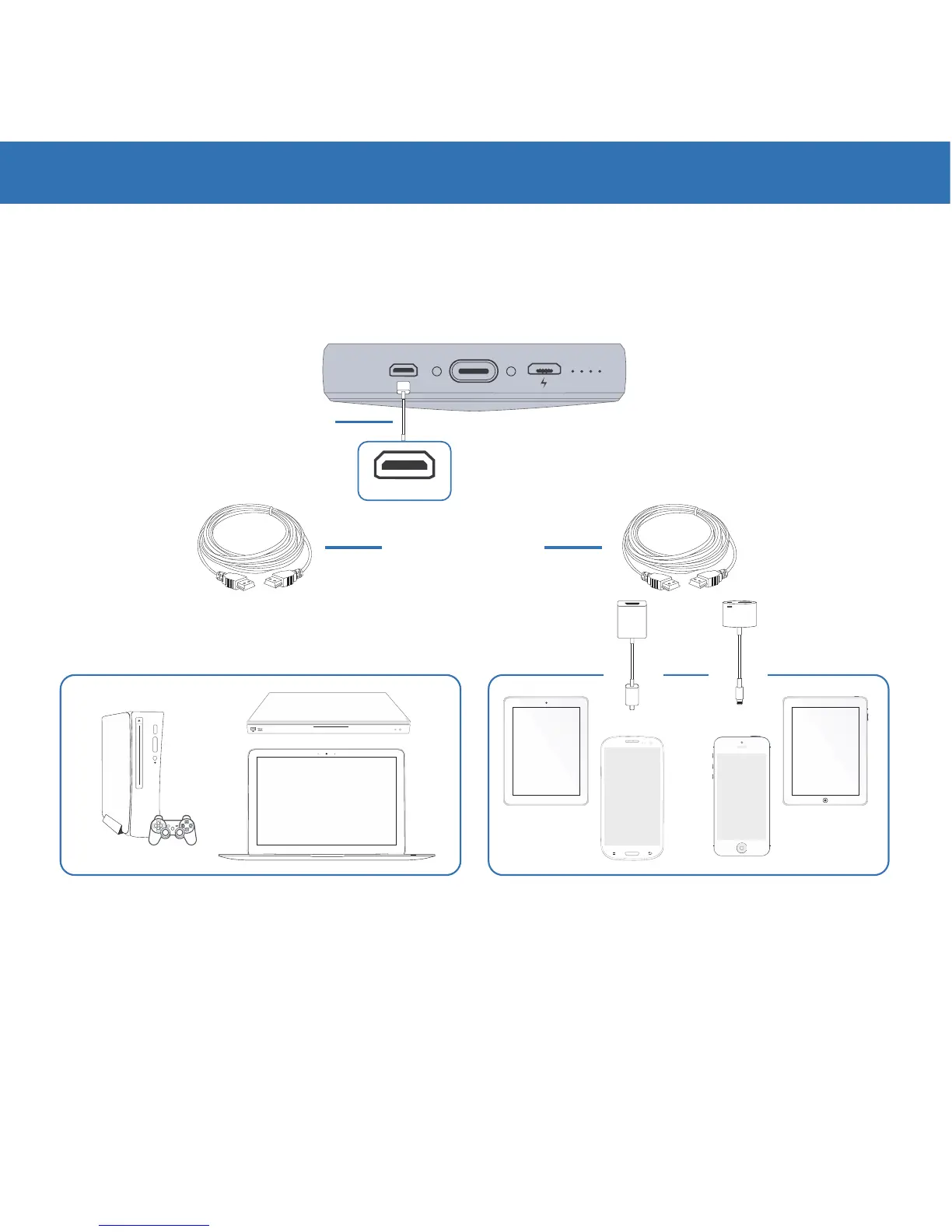
Moon plays media from your computer, smartphone, tablet, Blu-ray™, video
game console, or any mobile device that has an HDMI output. To start, remove
the Micro HDMI to HDMI Adapter found in the package and connect to the Moon
Box. See the instructions below for more information.
For most devices, connect an HDMI Cable (sold separately) to the female HDMI opening in the
included adapter, and the other end of the HDMI Cable to the HDMI output of the content source
device.
Android
™
and Apple
®
smartphones, and iPads
®
and tablets, require a special HDMI Adapter
(sold separately) that plugs into the phone (Apple: Lightning Digital AV, Android: MHL/USB-C
™
).
The open end of the HDMI Cable then plugs into your device's special HDMI Adapter.
Micro HDMI to
HDMI Adapter
(Included)
MHL/USB-C or
Lightning to HDMI
(Sold Separately)*
L
R
++
* Check your device manufacturer’s manual for HDMI Adapter needed
HDMI Cable
(Sold Separately)
MICRO USBMICRO HDMI
Moon Box
HDMI
HDMI
MHL


 To Next Page