P. 6
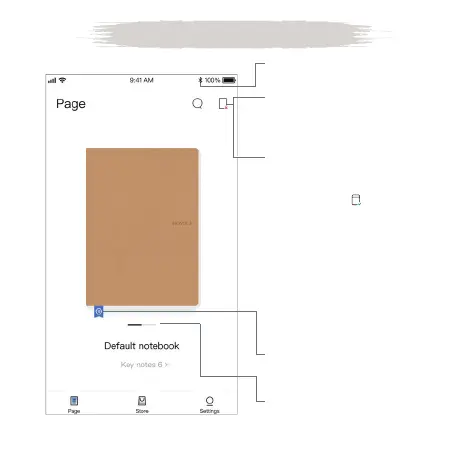
1. Turn on Bluetooth on your
smart device
2. Click to create an account
and follow the instructions
in the App, and log into
the account
3. Click again aer logging
in to search for the device
and connect
When the icon turns green
the device is connected
4. Click to rename the
notebook or change the
cover
5. Swipe le or right to create
a new notebook
Connect the Device
Tips: If your smart device cannot
nd RoWrite 2, please check if your
RoWrite 2 is powered on, and/
or whether the Bluetooth and/or
Location Services on your smart
device are enabled.
Aer the initial connection, RoWrite
will automatically connect to your
smart device.


 To Next Page