Copyright © 2016 Ruckus Wireless, Inc. Page 2 of 4
Published August 2016, Part Number 800-71221-001 Rev B
Figure 5. Complete the Setup Wizard to set up your Unleashed network
H Once the Setup Wizard is finished, a “Configuring system settings and rebooting”
progress screen appears. Wait until the process is complete. This process should
take approximately three minutes.
Figure 6. Configuring system settings and rebooting
I Connect to the WLAN that you configured in the Setup Wizard, and click OK to
reconnect. You will be redirected to the Unleashed login screen.
j Enter your Admin Name and Password to login.
Figure 7. The Login page
K Upon successful login you will be presented with the Unleashed Dashboard, which
displays an overview of your Ruckus Unleashed network.
Figure 8. : The Unleashed Dashboard
L Click OK to save your changes.
Your changes are put into effect immediately. Continue with Step 4: Customize Your
Wireless LANs.
Step 4: Customize Your Wireless LANs
Once the Unleashed Master AP has been initialized, you can fine-tune the settings of your
first WLAN (that you created during the setup wizard), and create any additional WLANs
needed prior to attaching additional Unleashed member APs. Then, when you deploy
additional member APs in whatever order you prefer, they will automatically retrieve all
WLAN configuration settings (and any other settings you have configured) from the
Unleashed Master AP.
A From the Dashboard, click anywhere in the WiFi Networks section to expand the
display of your deployed WLANs.
B On the left side of the screen, select the WLAN box for the WLAN you would like to
configure, and click the Edit button to edit the configuration; or click Create to create
a new WLAN.
C If you made any changes to the original WLAN, you will be disconnected and will
need to reconnect once the changes have been deployed on the AP radios.
Congratulations! Your Unleashed network is now configured and ready for use. You may
now proceed to Step 5: Deploy Additional Unleashed Access Points.
Step 5: Deploy Additional Unleashed Access Points
Deploying additional Unleashed member APs is simply a matter of connecting them to the
same Layer 2 network (subnet) and providing power. They will discover the Unleashed
Master and join automatically. No additional steps are necessary.
(OPTIONAL) MOUNTING INSTRUCTIONS
The AP can be mounted to a drop-ceiling T-bar, flat surface, or a pole using Ruckus
Wireless AP mounting kits. Refer to the following sections:
• Mounting on a Drop-Ceiling T-Bar
• Mounting on a Flat Surface
• Mounting on a Flat Surface or Pole Using the Optional Secure Mounting Bracket
Mounting on a Drop-Ceiling T-Bar
The factory-supplied T-bar mounting assembly kit allows you to attach the AP to recessed
and flush drop-ceiling T-bars.
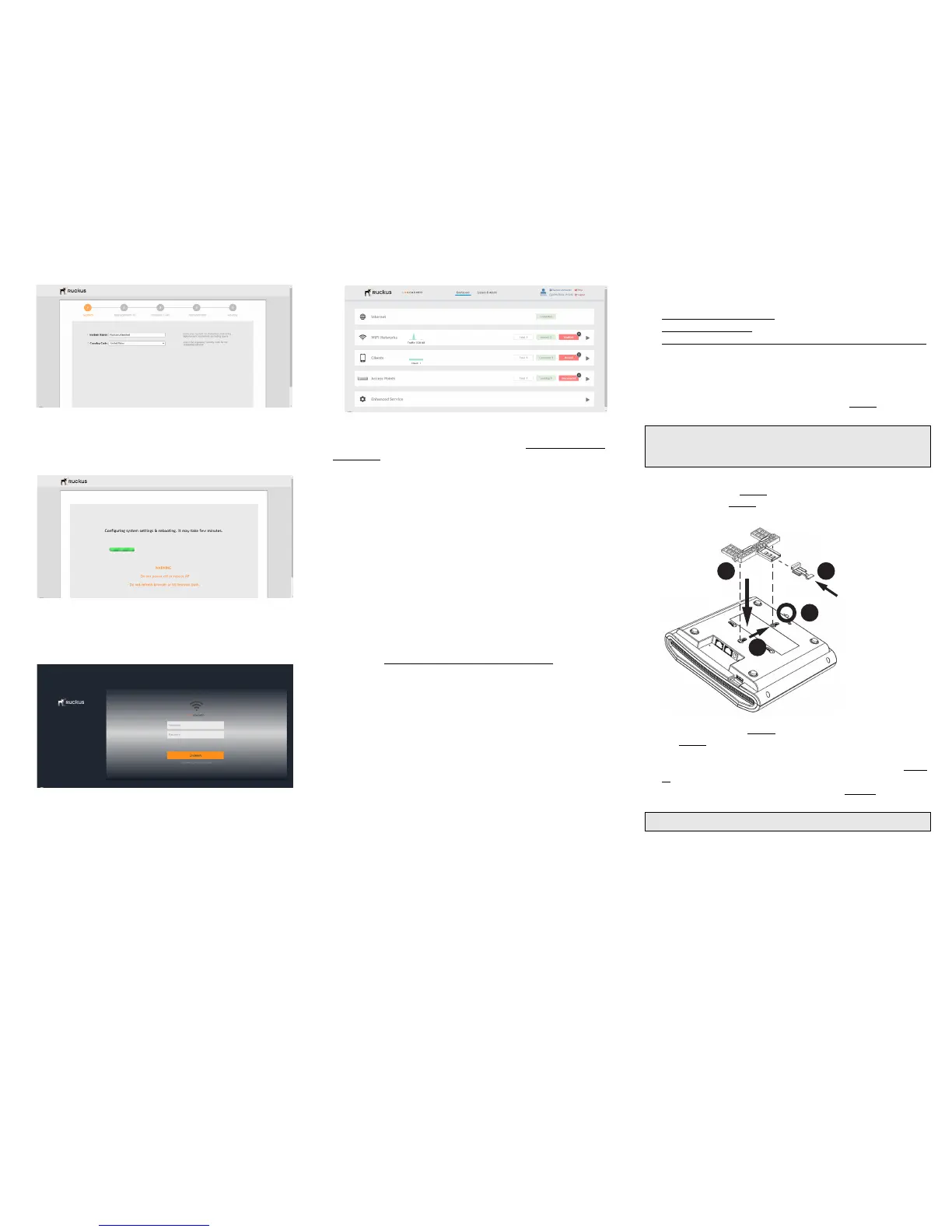
A Position the studs on the bottom of the T-bar bracket (A in Figure 9) in the keyholes
on the AP enclosure.
B Slide the T-bar bracket away from the Ethernet ports on the bottom of the AP until
the AP retainer tab (B in Figure 9) snaps into place, trapping the T-bar bracket studs
in the keyholes (C in Figure 9).
Figure 9. Attaching the T-bar bracket to the AP
A Insert the locking tab (D in Figure 9) so it is in the first position on the T-bar bracket
(A in Figure 9).
B Gently push the ceiling tiles, if present, up and out of the way.
C Position the T-bar bracket so its two clasps grip one edge of the T-bar (A in Figure
10). Make sure that both clasps are gripping the T-bar.
D Hold the AP in place and gently push the locking tab (B in Figure 10) in until its clasp
grips the other edge of the T-bar.
Note: There is a second set of keyholes that are for optional sideways mounting on a
drop-ceiling T-bar. Physical security is not supported when mounting the AP with this
set of keyholes.
Note: Make sure that all three clasps are gripping the T-bar!


 To Next Page
 Loading...