16 17
En
DiSPlay layoutDiSPlay layout
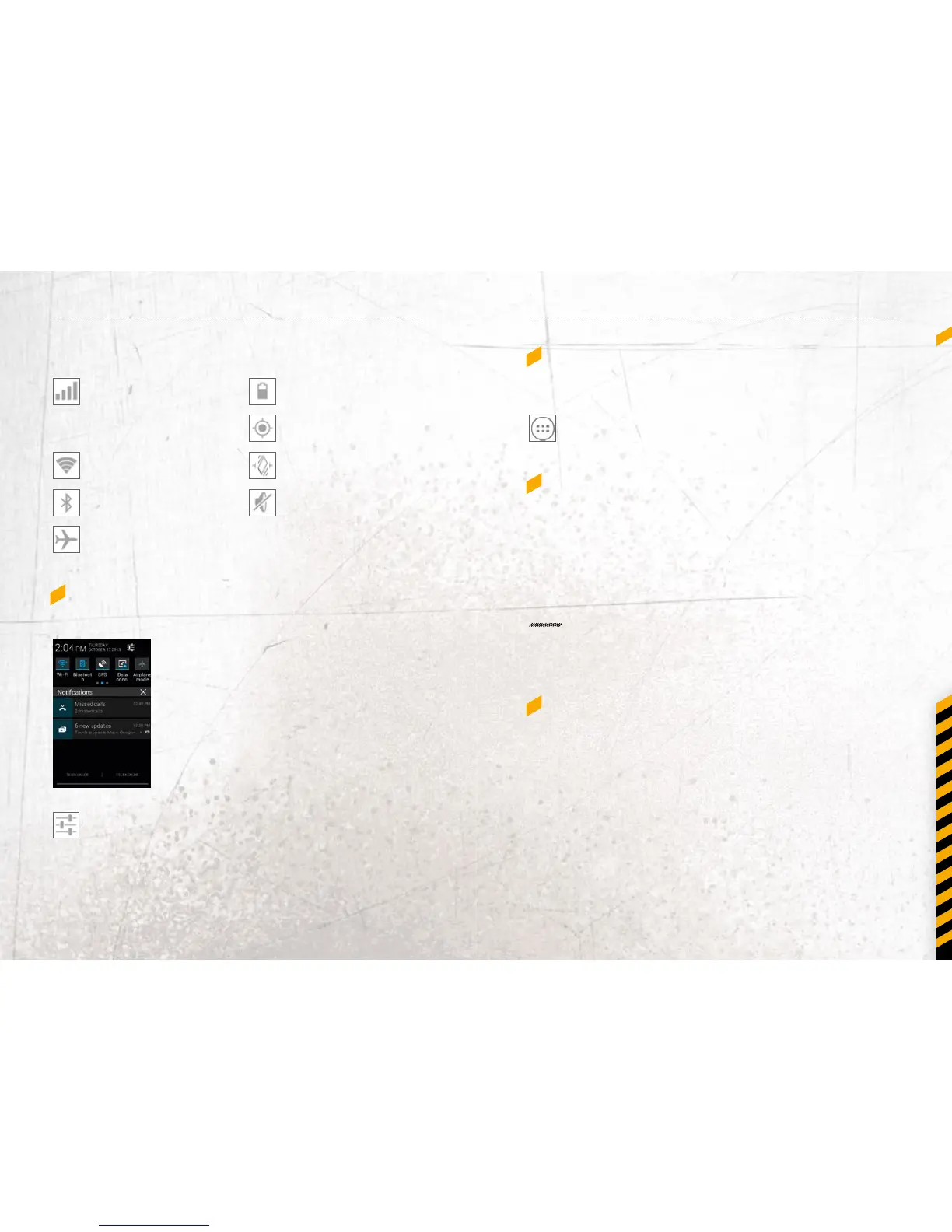
SIM current signal
status, type (E for Edge,
3G for UMTS, H for
HSDPA) and strength
Wi-Fi connection status
and signal strength
Bluetooth® connection
status
Airplane mode (all wire-
less interfaces are o)
Battery power level
indicator
GPS is receiving location
data
Vibration alert only
Silent mode (no ring-
tone, no vibration alert)
7.1.1_NOTIFICATION PANEL
Drag the Status Bar down to reveal the notication panel:
Your tablet will notify you here when you
receive a new message or when there is an
upcoming event. The notication panel also
informs you about alarms, settings and other
relevant information.
Tap a notication to open a related appli-
cation.
To remove notications from the panel,
swipe the notication to the left or to the
right side of the panel.
Use the settings icon in the top right corner of
the notication panel to access system settings.
To close the notication panel, drag the bottom of the panel
to the top of the screen.
STATUS ICONS
7.2_QUICK ACCESS PANEL
Shortcuts to apps placed here are visible on every panel
of the Home Screen.
Tap on the App icon to open up the App Drawer.
Here you can start any App with a tap on its icon.
7.3_HOME SCREEN
Here, you can place shortcuts to apps and widgets.
Widgets are small applications that provide functions and infor-
mation on your Home Screen, like local weather, stock exchange
information or e-mail previews. To use them, add widgets from
the App drawer in the Quick Access Panel.
NOTE
Some widgets connect to web services which might result
in additional charges.
7.3.1_ADDING A NEW SCREEN ITEM
1. Tap on the App icon to open up the App Drawer.
2. Scroll for the app or widget you would like to add
by icking the screen left or right.
3. Tap and hold the icon of the item you want to use and
wait until the screen changes to show your Home Screen.
4. Move the item to the desired place and lift your nger.
To change to a dierent panel of your Home Screen, move
the item to the right or left border of the screen.



 To Next Page