RVision P/N 660904-01 Rev 1 v
Figures
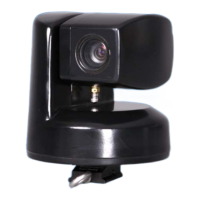
Figure 1: SEE™ camera with QuickConnect Mount/Cable ........................ 2
Figure 2: Connecting the SEE™ to the SEE2PC Integration Tool ............... 3
Figure 3: QuickConnect Mount Cable with a Thule clamp ........................ 4
Figure 4: Slide the camera foot into mount plates shoe .......................... 5
Figure 5: Pull on the eye bolt to insure proper mount ............................. 6
Figure 6: SEE2PC Integration tool ....................................................... 6
Figure 7: RS422 to RS232 Adapter ...................................................... 7
Figure 8: Serial Port Connection to a PC ............................................... 7
Figure 9: SEE2PC Power Cable/Plug ..................................................... 8
Figure 10: Connecting the Power Cable/Plug ......................................... 8
Figure 11: Connector ......................................................................... 9
Figure 12: Connect power to LOOK™ Controller ....................................10
Figure 13: Connect power to the DC adapter .......................................10
Figure 14: HiDef connector
Figure 15: SEE2PC camera integration tool
Figure 16: Serail ports on a PC
Figure 17: File Download dialog box ...................................................15
Figure 18: Save As dialog box ............................................................16
Figure 19: pSEE.zip zipped format ......................................................16
Figure 20: pSEE™ Customer Information dialog box .............................16
Figure 21: File Download–Security Warning dialog box ..........................17
Figure 22: pSEE™ Program dialog box ................................................17
Figure 23: Customer Information dialog box ........................................18
Figure 24: Destination Folder dialog box .............................................18
Figure 25: Ready to Install Program dialog box ....................................19
Figure 26: Installation progress box ...................................................19
Figure 27: InstallShield Wizard Complete dialog box .............................20
Figure 28: pSEE™ Desktop icon .........................................................21
Figure 29: Communication tab page ...................................................21
Figure 30: Pan, Tilt, Zoom tab page ....................................................23
Figure 31: Presets tab page ...............................................................25
Figure 32: Misc tab page ...................................................................26
Figure 33: Manual Commands tab page ..............................................28
Figure 34: Titling tab page ................................................................29
Figure 35: Changing Baud Rate ..........................................................30
Figure 36: Functional elements of the LOOK™ ......................................31
Figure 37: LOOK™ Controller keypad ..................................................33
Figure 38: Connectors ......................................................................37
Figure 39: Cables connected to the LOOK™ .........................................38
Figure 40: Control Panel .................................................................A–1
Figure 41: Network connections .......................................................A–1


 To Next Page
 Loading...