Need help?
Do you have a question about the Sagem MF 5462 and is the answer not in the manual?
General safety rules for powering and connecting the device.
Electromagnetic compatibility information, FCC rules compliance.
Details on laser classification and safety precautions for eye protection.
Location of warning labels on the device for safety.
Identifies power ON/OFF symbols used on the machine.
European certifications (CE mark) and conformity directives.
Manufacturer's commitment to environmental preservation and product disposal.
Terms and conditions for using the provided software.
Legal restrictions on copying certain items like bank notes or passports.
Guidelines for choosing a suitable and safe installation environment for the device.
Important precautions to follow during the operation of the machine.
General safety precautions to be followed when using the product.
Specifics on connecting the device to the power outlet for safe operation.
Guidelines on paper types, loading, and handling to prevent issues.
Precautions for handling the machine, including operator shocks and moving.
Explains symbols used in the manual for warnings, cautions, and notes.
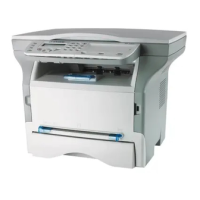
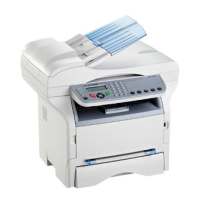
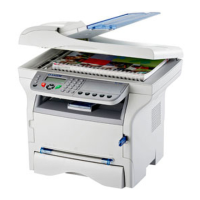
Identifies the various parts and ports of the multifunction terminal.
Details the buttons, keys, and icons on the device's control panel.
Explains how to navigate and use the machine's menu system.
Lists the items included in the product packaging.
Step-by-step instructions for unpacking and setting up the main device.
Instructions for attaching and securing the document feeder unit.
Guidance on correctly inserting paper into the feed cassette.
Steps for unpacking and installing the toner cartridge.
How to adjust the paper delivery stop for different print formats.
Steps to connect and power on the multifunction machine for the first time.
Instructions for connecting power and telephone lines.
Guided setup process for language, country, and network settings.
How to perform a basic copy using default settings.
Using ECO mode to reduce toner consumption for lighter prints.
Customizing copy settings for quality, layout, and features.
Specific procedure for copying both sides of an ID card onto a single page.
Setting up default copy configurations that can be saved.
Adjusting the scan resolution for photocopies.
Defining which paper tray to use for copying operations.
Adjusting lateral margins for printed output.
Adjusting vertical margins for printed output.
Defining default paper formats for trays and scanning.
Procedures for sending faxes, including header pages.
Sending a fax immediately after placing the document.
Scheduling fax transmission for a later time.
Using auto redial for fax transmissions and manual line control.
Settings and options for receiving faxes automatically.
Using the fax machine to relay documents to other subscribers.
Setting up and using the fax answering machine for storing documents.
How to set a security code for the fax answering machine.
Turning the fax answering machine on or off.
Retrieving and printing stored fax messages.
Forwarding received faxes to another directory contact.
Enabling the fax rerouting feature.
Specifying the destination for rerouted faxes.
Archiving received faxes onto a USB memory key.
Managing documents queued for fax transmission.
Using confidential fax mailboxes for sending and receiving.
Setting up a new confidential fax mailbox.
Depositing documents into your local fax mailbox.
Depositing documents into a remote fax mailbox.
Retrieving documents from a remote fax mailbox.
Managing document deposits and polling for retrieval.
Configuring sender identification and SMS center number.
Step-by-step guide for composing and sending SMS messages.
Monitoring SMS communications via outbox, logs, and memory.
Setting automatic adjustment for summer/winter time.
Setting the current date and time on the machine.
Enabling automatic adjustment for daylight saving time.
Configuring fax number and name for transmitted documents.
Selecting network connection type (PSTN or PABX).
Configuring country and language settings for optimal operation.
Setting an outgoing prefix for private network (PABX) use.
Configuring the type of transmission reports generated.
Choosing how documents are fed for transmission (feeder or memory).
Setting off-peak hours to reduce communication costs.
Selecting how the machine handles incoming faxes/voice calls.
How the machine handles reception when the printer is unavailable.
Setting the number of copies for received documents.
Choosing where incoming faxes are received (fax or PC).
Automatically resizing received faxes to fit the page format.
Reducing received faxes for printing (automatic or manual).
Adjusting various technical settings for optimal machine performance.
Printing a guide detailing all machine functions and menus.
Printing incoming/outgoing transmission logs and SMS logs.
Setting an access code to prevent unauthorized use of the device.
Disabling the machine's keyboard without an access code.
Disabling direct dialing and keypad entry, allowing only directory calls.
Preventing access to the SMS sending service.
Restricting access to USB key functions.
Viewing counters for pages sent, received, scanned, and printed.
Checking the remaining toner level in the cartridge.
Performing scanner calibration for improved copy quality.
Adding new contact entries to the machine's directory.
Organizing contacts into groups or subscriber lists.
Editing existing contact details or group information.
Removing contacts or entire lists from the directory.
Printing the entire address book or selected parts.
Backing up and restoring directory data using a smart card.
Instructions and options for playing the Sudoku game.
Printing Sudoku grids of varying difficulty levels.
Printing the solution for a selected Sudoku grid.
Function to print a calendar for a specified year.
Explains infrastructure vs. ad-hoc radio networks (WLAN).
How devices connect via a central access point.
How devices connect directly without an access point.
Steps to incorporate the machine into a WLAN network.
Connecting the WLAN USB key to the machine.
Setting up network parameters for WLAN connection.
Step-by-step guide to connect to or create a WLAN network.
Modifying network settings like IP address, SSID, and security.
Detailed steps to configure the machine for a WLAN network.
Important guidelines for inserting and removing the USB key.
Printing files from the USB memory key.
Printing a list of files available on the USB key.
Printing specific files from the USB memory key.
Deleting files from the USB memory key.
Re-accessing and viewing the contents of the USB memory key.
Digitizing and saving documents from the scanner to a USB key.
Connecting the DECT base to the machine's USB port.
Adding additional DECT handsets to the base for use.
Adjusting handset ringing time and flash duration.
Removing a handset from the DECT base.
Overview of the Companion Suite Pro software and its capabilities.
Minimum PC specifications for installing Companion Suite Pro.
Procedures for installing the Companion Suite Pro software.
Step-by-step guide to install the complete software suite.
Procedures for installing only the printer and scanner drivers.
Installing drivers via the software package.
Manual installation of printer and scanner drivers.
Instructions for connecting the PC to the multifunction machine via USB.
Overview of management applications like Companion Monitor and Director.
Monitoring machine status, activities, and consumables.
Interface for managing the multifunction machine and its software.
Selecting and managing connected devices within the software.
Features like document analysis and character recognition.
Analyzing documents using the SCAN TO function or other applications.
Converting scanned documents or images into editable text.
Printing documents from the PC via USB or WLAN connection.
Storing and managing contact numbers for fax and SMS.
Sending, receiving, and monitoring fax transmissions.
Procedures for sending faxes from the PC.
Sending documents directly from desktop applications as faxes.
Monitoring fax activity through logs, outbox, and inbox.
Sending and managing SMS messages from the PC.
General guidelines and recommendations for keeping the machine in good condition.
Step-by-step instructions for replacing the toner cartridge.
Troubleshooting common problems related to smart card usage.
Procedures for cleaning internal and external parts of the machine.
Cleaning the scanner glass to resolve vertical line issues.
General cleaning recommendations for the printer's internal and external surfaces.
Cleaning the outer surfaces of the printer.
Cleaning rollers in the document feeder to resolve transport issues.
Explains error messages related to printer problems like paper jams or toner.
Troubleshooting scanner problems, including paper jams and document detection.
Resolving general problems like no display or document detection errors.
Explaining error codes related to failed fax or data transmissions.
How print jobs are handled after encountering issues like paper jams or connection loss.
Instructions for updating the machine's firmware using the PC.
Dimensions and weight of the multifunction device.
Power supply requirements and electricity consumption details.
Operating temperature and humidity ranges for the device.
Technical details for the printer, copier, and scanner components.
Information on paper tray capacities and supported paper formats.
Details on USB and WLAN connections, and supported operating systems.
Information on reference paper and toner cartridge models.
 General
| Brand | Sagem |
|---|---|
| Model | MF 5462 |
| Category | All in One Printer |
| Language | English |

 To Next Page