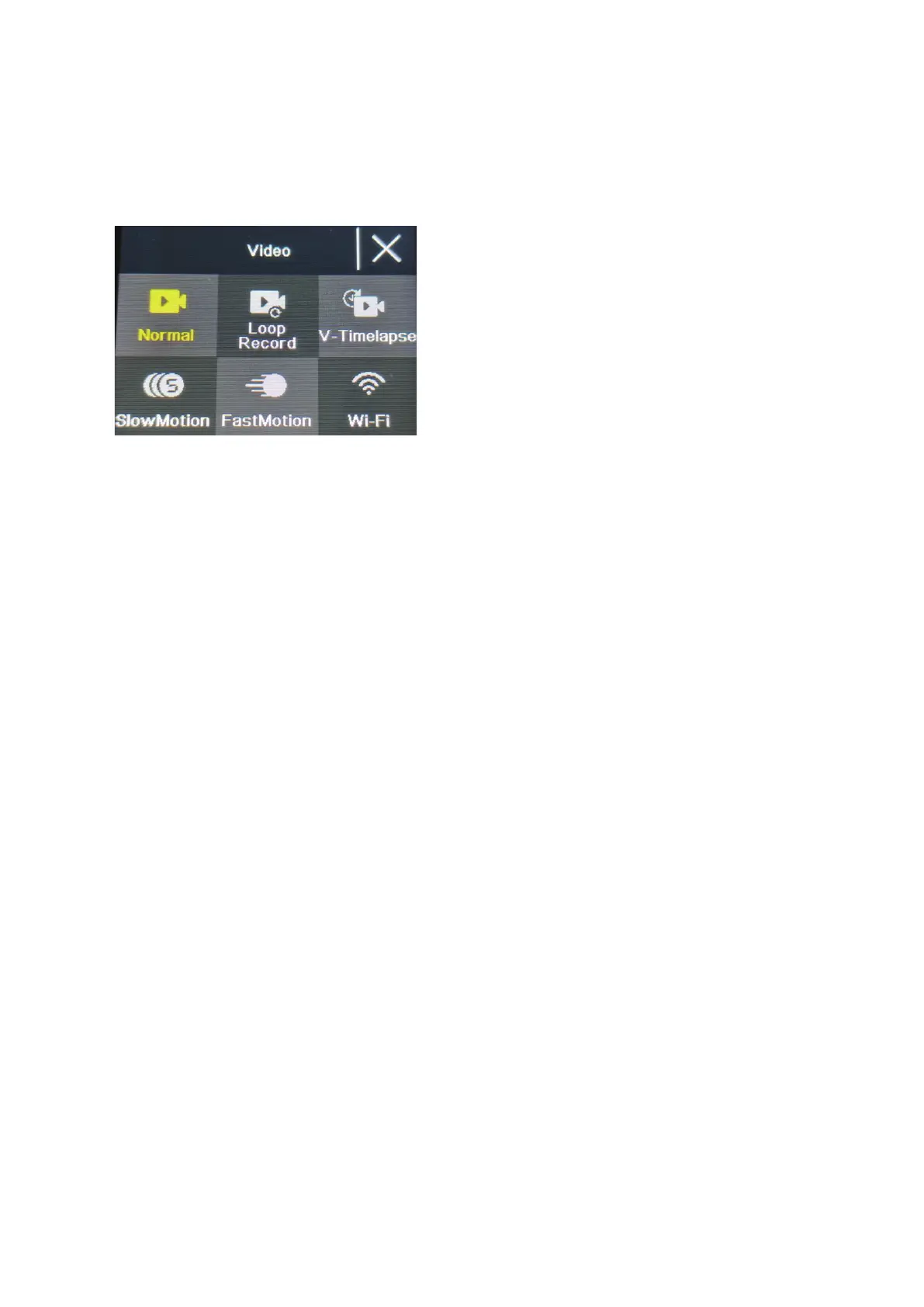
On the menu in terface, press the up/down button to switch between different setting menus:
Current mode setting→Camera system setting→Exit. Press OK button to enter the lower menu.
Press the up and down buttons to select the setting item, press the OK button to confirm, press
the mode bu tton to return to the upper level or exit.
Video recording function
Normal recording
In recording mode, short press OK button to start recording. At this time, the recording duration
is showing. Short press the "OK button" again, the camera stops recording and saves the file.
Loop r ecording
On the photo a nd video mode selection in terface, select loop recording. After entering loo p
recording mode, the loop recording icon will be displayed in the upper left corner of the screen.
In the loop recording menu, you can set the length (1 minute, 3 mi
nutes, 5 minutes) and video
resolution of each video in the loop recording, press the "OK bu tton" to start the loo p recording.
Time-lapse video
Select time-lapse video on the photo and video mode selec tion interface. After entering the
time-lapse video mod e, the time-lapse video icon will be displayed in the upper left corner of the
screen. Time-lapse recording parameters (1 second, 3 seconds, 5 seconds, 10 seconds, 30
seconds, 1 minutes) and video resolution can be set in
the time-la pse recording menu, and press
"OK" to start time-lapse recording.
Slow motion video
Select slow motion video on video mode selection interface. After entering the slow motion
video mode, the slow motion icon will be displayed in the upper left corner of the screen, and
press the "OK button" to start recording.
Photo function


 To Next Page