4.7
SAMON GLACIÄR app features
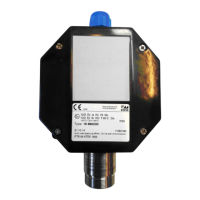
The “SAMON GLACIÄR” app lets users fully exploit the potential of the new GLACIÄR MIDI series gas detectors, allowing
simple and intuitive interaction with the gas detector. This simplifies configuration by using a smartphone to interface
with the GLACIÄR MIDI gas leakage detectors.
The SAMON GLACIÄR app is available on the ANDROID store and on the IOS App Store.
SAMON GLACIÄR can be used to perform the following functions:
• Configuration: modify alarm thresholds, configure Modbus settings, modify relay behaviour, and manage analogue output
settings
• Maintenance: check correct functioning of the device
• Calibration, complete with calibration report
• Display of current gas concentration measurement and indication of alarm/fault status
4.7.1 Connecting the device via Bluetooth
Before connecting to the device via the SAMON GLACIÄR app, first make sure that the BLUETOOTH connection and
GEOLOCATION are enabled on the smartphone used (Android only).
Make sure that Bluetooth mode has been activated on the GLACIÄR MIDI using the magnetic key, as described in the
previous chapter.
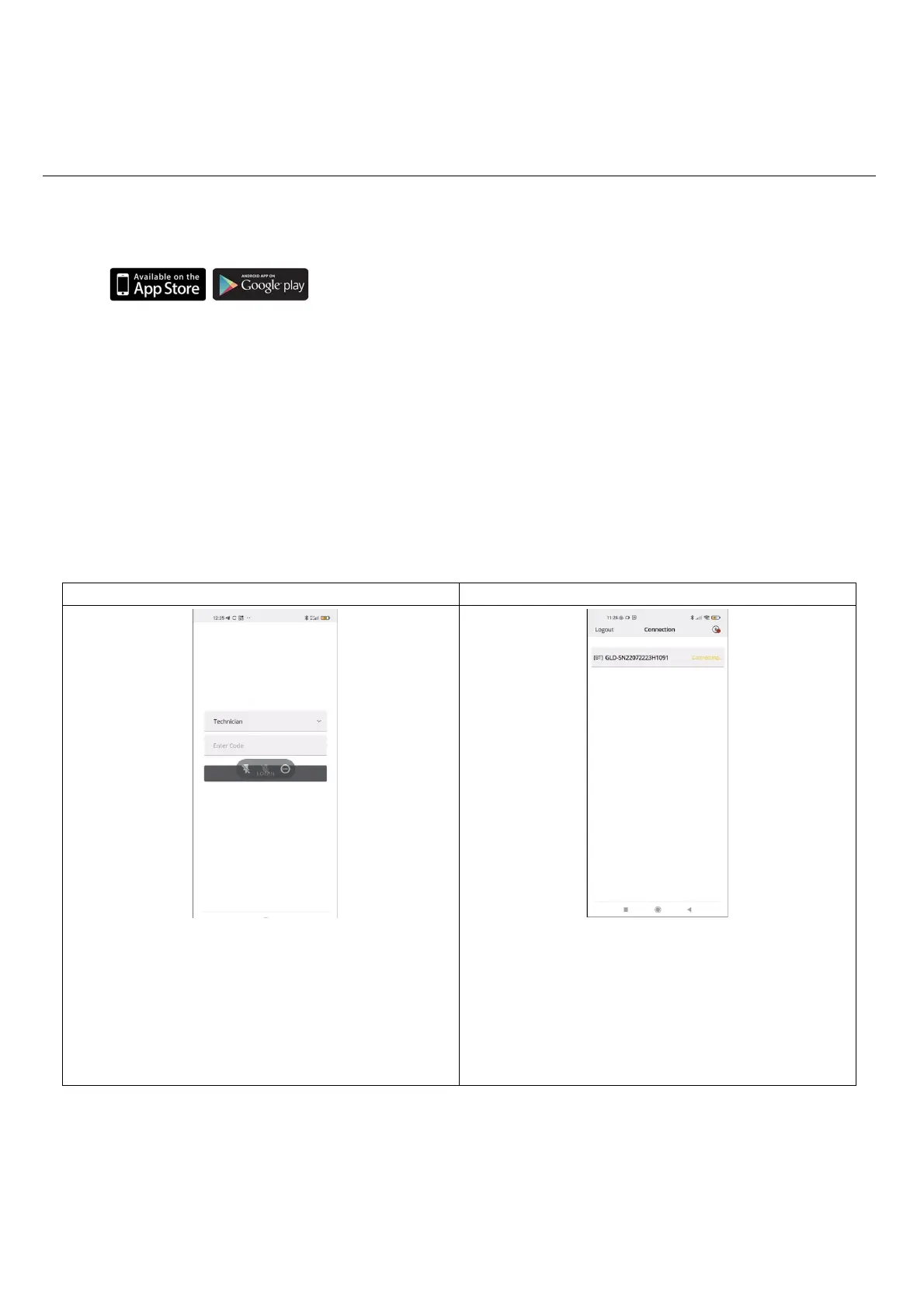
Open the SAMON GLACIÄR app (previously downloaded); the following screen is displayed.
Bluetooth connection screen
Select:
• Operator, to continue displaying the gas detector variables
and parameters.
• Technician, for password access and the possibility to set the
parameters and variables.
The password to unlock the device is 2222.
If all the functions described above have been enabled on the
smartphone and the GLACIÄR MIDI is in Bluetooth mode, the
available devices are shown on the app screen. If this is not the case,
touch the app screen to refresh the display.
Verify that the serial number on the label of the device being
connected matches the one displayed on the screen.
Select the correct device and verify correct connection. The
Bluetooth symbol at the top right changes from red to green.



 To Next Page