EasyManua.ls Logo

Samson Go Mic - Getting Started with Windows Vista

Samson Go Mic
28 pages
Print Icon
To Next Page IconTo Next Page
To Previous Page IconTo Previous Page
Loading...
Getting
Started
with
Windows
Vista
1.
The first
time
you
plug
the
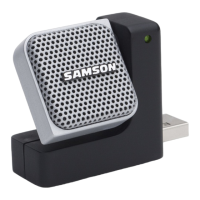
Go Mic
into
a
USB
port, Windows Vista will install
the
universal drivers for
that
port. A
balloon
tip
will
pop
up, telling
you
it
has
"Found
new
Hardware':
2.
When
it
is
finished
installing
the
drivers,
it
will
say
"Your
new
hardware
is
installed
and ready
to
use':
Note:
This
balloon
will
not
pop
up
again
for
the
same
USB
port.
3.
To
set
the
Go
Micas
your
default
device
for sound playback
and recording,
or
to
change its settings, click
the
Start
button,
Installing
the
Go Mic
·
Sou
nd
Stltd
a record•ng
dtvtct
below
to
modrfy
1ts
settmgs
:
,-
Mtcrophone
t
[..
r ;
'-
...-if(
••.•
Microphone
1(1,
t
t
r
•t
j
CD
AUdiO
+
C'•
·~
<I
'-
Ml<rophono
!:I
r:s,.,
C
Me
~
,
...
t -
l
Conflquro
[
.
'
,
'
I
I
--1
[
Proport,.s
1
:
click
Control Panel
and
then
click Sound.
So..nd
Under
the
Playback and
Recording tabs,
you can
select
the
Samson
GoMic
from
the
menus and use
the
Set Default
button
to
set
it
as
the
default
device. (figure
8).
4.
To
set
the
gain
of
the
microphone, make
sure
the
Samson GoMic
is
selected
in
the
Recording
tab
and
click
the
Properties
button.
Under
the
Levels tab, move
the
Microphone slider
to
adjust
the
analog
amplifier
circuitry in
the
microphone
(figure
9).
9
M1crophont
0
100 4 1

Related product manuals