EasyManua.ls Logo

Samsung 4300 Series - User Manual

Samsung 4300 Series
45 pages
Print Icon
To Next Page IconTo Next Page
Loading...
* (Mexico only) If you have any questions, please call us at 1-800-SAMSUNG (1-800-726-7864) for assistance.
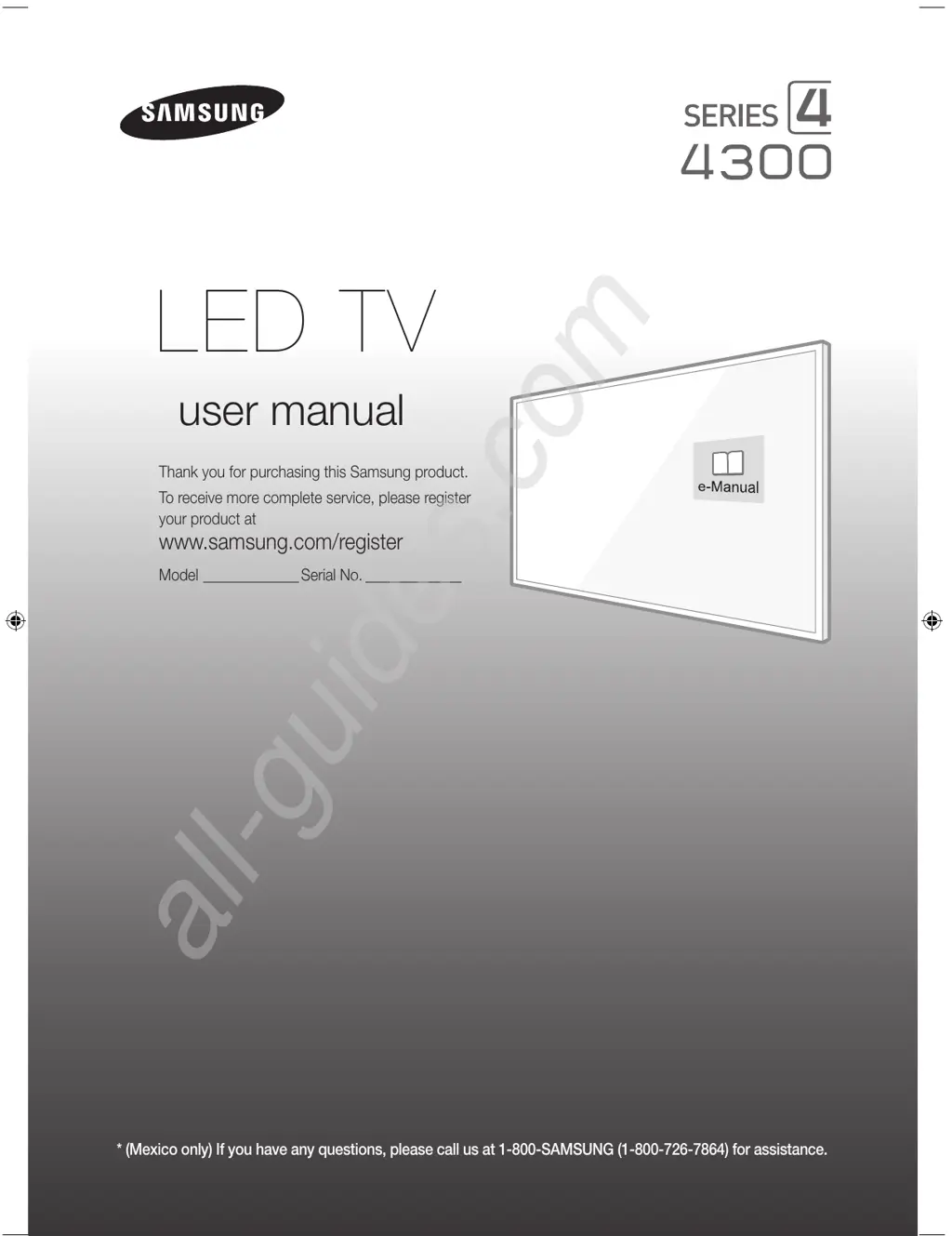
Thank you for purchasing this Samsung product.
To receive more complete service, please register
your product at
www.samsung.com/register
Model _____________Serial No. _____________
user manual
LED TV
[J4300-ZX]BN68-07181B-01L02.indb 1 2015-04-15 오후 4:03:37
All manuals and user guides at all-guides.com
all-guides.com

Other manuals for Samsung 4300 Series

Questions and Answers

  • M
    Mrs. Gabrielle GriffinSep 9, 2025
    Why is there picture but no sound on my Samsung LED TV?
    • C
      Carl MartinSep 9, 2025
      If the picture is good but there is no sound on your Samsung LED TV, navigate to Sound and set Speaker Select to TV Speaker. If using an external device, check its audio output option. If using a DVI to HDMI cable, a separate audio cable is required. Also, ensure nothing is plugged into the headphone jack and reboot the connected device.
  • G
    george24Aug 23, 2025
    How to stop my Samsung LED TV from flickering?
    • D
      Dana ReynoldsAug 23, 2025
      If your Samsung LED TV is flickering or dimming sporadically, disable the energy efficiency features. You can disable Energy Saving in the Eco Solution settings.
  • M
    Melissa CarterAug 25, 2025
    What to do if my Samsung 4300 won't turn on?
    • R
      Ricardo SalinasAug 25, 2025
      If you are having problems powering on your Samsung LED television, check the power cord connection and ensure the remote control is working. Also, check the antenna cable connection or ensure the cable/satellite box is turned on.
  • S
    Steve HunterAug 27, 2025
    Why is there no sound on my Samsung 4300 LED TV?
    • C
      Curtis WhiteAug 27, 2025
      If there is no sound or the sound is too low at maximum volume on your Samsung LED TV, please check the volume of the device connected to your TV, such as a cable/satellite box, DVD, or Blu-ray player.
  • A
    Anthony ColemanAug 28, 2025
    How to adjust brightness on Samsung LED TV?
    • J
      Julia RoachAug 28, 2025
      If you find that the colors on your Samsung LED TV are correct but too dark or bright, adjust the picture settings. Navigate to Picture and adjust Backlight/Cell Light, Contrast, Brightness, Sharpness, Color, Tint and other picture quality settings.
  • T
    Tanya YoungAug 29, 2025
    Why is the picture distorted on my Samsung LED TV?
    • K
      Katelyn JohnsonAug 29, 2025
      If the picture on your Samsung LED TV is distorted, it might be due to video content compression, especially in fast-moving scenes, or a weak signal. Also, mobile phones used close to the TV may cause noise.
  • D
    Donna ZimmermanSep 18, 2025
    Why do 3D images not look right on my Samsung 4300?
    • L
      lmartinezSep 18, 2025
      The ideal viewing distance for 3D images on your Samsung LED TV is three times or more the height of the screen. It is also recommended to sit with your eyes level with the screen.
  • N
    Nathaniel BlackSep 22, 2025
    How to make the batteries in my Samsung 4300 3D glasses last longer?
    • D
      donaldharrisSep 22, 2025
      To prolong the battery life of the 3D glasses for your Samsung LED TV, turn them off when you are not using them. Leaving them on shortens the battery lifespan.
  • D
    David EscobarSep 8, 2025
    How to find channels on Samsung 4300 LED TV?
    • A
      Alexander HatfieldSep 8, 2025
      To find a channel on your Samsung LED TV, run Setup or Auto Program in the Broadcasting settings.
  • K
    kelleybarbaraSep 4, 2025
    Why is the color missing on my Samsung LED TV?
    • M
      Mrs. Alyssa GutierrezSep 5, 2025
      If you’re using a Component connection on your Samsung LED TV, make sure that the component cables are connected to the correct jacks. Incorrect or loose connections may cause color problems or a blank screen.

Summary

Important Safety Instructions

CAUTION: RISK OF ELECTRIC SHOCK DO NOT OPEN

Safety warning about electrical shock and the need for qualified personnel for servicing.

Features of your new TV

SMART HUB

Multi-purpose entertainment center for web browsing and app downloads.

01. Whats in the Box?

Included Accessories

Lists essential items such as remote control, batteries, manuals, power cord, and wall mount adapter.

02. Turning on the TV and Cabling

Turning on and Controlling the TV

Explains how to use the TV's built-in controller for basic functions without a remote.

03. Using the Remote Control

Remote Control Functions

Details the buttons and their functions for operating the TV and accessing features.

04. Connections

06. Troubleshooting and Maintenance

Troubleshooting Common Issues

Addresses common problems like power, picture, video, and remote control malfunctions with remedies.

Network Troubleshooting

Improving Wireless Signal

Tips on positioning your wireless router and using repeaters for better signal strength.

Getting Remote Support

Mounting the TV on a Wall Using the Wall Mount Kit (Optional)

Securing the TV to the Wall

To Prevent the TV from Falling

Instructions and safety precautions for securely attaching the TV to a wall to prevent tipping or falling.

Samsung 4300 Series Specifications

General IconGeneral
Display TypeLED
HDMI Ports2
USB Ports1
Refresh Rate60 Hz
Screen Size43 inches
Audio Output20W

Related product manuals