10 Operating Instructions and Installation
10-2
2,3. Adjust buttons
Adjust items in the menu.
4. Enter button / SOURCE button
Activates a highlighted menu item. /
Push the 'SOURCE', then selects the video signal
while the OSD is off. (When the source button is
pressed to change the input mode, a message
appears in the center of the screen displaying the
current mode -- analog or digital input signal.)
Note : If you select the digital mode, you must
connect your monitor to the graphic card's port
using the DVI cable.
5. AUTO button
Use this button for auto adjustment.
(Available in Analog mode only)
6. Power button
Use this button for turn the monitor on and off.
Power indicator
This light glows green during normal operation,
and blinks green once as the monitor saves your
adjustments.
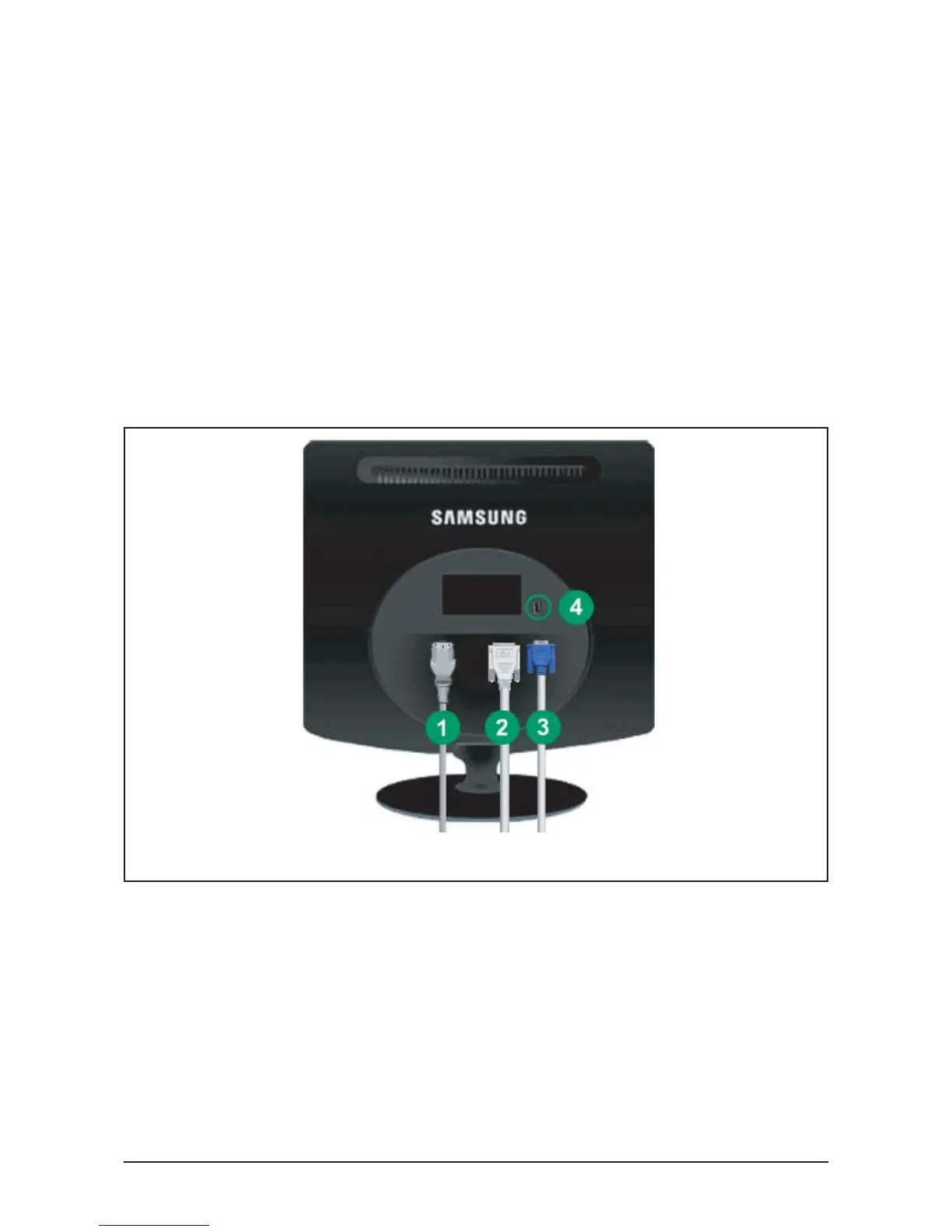
10-2 Rear
(The configuration at the back of the monitor may vary from product to product.)
1. Power port
Connect the power cord for your monitor to the power port on the back of the monitor.
2. DVI IN port
Connect the DVI cable to the DVI port on the back of your monitor.
3. RGB IN port
Connect the signal cable to the 15-pin, D-sub port on the back of your monitor.
4. Kensington Lock
The Kensington lock is a device used to physically fix the system when using it in a public place.





 To Next Page