Basics
33
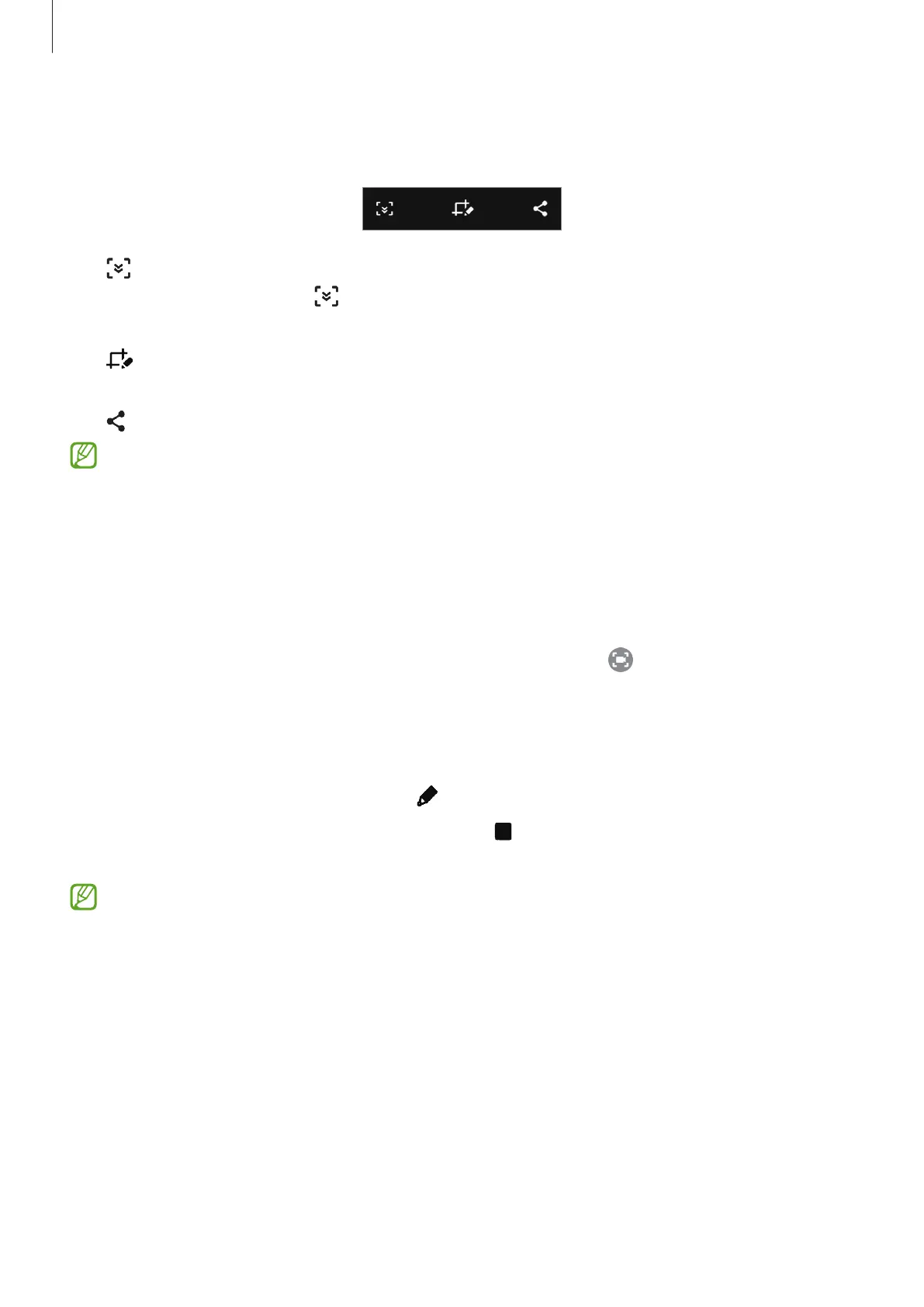
After capturing a screenshot, use the following options on the toolbar at the bottom of the
screen:
•
: Capture the current content and the hidden content on an elongated page, such as a
webpage. When you tap
, the screen will automatically scroll down and more content
will be captured.
•
: Write or draw on the screenshot or crop a portion from the screenshot. You can view
the cropped area in
Gallery
.
•
: Share the screenshot with others.
If the options are not visible on the captured screen, launch the
Settings
app, tap
Advanced features
→
Screenshots and screen recorder
, and then tap the
Screenshot
toolbar
switch to activate it.
Screen record
Record the screen while using your device.
1 Open the notification panel, swipe downwards, and then tap (
Screen recorder
) to
activate it.
2 Select a sound setting and tap
Start recording
.
After a countdown, recording will start.
•
To write or draw on the screen, tap .
3 When you are finished recording the video, tap .
You can view the video in
Gallery
.
To change the screen recorder settings, launch the
Settings
app and tap
Advanced
features
→
Screenshots and screen recorder
.







 To Next Page