Settings
88
Making payments with the NFC feature
Before you can use the NFC feature to make payments, you must register for the mobile
payment service. To register or get more information about the service, contact your service
provider.
1 On the Settings screen, tap
Connections
and tap the
NFC and contactless payments
switch to activate it.
2 Touch the NFC antenna area on the back of your device to the NFC card reader.
To set the default payment app, open the Settings screen and tap
Connections
→
NFC and
contactless payments
→
Contactless payments
→
Payment
, and then select an app.
The payment services list may not include all available payment apps.
Data saver
Reduce your data usage by preventing some apps running in the background from sending
or receiving data.
On the Settings screen, tap
Connections
→
Data usage
→
Data saver
and tap the switch to
activate it.
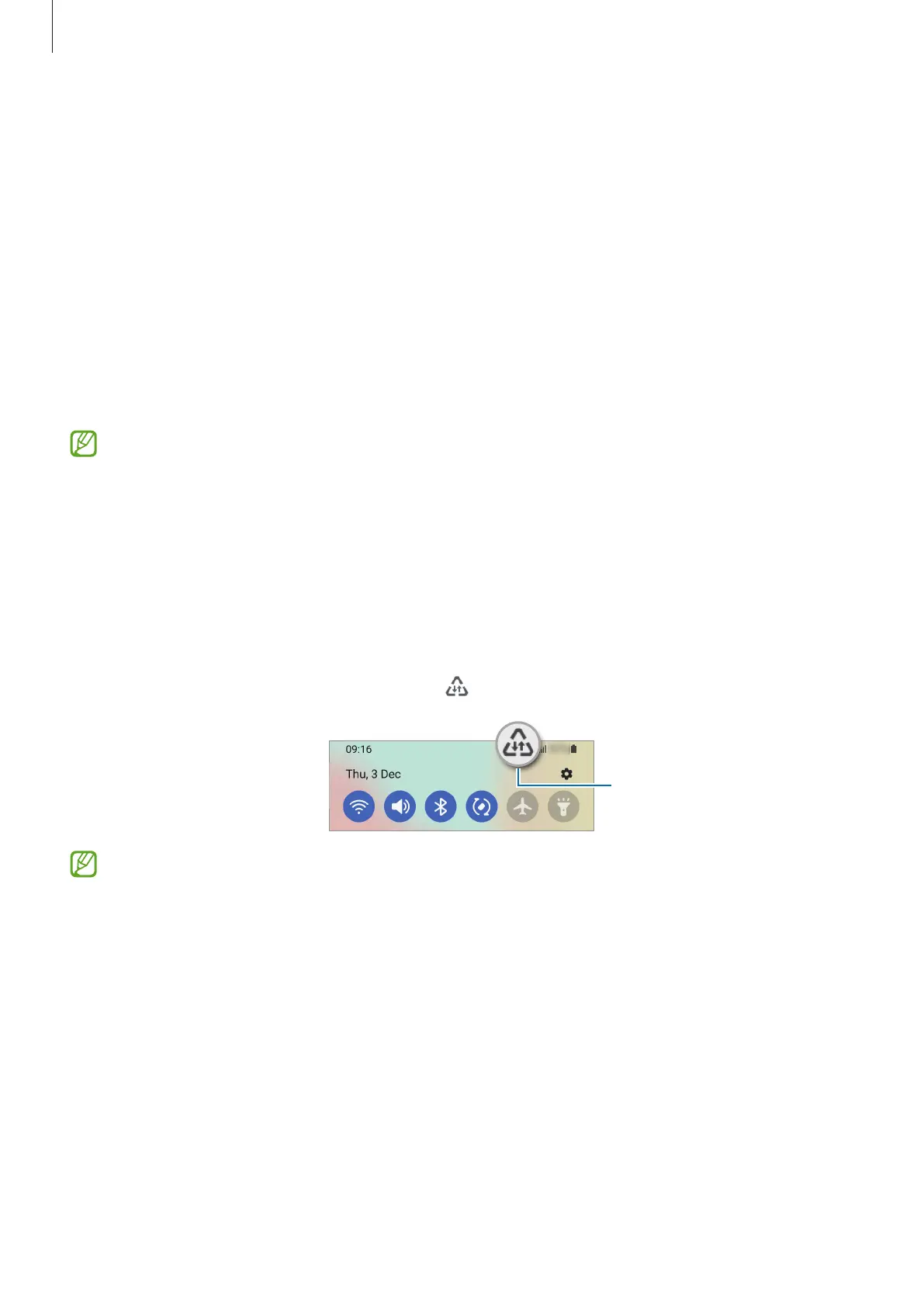
When the data saver feature is activated, the
icon will appear on the status bar.
Data saver feature activated
To select apps to use data without restriction, tap
Allow to use data while Data saver is
on
and select apps.



 To Next Page