8
GB
What to Do if You are in Doubt or You have a Problem
Becoming familiar with a new appliance always takes a little time. If you
have any of the problems listed below, try the solutions given. They may
save you the time and inconvenience of an unnecessary service call.
◆
The following are normal occurrences.
• Condensation inside the oven
• Air flow around the door and outer casing
• Light reflection around the door and outer casing
• Steam escaping from around the door or vents
◆
The food is not cooked at all
• Has the timer been set correctly, and the
Start/Scan On
function pressed?
• Is the door close?
• The electric circuit may have been overloaded, and may have caused the fuse to
have blown.
◆
The food is either overcooked or undercooked
• Was the appropriate cooking length set for the type of food?
• Was an appropriate power level chosen?
◆
Sparking occurs in the oven
This is known as arcing and can be caused by
• A dish with metal trimmings
• A fork or other metal utensil inside the oven
• Aluminium foil being too close to the oven walls
(NB foil can be used to cover food - do not allow to get too close to oven wall)
◆
The oven causes interference with radios or televisions
• Slight interference may be observed on televisions or radios when the oven is
operating. This is normal.
* Solution: Install the oven away from televisions, radios and aerials.
• If interference is detected by the oven’s microprocessor, the display may be reset.
* Solution: Disconnect the power plug and reconnect it. Reset the time.
◆
“ERROR” message
• Scan error
LCD : SCAN OFF - Er
PRESS “STOP“
• Not complete fast preheart in 30min
LCD : PREHEATING - Er
PRESS “STOP“
• Sensor open
LCD1 : SENSOR OPEN - Er
LCD2 : PRESS “STOP”
• Sensor short
LCD1 : SENSOR SHORT - Er
LCD2 : PRESS “STOP”
If the above guidelines do not enable you to solve the problem, then
contact your local Samsung customer service centre.
Please have the following information read;
• The model and serial numbers, normally printed on the rear of
the oven
• Your warranty details
• A clear description of the problem
Then contact your local dealer or SAMSUNG aftersales service.
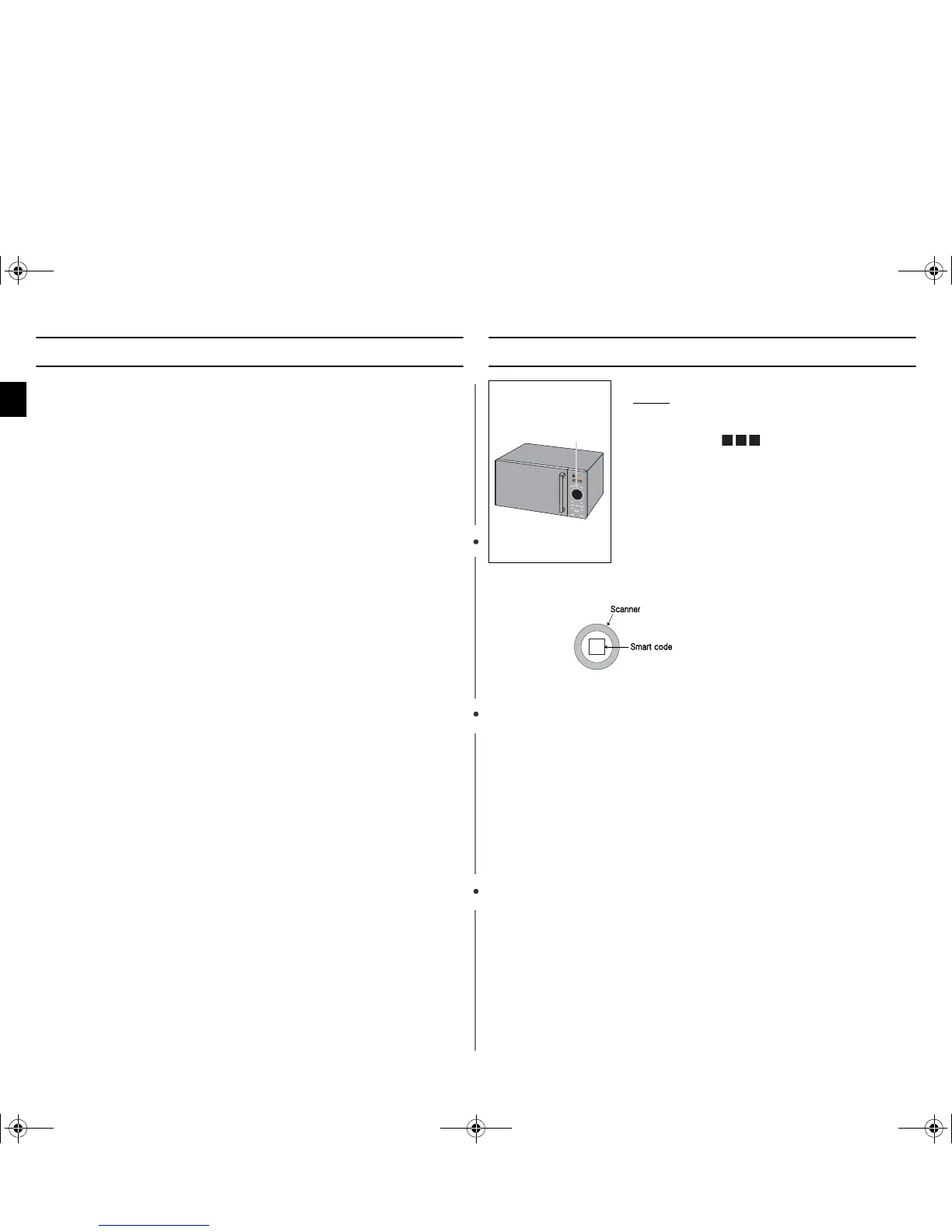
How to Scan
☛
Recommend to Scan
• To scan, the best way is to place smartcode horizontally or vertically
againts the scanner.
☛
Fail to Scan
• Keep the scanner window clean.
(Remove dust particles and check scratches)
• Check the range of DOF (within 20mm away from Scanner) and scan
again.
• Call a serviceman if it continuously fails to scan 5 times as the above
.Precaution in handling
• Dust particles on the scanner window may cause a scanner to malfunction.
• Scratches on the scanner window may cause a scanner to malfunction so
attention is required.
1. Press the Start/Scan On button.
Result: The Chilled/Frozen, Quantity and Pause/
Cancel button are lit for 20 seconds.
LCD : SCANNING
(The indicator in LCD will scroll)
◆Remove sleeve from the meal.(of applicable)
◆Find the SmardCode on the ready meal pack.
2.
Place SmartCode against the scanner.
3.
After 2 ~ 3 seconds, oven will beep to confirm SmartCode
has been read.
4.
Follow instructions on Oven display.
scanner
ijlXX`^l|TWZWZ]hniWXUGGwG_GG{SGtGZSGYWW\GG_a\`Ght




 To Next Page