48 English
Basic Functions
Using the Title Menu
Z
1. During playback, press the TITLE
MENU button on the remote control.
2. Press the ▲▼◄► buttons to make
the desired selection, then press the
ENTER button.
✎
NOTE
`
Depending on the disc, the menu items may differ
and this menu may not be available.
Playing the Title List
z
1. During playback, press the DISC
MENU or TITLE MENU button.
2. Press the ▲▼ buttons to select an
entry you want to play from the Title
List, and then press the ENTER
button.
✎
NOTE
`
If your disc has a playlist, press the GREEN (B)
button to go to the playlist.
Using the Popup Menu
h
1. During playback, press the POPUP
MENU button on the remote control.
2. Press the ▲▼◄► buttons or ENTER
button to select the desired menu.
✎
NOTE
`
Depending on the disc, the menu items may differ
and this menu may not be available.
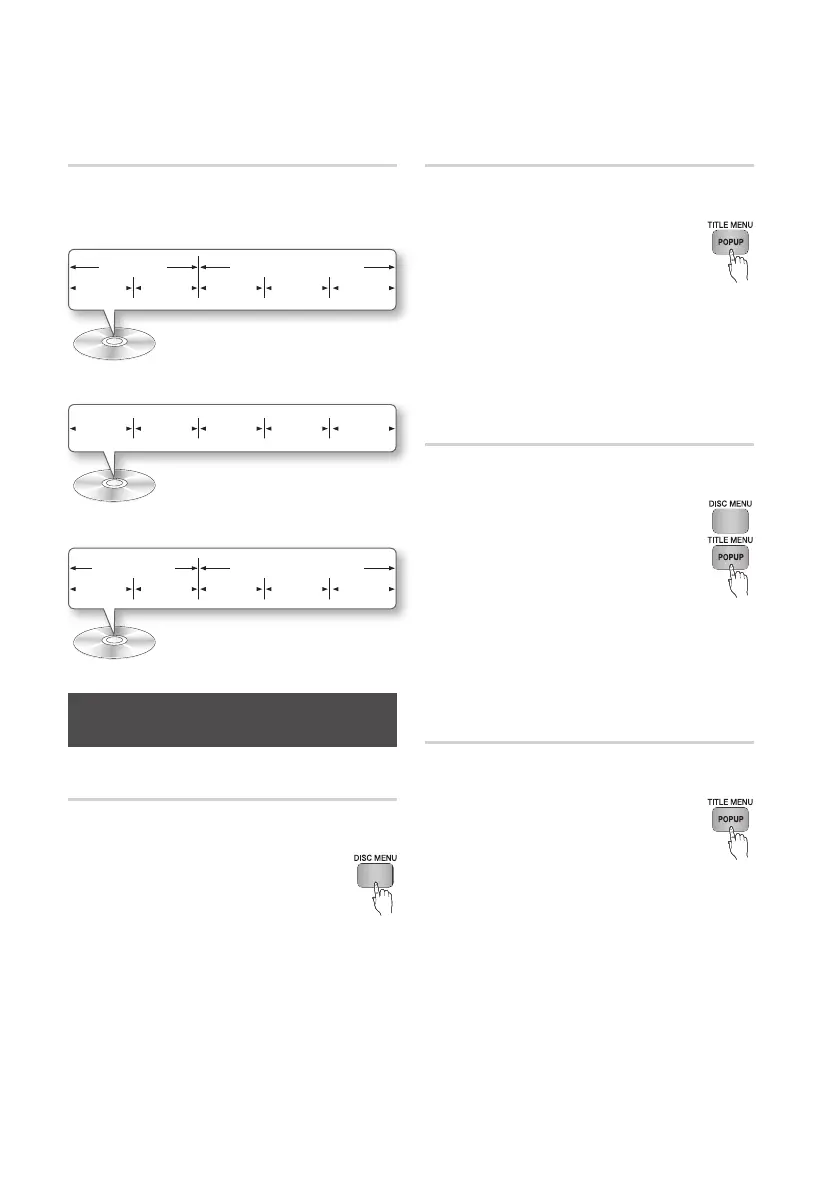
Disc Structure
The content of discs are usually divided as shown
below.
• Blu-ray Disc, DVD-VIDEO
• Audio CD (CD-DA)
• MP3, WMA, DivX, MKV and MP4
Using the Disc Menu/Title Menu/
Popup Menu
Using the Disc Menu
hZ
1. During playback, press the DISC
MENU button on the remote control.
2. Press the ▲▼◄►
buttons to make a
selection, and then press the ENTER
button.
✎
NOTE
`
Depending on the disc, the menu items may differ
and this menu may not be available.
title 1 title 2
chapter 1 chapter 2 chapter 1 chapter 2 chapter 3
folder (group) 1 folder (group) 2
file 1 file 2 file 1 file 2 file 3
track 1 track 2 track 3 track 4 track 5









 To Next Page