English 63
06 Basic Functions
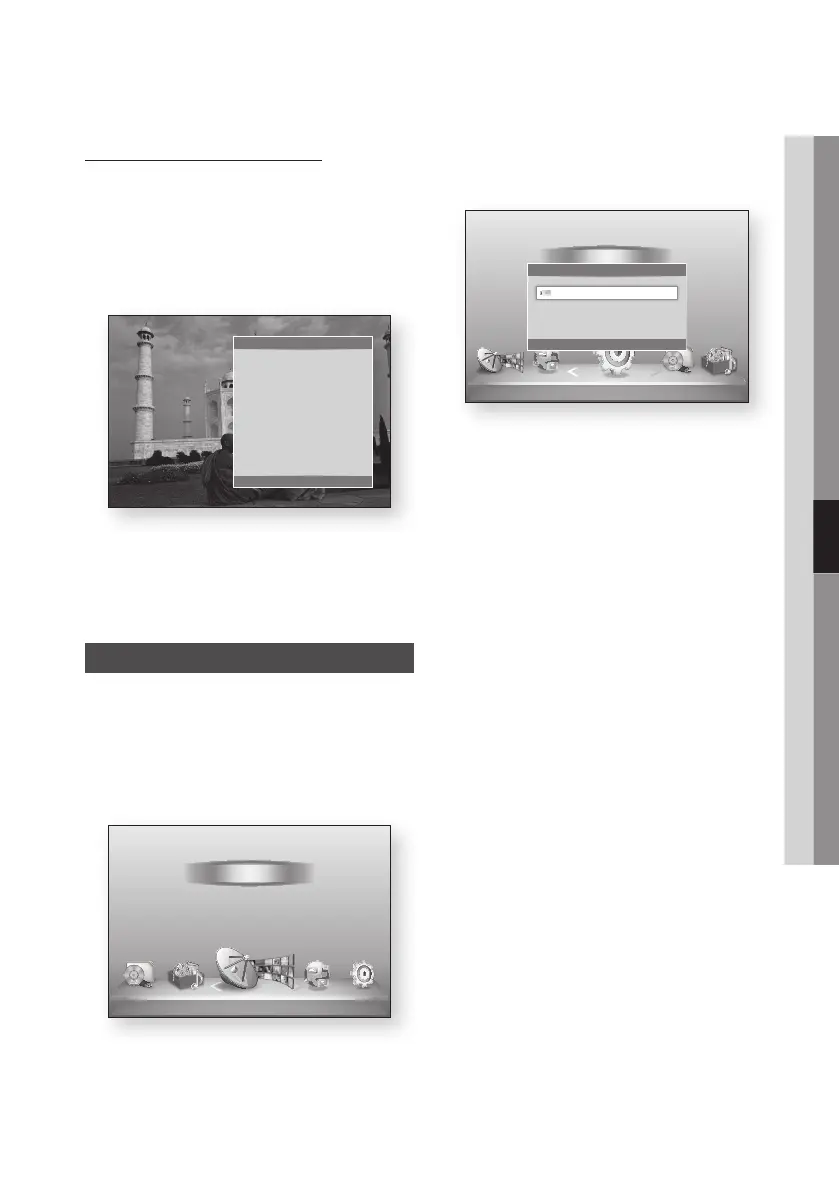
Using the Slide Show function
1. Press the TOOLS button.
2. Press the ▲▼ buttons to select Start Slide
Show, and then press the ENTER button.
The Slide Show starts.
3. To pause the slide show, press the TOOLS
button again.
4. Press the ▲▼ buttons to select Pause Slide
show, and then press the ENTER button.
5. You can also set the slide show speed and
effect using the same method.
Media Play
Media Play will enable you to play HDD/USB
contents or the contents transferred to your PC
using the AllShare function.
For more information about AllShare, refer to page 83.
1. Press the MENU button.
The home menu will be displayed.
2. In Stop mode, connect the USB storage
device to the USB port on the front panel of
the product.
3. Press the ENTER button.
4. Press the ▲▼◄► buttons to select the
desired Videos, Music, or Photos, and then
press the ENTER button.
5. For playing back Video, Music or Photo files,
see pages 54~63.
✎
NOTE
`
You must remove the USB storage device safely
(by performing the “Safely Remove USB” function)
in order to prevent a possible damage to the USB
memory. Press the MENU button to move to the
Home menu, select the YELLOW (C) button, and
then press the ENTER button.
`
If you insert a disc when playing a USB storage
device, the device mode changes to “DVD or CD”
automatically.
Tools
Pause Slide show
Slide Show Speed : Normal
Slide Show Effect : Blind
Background Music : Off
Background Music Setting
Zoom
Rotate
Picture Settings
Information
" Enter ' Return
d WPS(PBC)
My Devices Internet Settings
Guide
Schedule Manager
Channel List
Channel Manager
My Contents
Watch TV
Safely Remove USB d WPS(PBC)
Watch TV My Devices My Contents
Settings
Schedule Manager
Channel List
Channel Manager
Internet
Settings
123
New device connected
" Enter ' Return




 To Next Page