✎
Even though the player will display
folders for all content types, it will only
display files of the Content Type you
selected in Step 4. For example, if you
selected music, you will only be able
to see music files. You can change this
selection by returning to the Home
screen and repeating Step 4
.
A screen appears listing the
contents of the disc. Depending
on how the contents are
arranged, you will see either
folders, individual files, or both.
If necessary, use the ▲▼◀▶
buttons to select a folder, and
then press the
v
button.
Use the ◀▶▲▼ buttons to select
a file to view or play, and then
press the
v
button.
Press the button one
or more times to exit a current
screen, exit a folder, or to return
to the Home screen. Press the
button to return directly to
the Home Screen.
Go to pages 22~24 for
instructions that explain how to
control playback of videos, music,
and pictures on a disc.
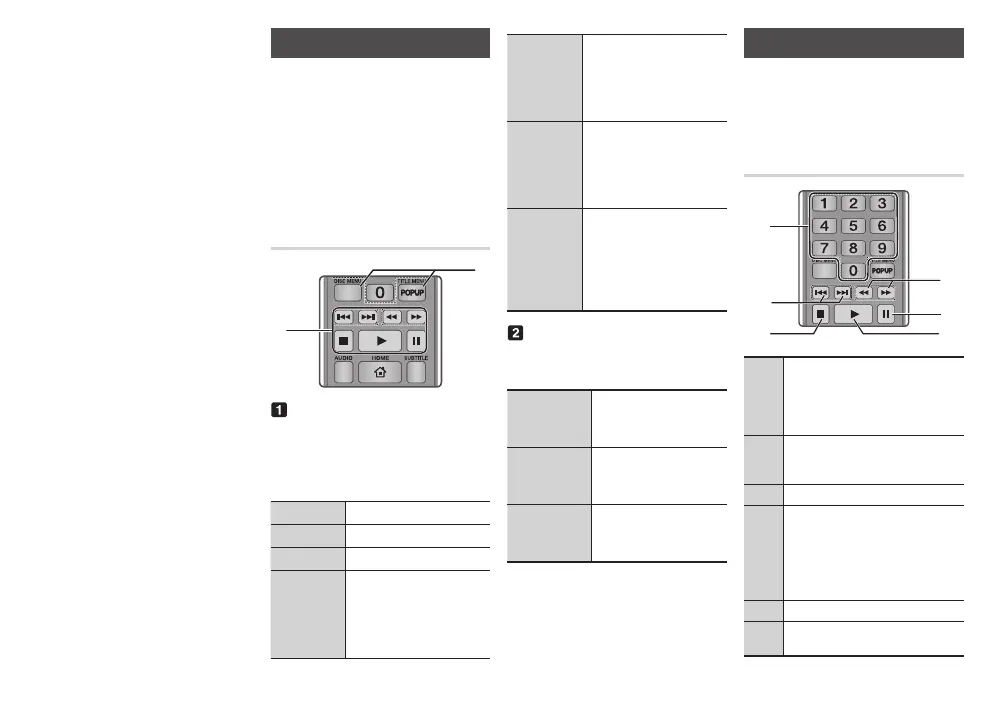
Controlling Video Playback
You can control the playback of
video content located on a Blu-ray
disc, DVD, CD, USB device, or your
computer. Depending on the media,
some of the functions described in
this manual may not be available.
During Blu-ray or DVD disc playback,
the Full screen button does not operate.
SCREEN
VIEW A-B
FULLBONUS REPEAT REPEAT
1
2
The player does not play sound in
Search, Slow, or Step mode.
To return to normal speed playback,
press the
6
button.
6
Starts playback.
5
Stops playback.
7
Pauses playback.
During playback, press the
3
or
4
button.
Each time you press the
3
or
4
button, the playback
speed will change.
In pause mode, press the
4
button. Each time
you press the
4
button,
the playback speed will
change.
In pause mode, press the
7
button.
Each time you press the
7
button, a new frame
appears.
During playback, press the
1
or
2
button.
Each time you press the
1
or
2
button, the disc
moves to the previous or
next chapter or file.
During playback, press this
button to display the Disc
menu.
During playback, press this
button to display the Title
menu.
During playback, press this
button to display the Pop-
up menu.
Controlling Music Playback
You can control the playback of music
located on a Blu-ray disc, DVD, CD,
USB device, or your computer.
SCREEN
VIEW A-B
FULLBONUS REPEAT REPEAT
1
4
6
3
2
5
1
: During Playlist
playback, press the desired track
number.
The selected track is played.
2
: During playback, press the
1
or
2
button to move to the
previous or next file of the playlist.
3
5
button : Stops a track.
4
During playback, press the
3
or
4
button.
Each time you press the
3
or
4
button, the playback speed will
change.
5
: Pauses a track.
6
6
button : Plays the currently
selected track.


 To Next Page