EasyManua.ls Logo

Samsung CLX-3170 - User Manual

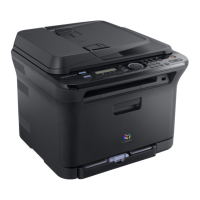
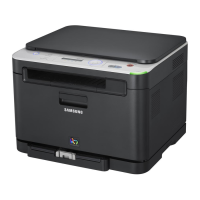
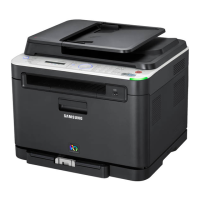
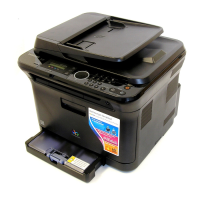
Samsung CLX-3170
143 pages
Print Icon
To Next Page IconTo Next Page
Loading...
CLX-3170 Series
Multi Functional Printer
User’s Guide
imagine the possibilities
Thank you for purchasing a Samsung product.
To receive a more complete service, please
register your product at
www.samsung.com/global/register

Table of Contents

Questions and Answers

  • K
    Kristen AguilarJul 26, 2025
    Why does my Samsung CLX-3170 All in One Printer keep jamming?
    • T
      Thomas OsborneJul 26, 2025
      If your Samsung All in One Printer is constantly jamming, try these steps: * Reduce the amount of paper in the tray. When using special materials, try the manual feeder. * Ensure you're using the correct type of paper that meets the printer's specifications. * Check inside the printer for any debris and remove it.
  • K
    Keith WilliamsonAug 1, 2025
    What to do if paper does not feed into Samsung CLX-3170 All in One Printer?
    • K
      Kimberly RhodesAug 1, 2025
      If your Samsung All in One Printer isn't feeding paper, here's what you can do: * Clear any obstructions inside the printer. * Remove the paper from the tray and reload it correctly. * Make sure there isn't too much paper in the tray. * Ensure the paper isn't too thick and meets the printer's specifications.
  • J
    Julia GonzalesAug 7, 2025
    What to do if Samsung CLX-3170 feeds multiple sheets?
    • U
      ufloresAug 7, 2025
      If multiple sheets aren't feeding in your Samsung All in One Printer: * Ensure you're only loading one type, size, and weight of paper in the tray. * If the multiple sheets have caused a paper jam, clear the paper jam.
  • S
    Sarah LivingstonAug 13, 2025
    How to fix envelopes skewing in Samsung CLX-3170 All in One Printer?
    • A
      Alan WeeksAug 13, 2025
      To prevent envelopes from skewing or failing to feed correctly in your Samsung All in One Printer, ensure the paper guides are snug against both sides of the envelopes.
  • A
    Anna ClaySep 10, 2025
    Why does paper stick together in Samsung All in One Printer?
    • C
      cmaciasSep 12, 2025
      If paper sticks together in your Samsung All in One Printer: * Make sure the paper tray isn't overloaded. Depending on the paper's thickness, it can hold up to 150 sheets. * Verify you're using the correct type of paper. * Remove the paper, then flex or fan it. * Be aware that humid conditions can cause paper to stick.

Summary

safety information

IMPORTANT SAFETY SYMBOLS AND PRECAUTIONS

Explains warning and caution symbols and provides essential safety guidelines.

CONTROL PANEL OVERVIEW

getting started

SETTING UP THE HARDWARE

Provides step-by-step instructions for physically setting up the printer.

SETTING UP THE NETWORK

loading originals and print media

LOADING ORIGINALS

Instructions for placing documents on the scanner glass or ADF for scanning/copying.

copying

COPYING

Basic steps for making copies using the printer's control panel.

scanning

SCANNING BASICS

Overview of scanning capabilities and connection methods.

basic printing

PRINTING A DOCUMENT

Instructions on how to print documents from various Windows applications.

faxing

SENDING A FAX

Details on setting up fax headers and adjusting document settings for sending faxes.

RECEIVING A FAX

using USB memory device

MAINTAINING THE CARTRIDGE

REPLACING THE TONER CARTRIDGE

Step-by-step guide for safely removing and replacing toner cartridges.

troubleshooting

TIPS FOR AVOIDING PAPER JAMS

Recommendations to prevent common paper jams during printing.

CLEARING DOCUMENT JAMS

Instructions for clearing paper jams from the Automatic Document Feeder (ADF).

UNDERSTANDING DISPLAY MESSAGES

SOFTWARE SECTION

Chapter 1: INSTALLING PRINTER SOFTWARE IN WINDOWS

Guide for installing printer software and drivers on Windows operating systems.

Installing Printer Software in Windows

Installing Printer Software

Overview of installing printer drivers for local or network use on Windows.

Installing Software for Network Printing

Basic Printing

Advanced Printing

Scanning

Using Your Printer in Linux

Printing a Document

Scanning a Document

Using Your Printer with a Macintosh

Setting Up the Printer

Printing

Scanning

Samsung CLX-3170 Specifications

General IconGeneral
Print TechnologyLaser
Print ResolutionUp to 2400 x 600 dpi
Copy ResolutionUp to 600 x 600 dpi
Monthly Duty CycleUp to 20, 000 pages
ConnectivityUSB 2.0
Paper Handling150-sheet input tray, 50-sheet output tray
FunctionsPrint, Copy, Scan, Fax
Fax Speed33.6 Kbps
Print SpeedUp to 16 ppm (black)
Scan ResolutionUp to 4800 x 4800 dpi

Videos

How to Refill Samsung CLX-3170

Related product manuals