Using the multimedia dock
10
4
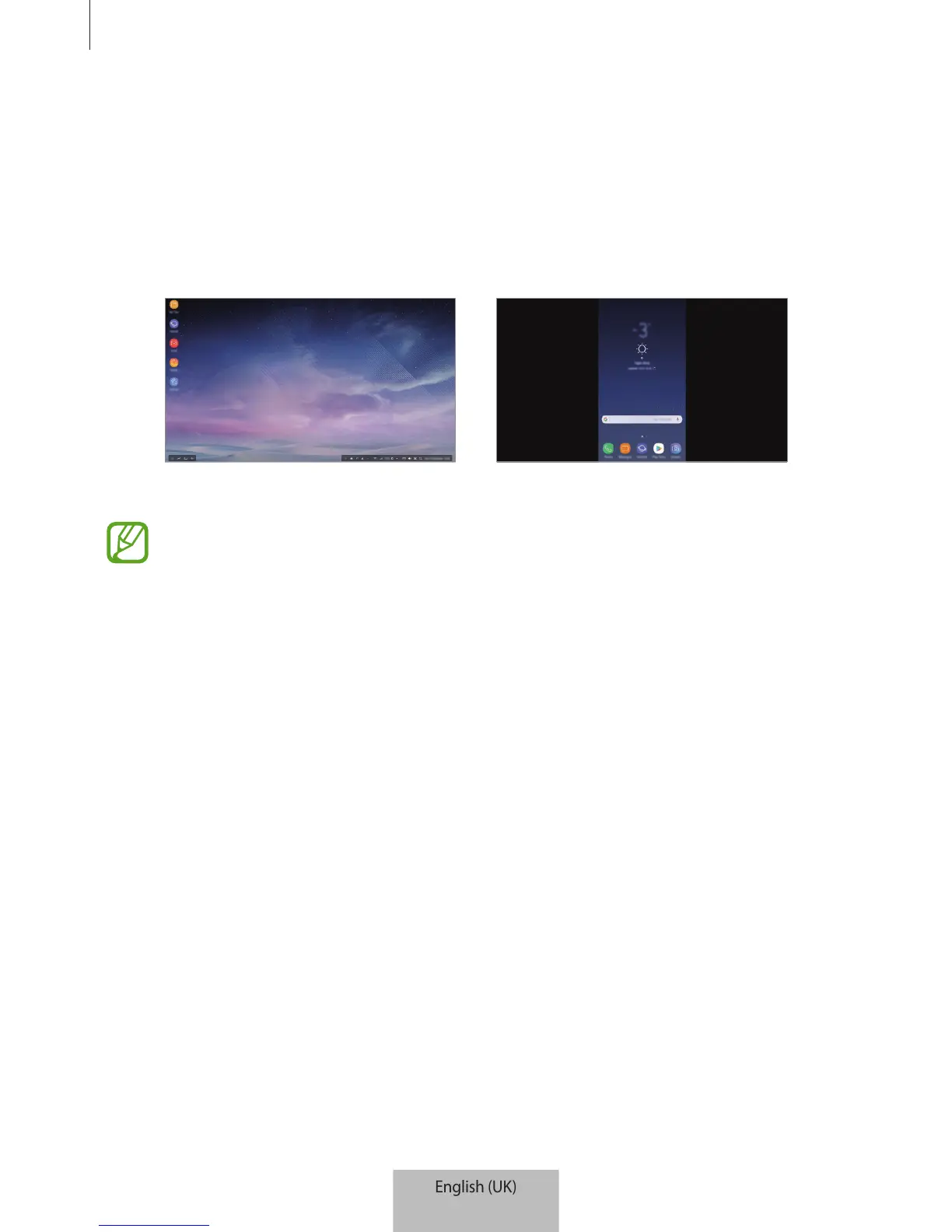
Select the screen mode you want to use. You can select Samsung DeX mode or Screen
mirroring mode.
•
START SAMSUNG DeX
: The mobile device’s screen will turn off and appear on the
connected TV or monitor in desktop mode.
•
SWITCH TO SCREEN MIRRORING
: The same screen as the mobile device will appear
on the connected TV or monitor.
Samsung DeX mode Screen mirroring mode
•
The screen mode you first select will be applied for subsequent connections. Refer
to Changing screen mode for more information.
•
If you want to use a keyboard or a mouse, connect them using the multimedia
dock’s USB ports or via Bluetooth. Refer to Controlling with an external keyboard
and mouse for more information.
•
The available features may vary depending on the mobile device. You can view
more information in the introduction section for the multimedia dock on the
Samsung website.


 To Next Page