English-8
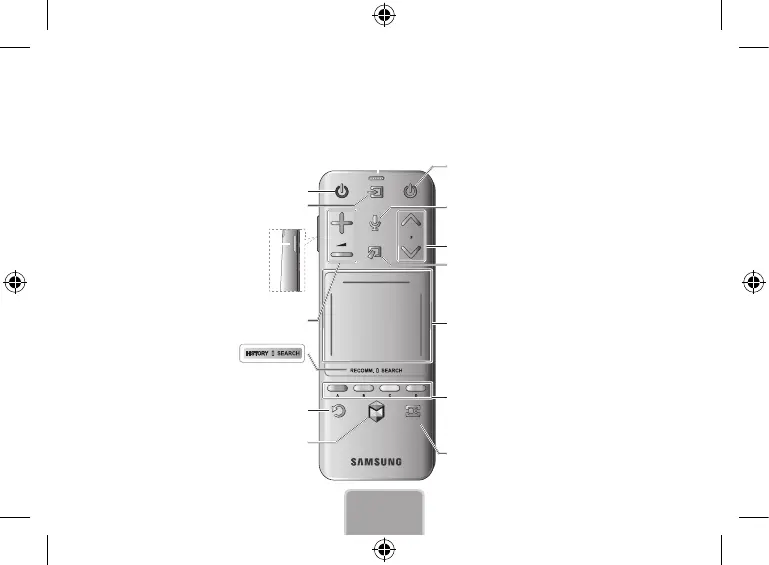
Using the Smart Touch Control
✎
For more information about the Smart Touch Control, refer to the e-Manual.
✎
The product colour and shape may vary depending on the country or region.
TV
MIC
STB
SOURCE
VOICE
MORE
SMART HUB
GUIDERETURN
EXIT
VOICE˜
Executes the Voice Recognition. When displayed “Speak
now” on the screen, say a voice command.
You can use the MIC to give Voice Recognition commands. Simply press the VOICE˜ button.
✎
Voice Recognition function can be affected by unclear pronunciation, voice level, or surrounding noise.
Changes channels.
View each digital channel's programming schedule, including
showtimes. In addition, sets a Schedule Viewing or Schedule
Recording to press the touchpad on the programme entry
scheduled to air later.
Turn on and off the satellite or cable set-top box connected to
the TV. For this, the Smart Touch Control must be configured
as a universal remote control.
Turns the TV on and off.
Displays and selects the available video sources.
Adjusts the volume.
Cuts off the sound temporarily.
Press and hold this button to select Audio
Description and Subtitle (Depending on the
country or region).
TV
MIC
STB
SOURCE
VOICE
MORE
SMART HUB
GUIDERETURN
EXIT
MUTE
AD
Toggles this button between Recommended (or History)
and Search (Depending on the country or region).
TouchPad
•
Drag on the touchpad to move the focus on the screen.
•
Press the touchpad to run, activate, or select the
highlighted item.
•
Press and hold the touchpad to display the Channel List.
Displays a virtual remote panel on the screen. See the e-Manual
chapter, Controlling TV > Using the Virtual Remote Control.
Press and hold the MORE button to select a desired function
(e.g. MENU (m), TOOLS (T), INFO (`), etc.) easily.
The colour buttons work differently, depending on the function
that the TV is currently performing.
Press and hold the { button while watching TV to view
information about the current programme.
Returns to the previous menu. Press and hold this button to
exit all currently running applications.
Brings up Smart Hub applications. See the e-Manual chapter,
Smart TV Features > Smart Hub.
✎
To exit an application that is running, press the ™ button.
[SEK-1000]BN68-05216E-01L02.indb 8 2013-07-26 4:41:51



 To Next Page