EasyManua.ls Logo

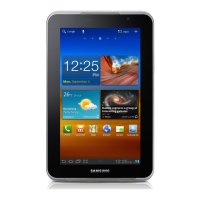
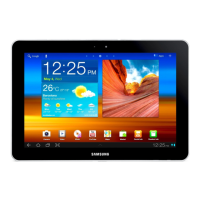
Samsung Galaxy GT-P6800 - User Manual

Samsung Galaxy GT-P6800
153 pages
Print Icon
To Next Page IconTo Next Page
Loading...
GT-P6800
user manual

Table of Contents

Questions and Answers

  • P
    Patricia RichardAug 19, 2025
    What to do if my Samsung Galaxy GT-P6800 freezes or has fatal errors?
    • D
      David HancockAug 19, 2025
      If your Samsung Tablet freezes, try these steps: 1. Press and hold the Power key for 10-15 seconds to reboot it. 2. If that doesn't work, perform a factory data reset via Settings > Privacy > Factory data reset > Reset device > Erase everything.
  • M
    Mrs. Taylor Gonzalez MDAug 21, 2025
    What to do if the touch screen responds slowly on Samsung Galaxy GT-P6800 Tablet?
    • B
      Blake MezaAug 21, 2025
      If your Samsung Tablet's touch screen isn't responding well, try these steps: * Remove any protective covers. * Make sure your hands are clean and dry. * Restart the device to clear temporary software issues. * Ensure your device software is up to date. * If the screen is damaged, visit a Samsung Service Centre.
  • T
    Thomas HarrisonAug 23, 2025
    Why is my Samsung Tablet hot to the touch?
    • J
      Joy SnyderAug 23, 2025
      If your Samsung Tablet feels hot when using power-intensive applications for a long time, don't worry. This is normal and shouldn't affect the device's lifespan or performance.
  • C
    Connor DavisAug 26, 2025
    What to do if error messages appear when launching the camera on Samsung Tablet?
    • B
      brenda02Aug 26, 2025
      If you're getting error messages when opening the camera on your Samsung Tablet, try these solutions: * Charge the battery. * Free up memory by moving files to a PC or deleting them from the device. * Restart the device.
  • N
    Nicolas MillerAug 27, 2025
    What to do if outgoing calls are not connected on Samsung Galaxy GT-P6800?
    • T
      Timothy KelleyAug 27, 2025
      If your Samsung Tablet isn't connecting outgoing calls, check these: * Ensure you've pressed the Dial key. * Make sure you're on the correct cellular network. * Verify you haven't set call barring for the number you're calling.
  • L
    larry40Aug 30, 2025
    What to do if incoming calls are not connected on Samsung Galaxy GT-P6800?
    • M
      melissa63Aug 30, 2025
      If you're not receiving incoming calls on your Samsung Tablet, check the following: * Ensure that your device is turned on. * Ensure that you have accessed the right cellular network. * Ensure that you have not set call barring for the incoming phone number.
  • S
    sallymorrisonAug 31, 2025
    What to do if I cannot dial from contacts on Samsung Tablet?
    • A
      Alyssa MckenzieAug 31, 2025
      If you're having trouble connecting calls from your contact list on your Samsung Tablet: * Ensure the correct number is stored. * Re-enter and save the number if needed. * Check you haven't enabled call barring for that contact.
  • J
    jennacraigSep 3, 2025
    Why another Bluetooth device is not located on my Samsung Tablet?
    • M
      marygarciaSep 3, 2025
      If your Samsung Tablet isn't finding another Bluetooth device: * Ensure Bluetooth is activated on your tablet. * Make sure Bluetooth is enabled on the other device, if required. * Keep both devices within 10 meters of each other.
  • E
    Elizabeth KimSep 5, 2025
    What to do if error messages appear when opening music files on Samsung Tablet?
    • Z
      zhicksSep 5, 2025
      If you encounter error messages when opening music files on your Samsung Tablet, take the following steps: * Free up memory by transferring files to a PC or deleting files from your device. * Ensure that the music file is not Digital Rights Management (DRM)-protected. If the file is DRM-protected, ensure that you have the appropriate license or key to play the file. * Ensure that your device supports the file type.
  • T
    taratylerSep 7, 2025
    What to do if my Samsung Galaxy GT-P6800 Tablet does not connect to PC?
    • D
      dawn46Sep 7, 2025
      If your Samsung Tablet isn't connecting to a PC: * Ensure you're using a compatible USB cable. * Make sure you have the correct and updated drivers installed on your PC.

Summary

Getting started

Turn your device on and off

Instructions for powering the device on, off, and initial setup procedures.

Get to know your device

Identifies and describes the physical layout, buttons, and features of the device.

Use the touch screen

Explains basic touch gestures like touch, drag, swipe, pinch, and double-touch for interaction.

Access applications

Guide on navigating and opening installed applications, including task manager usage.

Communication

Calling

Comprehensive guide to making, answering, and managing phone calls, including call options.

Messaging

Instructions for creating, sending, and viewing text (SMS) and multimedia (MMS) messages.

Google Mail

Steps for sending and receiving emails using the Gmail application on the device.

Connectivity

PC connections

Connect your device to a PC for data transfer, synchronization, and using Samsung Kies.

Wi-Fi

Guide to activating and connecting to wireless local area networks (WLANs).

Bluetooth

Instructions for enabling, pairing, and exchanging data with Bluetooth-enabled devices.

Settings

Wireless and networks

Configure Wi-Fi, Bluetooth, Wi-Fi Direct, tethering, and VPN connection settings.

Sound

Customize device sounds, including ringtones, notifications, touch tones, and vibration.

Screen display

Adjust display settings like brightness, font style, wallpaper, screen timeout, and animation.

Location and security

Manage device security, screen lock options, encryption, and location services for GPS.

Safety Precautions

Prevent electric shock, fire, and explosion

Critical warnings regarding electrical safety, fire prevention, and battery handling.

Handle and dispose of the device and chargers with care

Guidelines for proper care, usage, and environmentally responsible disposal of the device.

Reduce the risk of repetitive motion injuries

Tips for ergonomic device usage to prevent discomfort and potential injuries.

Samsung Galaxy GT-P6800 Specifications

General IconGeneral
BrandSamsung
ModelGalaxy GT-P6800
CategoryTablet
LanguageEnglish

Related product manuals