EasyManua.ls Logo

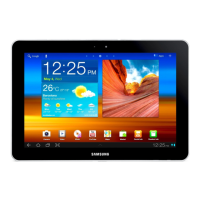
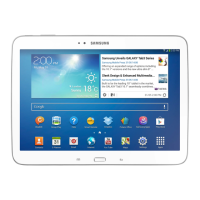
Samsung Galaxy Tab GT-P7500 - User Manual

Samsung Galaxy Tab GT-P7500
123 pages
Print Icon
To Next Page IconTo Next Page
Loading...
GT-P7500
user manual

Table of Contents

Questions and Answers

  • E
    Emily AndersonAug 18, 2025
    Why is the touch screen on my Samsung Galaxy Tab GT-P7500 responding slowly?
    • D
      Derek MoranAug 18, 2025
      If your Samsung Tablet touch screen is responding slowly or improperly, try the following: * Remove any protective covers. * Make sure your hands are clean and dry. * Restart your device. * Ensure your device software is up to date. If the screen is scratched or damaged, take it to your local Samsung Service Centre.
  • S
    Stephanie BrooksAug 20, 2025
    How to fix a Samsung Tablet that freezes?
    • V
      vduarteAug 20, 2025
      If your Samsung Tablet freezes or has fatal errors, press and hold [ ] for more than 20 seconds to automatically reboot the device. Alternatively, you can perform a factory data reset by going to Settings ? Privacy ? Factory data reset ? Reset tablet ? Erase everything from the Home screen.
  • M
    Matthew JohnsonAug 23, 2025
    What to do if Samsung Tablet battery does not charge properly?
    • S
      Samantha ZimmermanAug 23, 2025
      If your Samsung Tablet is not charging properly or turns off unexpectedly, you likely need to replace the battery. Take your device to your local Samsung Service Centre.
  • J
    Joseph GreenAug 26, 2025
    What to do if my Samsung Galaxy Tab GT-P7500 displays network error messages?
    • J
      Jennifer SandersAug 26, 2025
      If you see network or service error messages on your Samsung Tablet, try moving to an area with stronger signal reception. If the problem persists, contact your service provider for further assistance.
  • M
    Melissa CookAug 27, 2025
    How to fix error messages when launching the camera on Samsung Galaxy Tab GT-P7500 Tablet?
    • J
      Joshua PatrickAug 27, 2025
      If your Samsung Tablet displays error messages when launching the camera, try the following: * Charge the battery. * Free up memory by transferring files to a PC or deleting files. * Restart the device. If the issue continues, contact a Samsung Service Centre.
  • M
    Michael PriceAug 30, 2025
    Why is my Samsung Galaxy Tab GT-P7500 Tablet so hot?
    • G
      Gary MurphyAug 30, 2025
      If your Samsung Tablet is hot to the touch, it's likely due to using power-intensive applications for an extended period. This is normal and shouldn't affect your device's lifespan or performance.
  • A
    antoniosmithSep 1, 2025
    Why does my Samsung Galaxy Tab GT-P7500 Tablet keep asking for a password?
    • B
      Breanna MoranSep 1, 2025
      If your Samsung Tablet prompts for a password, it means the device lock feature is enabled. You must enter the password you set for the device.
  • D
    Devon CampbellSep 3, 2025
    What to do if my Samsung Galaxy Tab GT-P7500 battery is low?
    • A
      Andrew BrooksSep 4, 2025
      If your Samsung Tablet battery is low, recharge it to continue using the device.
  • A
    Alyssa EstradaSep 6, 2025
    Why does my Samsung Tablet ask for a PIN?
    • J
      jgreenSep 6, 2025
      If your Samsung Tablet prompts for a PIN, you must enter the PIN supplied with your SIM or USIM card, especially when using the device for the first time or when the PIN requirement is enabled. You can disable this feature in the Lock SIM card menu.
  • M
    Mike FieldsSep 8, 2025
    How to fix error messages when opening music files on Samsung Tablet?
    • R
      Roger NavarroSep 8, 2025
      If your Samsung Tablet displays error messages when opening music files, try the following: * Free up memory by transferring files to a PC or deleting files. * Ensure the music file is not DRM-protected or that you have the appropriate license. * Verify that your device supports the file type.

Summary

Assembling

Install the SIM or USIM card

Step-by-step guide on inserting the SIM or USIM card into the device.

Charge the battery

Procedures for charging the device's built-in battery before first use.

Getting started

Initial Setup and Device Overview

Steps for powering on, understanding the device layout, and basic interaction.

Home Screen and Navigation

Navigating the Home screen, system bar, and customizing its layout.

Application Access and Management

Accessing, managing applications, and using notification panels.

Device Settings and Customization

Configuring core settings like language, time, sound, display, and security.

Text Input Methods

Using various keyboards and methods for entering text on the device.

Web

Navigation

Using the GPS navigation system to find and show destinations.

Communication

Messaging

Creating, sending, and viewing text (SMS) and multimedia (MMS) messages.

Entertainment

Camera

Capturing photos and videos, including various shooting modes and settings.

Personal information

Contacts

Creating, managing, finding, and importing/exporting contact information.

Connectivity

Wi-Fi

Activating and connecting to Wi-Fi networks for internet access.

Bluetooth

Turning on and pairing the device with other Bluetooth-enabled devices.

Mobile network sharing

Sharing the device's mobile network connection via Wi-Fi, USB, or Bluetooth.

Settings

Wireless and networks

Configuring wireless connection settings like Wi-Fi, Bluetooth, and tethering.

Power saving mode

Activating and configuring power saving options to extend battery life.

Location and security

Configuring location services and security features like screen lock and SIM lock.

Troubleshooting

Touch screen issues

Troubleshooting steps for unresponsive or slow touch screen performance.

Device freezing and errors

Steps to resolve device freezing or fatal errors, including reset procedures.

Safety precautions

General Safety Warnings

Critical warnings for electrical safety, fire prevention, and battery handling.

Device Usage Restrictions and Environment

Guidelines for using the device in restricted areas and near sensitive equipment.

Device Care and Protection

Instructions for maintaining the device, protecting it from damage, and proper usage practices.

Samsung Galaxy Tab GT-P7500 Specifications

General IconGeneral
Processor1GHz Dual-Core
RAM1 GB
Rear Camera3.15 MP
Front Camera2 MP
Battery7000 mAh
ChipsetNvidia Tegra 2 T20
GPUULP GeForce
Dimensions256.7 x 175.3 x 8.6 mm
Storage16/32/64 GB
Operating SystemAndroid 3.1 (Honeycomb), upgradable to 4.0.4 (Ice Cream Sandwich)
Weight565 g
ConnectivityWi-Fi 802.11 a/b/g/n, hotspot, Bluetooth 3.0
Display10.1 inches, 1280 x 800 pixels

Related product manuals