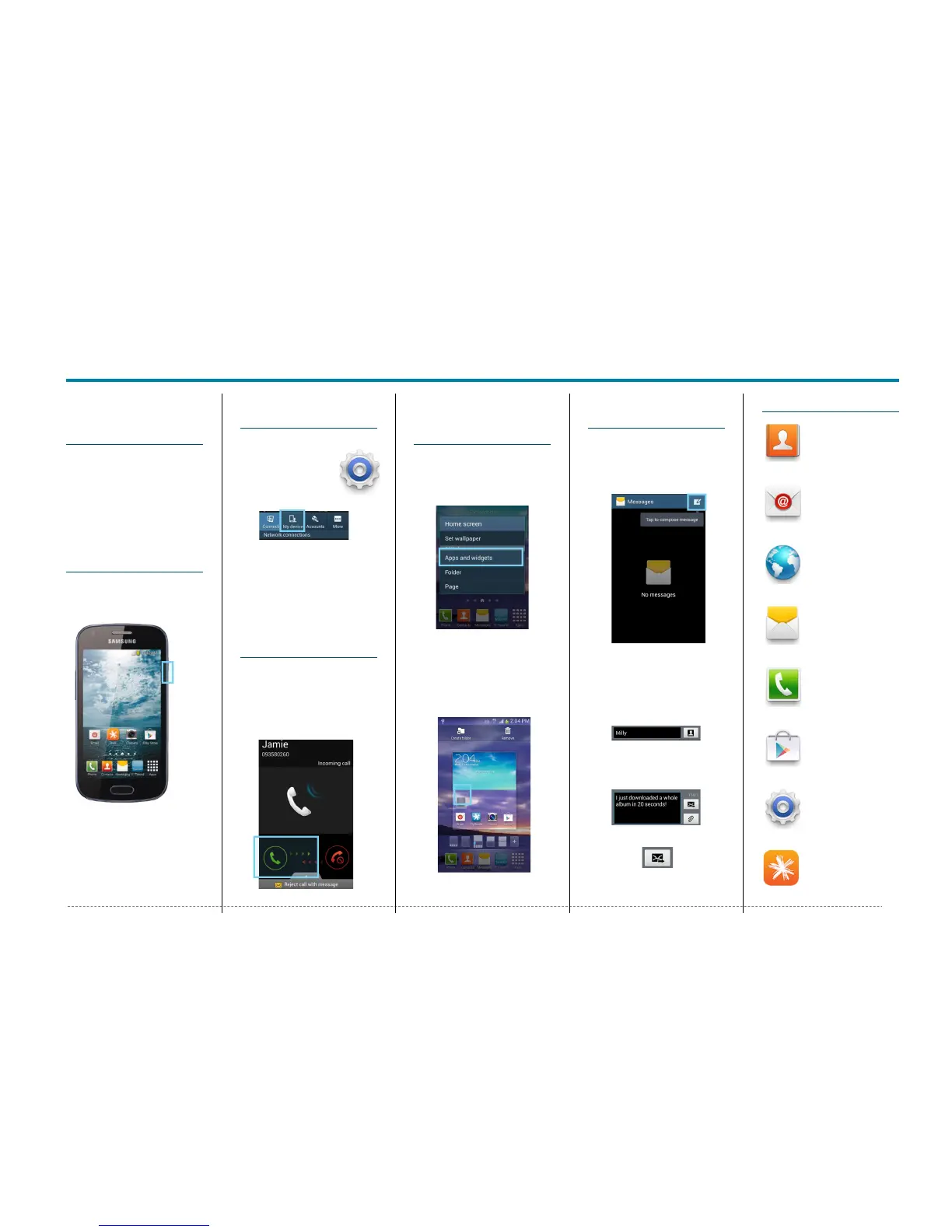
Samsung GALAXY Trend Plus
Samsung GALAXY Trend Plus - Quick Start Guide: Page 2 of 3
Your Samsung
GALAXY Trend
Plus
This Quick Start guide tells
you how to set up your
Samsung GALAXY Trend
Plus and use some common
features.
How to Turn on
the Device
To turn on your phone to
start, press and hold the
Power button.
Then follow the instructions
to set up your phone. To
turn the phone off, press and
hold the Power button. A
Power Options message
will appear. Tap Power Off
on the screen.
How to Change
Your Ringtone
1. From your Home screen,
tap the Apps
2. Tap Settings.
3. Tap the My
Device tab
4. Tap Sound.
5. Tap Ringtones.
6. Tap the desired ringtone.
7. Tap OK.
How to Answer a
Call
1. When you receive a call.
the, Incoming call
screen opens.
2. Slide the Green phone
to the middle to answer.
How to add a
Contact to your
Home screen
1. On your Home screen,
press and hold.
2. Select Apps and
Widgets.
3. Select the Widgets tab.
4. Swipe across until you
find Contact Widget.
5. Hold and drag the
Contact widget to the
Home Screen.
6. Select the Contact you
wish to link to the widget
How to Send a
Text Message
1. From the Home screen,
tap Messaging.
2. Tap the New message
icon.
3. In the Enter Recipient
field, enter the
recipient’s phone
number, or tap the
Contacts icon to select
from your contacts.
4. Tap the Enter Message
field and enter the
desired message.
5. Tap the Send icon.
Appendix




 To Next Page