EasyManua.ls Logo

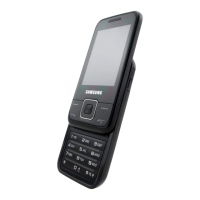
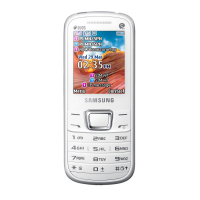
Samsung GT-E2550 Monte Slider - User Manual

Samsung GT-E2550 Monte Slider
66 pages
Print Icon
To Next Page IconTo Next Page
Loading...
GT-E2550
user manual

Table of Contents

Questions and Answers

  • D
    davisnicoleAug 20, 2025
    How to fix a Samsung GT-E2550 Monte Slider battery that does not charge properly?
    • A
      Angela RubioAug 20, 2025
      If the battery on your Samsung Cell Phone does not charge properly, the battery terminals may be dirty. Wipe the gold coloured contacts with a clean, soft cloth and try charging again. If the battery still won't charge completely, replace it with a new one after properly disposing of the old battery.
  • K
    kevin38Aug 22, 2025
    Why does my Samsung GT-E2550 Monte Slider Cell Phone ask for a code?
    • K
      Karen ClarkAug 22, 2025
      Your Samsung Cell Phone may be prompting you for a code for several reasons. If the phone lock feature is enabled, you'll need to enter the password you set. If it's the first time you're using the phone or the PIN requirement is enabled, enter the PIN supplied with the SIM card, which you can disable in the PIN lock menu. If your SIM card is blocked due to entering the PIN incorrectly too many times, you'll need to enter the PUK code provided by your service provider. Lastly, some menus require a PIN2 code, also supplied by your service provider.
  • S
    stacy67Aug 25, 2025
    What to do if my Samsung GT-E2550 Monte Slider Cell Phone displays 'Service unavailable' or 'Network error'?
    • K
      Kenneth OchoaAug 25, 2025
      If your Samsung Cell Phone displays 'Service unavailable' or 'Network error', it could be due to weak signals or poor reception. Try moving to another area to see if the signal improves. If the problem persists, contact your service provider for further assistance.
  • C
    cranetravisAug 26, 2025
    Why are calls being dropped on my Samsung Cell Phone?
    • M
      matthewchangAug 26, 2025
      Calls being dropped on your Samsung Cell Phone can occur if you are in an area with weak signals or poor reception. Try moving to an area with a stronger signal to maintain your call.
  • L
    Lauren MurphyAug 27, 2025
    Why are outgoing calls not connecting on my Samsung GT-E2550 Monte Slider Cell Phone?
    • J
      Joyce TaylorAug 27, 2025
      If outgoing calls are not connecting on your Samsung Cell Phone, make sure that you have pressed the Dial key. Also, verify that your phone is accessing the correct cellular network and that you have not enabled call barring for the number you are trying to dial.
  • W
    Wendy AtkinsonAug 29, 2025
    Why are incoming calls not connecting on my Samsung GT-E2550 Monte Slider Cell Phone?
    • M
      Megan StoutAug 30, 2025
      If incoming calls are not connecting on your Samsung Cell Phone, first ensure that your phone is turned on and that it is connected to the correct cellular network. Also, verify that you have not set call barring for the incoming phone number.
  • E
    Elizabeth FoxAug 31, 2025
    Why can't others hear me on my Samsung GT-E2550 Monte Slider during a call?
    • K
      Kristin ParsonsAug 31, 2025
      If others cannot hear you when you're speaking on a call using your Samsung Cell Phone, first make sure that you are not covering the built-in microphone. Ensure that the microphone is close to your mouth. If you are using a headset, check that it is properly connected.
  • S
    sampsonkathleenSep 2, 2025
    Why is the audio quality poor on my Samsung Cell Phone?
    • B
      Bradley VillaSep 2, 2025
      Poor audio quality on your Samsung Cell Phone may be due to a weak signal. Try moving to an area with better reception. Also, make sure that you are not blocking the phone's internal antenna.
  • J
    Jennifer JonesSep 4, 2025
    What to do if my Samsung GT-E2550 Monte Slider beeps and the battery icon flashes?
    • S
      Sonya McclureSep 4, 2025
      If your Samsung Cell Phone beeps and the battery icon flashes, this indicates that the battery is low. Recharge or replace the battery to continue using your phone.
  • T
    Tiffany WatersSep 6, 2025
    How to fix error messages when launching the camera on Samsung Cell Phone?
    • T
      Timothy SharpSep 6, 2025
      Error messages when launching the camera on your Samsung Cell Phone can occur if there is insufficient memory or battery power. Try charging the battery or replacing it with a fully charged one. You can also free up memory by transferring files to a PC or deleting files from your phone. If neither of these work, try restarting the phone.

Summary

Using this manual

Instructional icons

Explains the meaning of various icons used in the manual.

Copyright information

Introducing your mobile phone

Phone layout

Illustrates the physical layout of the phone and its keys.

Icons

Defines common icons displayed on the phone screen.

Assembling and preparing your mobile phone

Install the SIM card and battery

Guide on inserting the SIM card and battery into the phone.

Charge the battery

Instructions on how to charge the phone's battery.

Insert a memory card (optional)

Steps for inserting a memory card into the phone.

Using basic functions

Turn your phone on or off

Procedure to power the phone on and off.

Access menus

How to navigate through the phone's menu system.

Use the shortcuts toolbar

How to use and customize the phone's shortcuts toolbar.

Customise your phone

Steps to customize phone settings like sound profiles.

Use basic call functions

Instructions for making and answering calls.

Send and view messages

Guide for sending and reading text and multimedia messages.

Enter text

Methods and tips for entering text on the phone.

Add and find contacts

How to add new contacts and search for existing ones.

Use basic camera functions

Steps for taking photos with the phone's camera.

Listen to music

Instructions for using the FM radio function.

Listen to music files

How to transfer and play music files on the phone.

Browse the web

Guide to accessing and navigating websites on the phone.

Use Orange services

How to use services provided by the mobile carrier.

Using advanced functions

Use advanced call functions

Advanced features for making and managing calls.

Use advanced phonebook functions

Features for managing contacts and groups.

Use advanced messaging functions

Advanced options for creating and sending messages.

Use advanced camera functions

Additional camera features like frames and effects.

Use advanced music functions

Advanced music player settings and file transfer.

Using tools and applications

Use the Bluetooth wireless feature

How to use Bluetooth for connectivity and data transfer.

Activate and send an SOS message

Setting up and sending emergency SOS messages.

Activate the mobile tracker

How to enable the mobile tracker for phone recovery.

Make fake calls

Simulating an incoming call to avoid situations.

Record and play voice memos

Using the voice recorder to capture and playback memos.

Use Java-powered games and applications

How to download and use Java applications and games.

Create a world clock

Setting up multiple world clocks.

Set and use alarms

How to set, manage, and stop alarms.

Use the calculator

Using the built-in calculator for calculations.

Convert currencies or measurements

Using the convertor tool for units and currencies.

Set a countdown timer

Setting and using the countdown timer.

Use the stopwatch

Using the stopwatch for timing events.

Create a text memo

Creating and saving text notes.

Manage your calendar

Managing calendar events and views.

Use the SIM budgeter

Tracking call costs and top-up fees.

Troubleshooting

Safety and usage information

Safety warnings

General safety precautions and warnings for phone usage.

Vehicle installation and battery care

Precautions for installing accessories in vehicles and handling batteries.

Environmental and health precautions

Avoiding interference with medical devices, hazardous environments, and repetitive strain.

Driving and accessory safety

Advice for safe driving and using approved accessories.

Device operation in sensitive areas

Rules for phone use near medical equipment, aircraft, and protecting against damage.

Phone handling and maintenance

General advice for careful handling and maintenance of the phone.

Interference and antenna usage

Preventing interference and optimal antenna positioning.

Service, battery life, and card handling

Phone servicing, battery longevity, and SIM/memory card precautions.

Emergency services and SAR information

Ensuring emergency access and understanding SAR compliance.

Product disposal guidelines

Guidelines for environmentally responsible disposal of the phone.

Battery disposal guidelines

Guidelines for environmentally responsible disposal of batteries.

Disclaimer

Declaration of Conformity (R&TTE)

Samsung GT-E2550 Monte Slider Specifications

General IconGeneral
Announced2010, February
StatusDiscontinued
SIMMini-SIM
TypeTFT, 256K colors
Phonebook1000 entries
Internal30 MB
GPRSClass 10
EDGEClass 10
WLANNo
Bluetooth2.1, A2DP
Primary1.3 MP
Alert typesVibration; Downloadable polyphonic, MP3 ringtones
LoudspeakerYes
3.5mm jackYes
RadioFM radio
GamesYes
JavaYes, MIDP 2.0
MessagingSMS, MMS, Email
BrowserWAP 2.0/xHTML
NetworkGSM 900 / 1800
Size2.0 inches
Memory Card slotmicroSD
Call records20 received, 20 dialed, 20 missed calls
USBv2.0
VideoYes
LanguagesMultiple
BatteryLi-Ion
ColorsBlack, White

Related product manuals