EasyManua.ls Logo

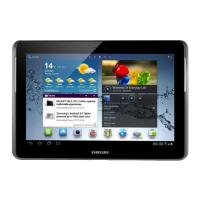
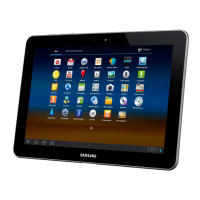
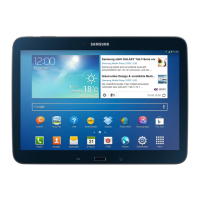
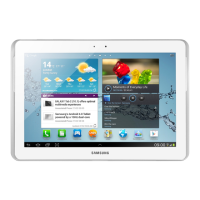
Samsung GT-N8000 - User Manual

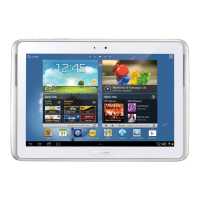
Samsung GT-N8000
163 pages
Print Icon
To Next Page IconTo Next Page
Loading...
GT-N8000
user manual

Table of Contents

Other manuals for Samsung GT-N8000

Questions and Answers

  • J
    jillbakerSep 14, 2025
    Why does my Samsung Cell Phone ask for a PIN?
    • B
      berrycorySep 14, 2025
      When using your Samsung Cell Phone for the first time, or if the PIN requirement is enabled, you must enter the PIN supplied with your SIM or USIM card. You can disable this feature in the Lock SIM card menu.
  • M
    Michael SmithAug 25, 2025
    What to do if my Samsung Cell Phone freezes or has fatal errors?
    • C
      currycynthiaAug 25, 2025
      If your Samsung Cell Phone freezes or encounters fatal errors, and becomes unresponsive, try pressing and holding the Power key for 10-15 seconds to automatically reboot the device. If the issue persists, perform a factory data reset via Settings > Privacy > Factory data reset > Reset device > Erase everything.
  • X
    xolsonAug 25, 2025
    Why won't my Samsung Tablet connect to my PC?
    • M
      Mitchell ThomasAug 26, 2025
      If your Samsung Tablet is not connecting to a PC, ensure the USB cable is compatible with your device, that you have the proper drivers installed and updated on your PC. If you are a Windows XP user, ensure that you have Windows XP Service Pack 3 or higher installed on your PC. Ensure that you have Samsung Kies 2.0 or Windows Media Player 10 or higher installed on your PC.
  • C
    Courtney GordonAug 26, 2025
    Why is the touch screen on my Samsung Tablet responding slowly?
    • L
      Lydia MartinAug 26, 2025
      If the touch screen on your Samsung Tablet isn't responding well, first remove any protective covers. Make sure your hands are clean and dry. Restarting the device can resolve temporary software issues. Keep your device software updated. If the screen is damaged, consider taking it to a Samsung Service Centre.
  • B
    Brittany MelendezSep 15, 2025
    Why is my Samsung GT-N8000 hot?
    • Z
      zgomezSep 15, 2025
      If your Samsung Tablet feels hot, especially when using power-intensive apps for a long time, it's normal and shouldn't affect the device's lifespan or performance.
  • E
    Edward ThompsonSep 23, 2025
    What is the PIN2 for on my Samsung GT-N8000?
    • E
      Emily JonesSep 23, 2025
      When a menu on your Samsung Tablet requires PIN2, enter the PIN2 supplied with the SIM or USIM card. Contact your service provider for details.
  • M
    Michael SmithSep 7, 2025
    What to do if error messages appear when launching the camera on my Samsung GT-N8000 Tablet?
    • B
      Bradley MillerSep 7, 2025
      If your Samsung Tablet displays error messages when launching the camera, try charging the battery, freeing up memory by transferring files to a PC or deleting files from your device, and restarting the device.
  • K
    Kelly TateSep 8, 2025
    Why do error messages appear when opening music files on my Samsung GT-N8000?
    • L
      lauren43Sep 8, 2025
      If your Samsung Tablet displays error messages when opening music files, try freeing up memory by transferring files to a PC or deleting files. Ensure the music file isn't DRM-protected or that you have the appropriate license. Also, confirm your device supports the file type.
  • A
    Alex BrooksSep 2, 2025
    Why does my Samsung GT-N8000 Tablet keep dropping calls?
    • W
      wellsdouglasSep 2, 2025
      If your Samsung Tablet calls are being dropped, it may be due to weak signals or poor reception. Try moving to another area.
  • A
    Angela SimpsonAug 31, 2025
    Why is the audio quality poor on my Samsung Tablet?
    • D
      David DoyleAug 31, 2025
      If you are experiencing poor audio quality on your Samsung Tablet, ensure you are not blocking the device’s internal antenna. Also, if you are in an area with weak signal, move to another area and try again.

Summary

Assembling

Install the SIM or USIM card

How to insert the SIM or USIM card into the device.

Charge the battery

Instructions for charging the device's built-in battery.

Insert a memory card (optional)

Guide on inserting an optional memory card.

Getting started

Turn your device on and off

Steps to power the device on and off.

Get to know your device

Overview of the device's physical layout and components.

Use the S Pen and the touch screen

Basic actions and precautions for using the touch screen and S Pen.

Customise your device

Personalizing device settings like language and sound.

Using special features

Learn basic S Pen actions

Fundamental actions using the S Pen on the device.

Use S Note

Creating and managing notes with multimedia content.

Use S Planner

Organizing schedules, tasks, and events effectively.

Web

Internet

Accessing and bookmarking web pages.

Communication

Calling

Making, answering, and managing phone calls.

Messaging

Sending and viewing text and multimedia messages.

Entertainment

Music Player

Listening to music files on the device.

Camera

Capturing photos and recording videos.

Video Player

Playing video files saved on the device.

Gallery

Viewing photos and videos saved in device memory.

Personal information

Contacts

Creating, managing, and finding contacts.

Import or export contacts

Transferring contact files to or from the device.

Connectivity

PC connections

Connecting the device to a PC via USB.

Wi-Fi

Activating and connecting to Wi-Fi networks.

Bluetooth

Using short-range wireless communication.

GPS

Activating and using the global positioning system.

Tools

Alarm

Setting and controlling alarms for important events.

Search

Searching for applications and data on device and web.

My Files

Accessing images, videos, music, and other files.

Polaris Office

Creating and viewing documents like Word, Excel, PDF.

Settings

Access the Settings menu

Navigating and selecting options within the Settings menu.

Wi-Fi

Configuring Wi-Fi network connections and settings.

Sound

Changing settings for various sounds and alerts.

Display

Adjusting display settings like brightness and screen timeout.

Security

Securing the device with screen locks and encryption.

Language and input

Setting display language and text input methods.

Troubleshooting

The touch screen responds slowly or improperly

Solutions for unresponsive or slow touch screen issues.

Your device freezes or has fatal errors

Steps to resolve device freezing or fatal errors.

The battery does not charge properly or the device turns off

Troubleshooting battery charging and power issues.

Error messages appear when launching the camera

Resolving error messages when using the camera application.

Samsung GT-N8000 Specifications

General IconGeneral
ModelGT-N8000
CategoryTablet
RAM2 GB
Expandable StoragemicroSD, up to 64 GB
Rear Camera5 MP
Front Camera1.9 MP
Battery7000 mAh
Dimensions262 x 180 x 8.9 mm
S Pen SupportYes
Display10.1 inches, 1280 x 800 pixels
ProcessorExynos 4412 Quad
Internal Storage16 GB / 32 GB
Operating SystemAndroid 4.0 (Ice Cream Sandwich), upgradable to 4.1 (Jelly Bean)
ConnectivityWi-Fi 802.11 a/b/g/n, Bluetooth 4.0, USB 2.0

Related product manuals