EasyManua.ls Logo

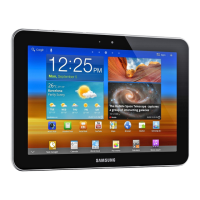
Samsung GT-P7500 - User Manual

Samsung GT-P7500
127 pages
Print Icon
To Next Page IconTo Next Page
Loading...
GT-P7500
user manual

Table of Contents

Other manuals for Samsung GT-P7500

Questions and Answers

  • C
    Casey SmithAug 17, 2025
    What to do if my Samsung GT-P7500 Tablet freezes?
    • M
      Mary AllenAug 17, 2025
      If your Samsung Tablet freezes, try pressing and holding the power button for 10-15 seconds to reboot it automatically. If that doesn't work, perform a factory data reset by going to Settings ? Privacy ? Factory data reset ? Reset tablet ? Erase everything.
  • T
    tonyasullivanAug 20, 2025
    Why is the touch screen on my Samsung Tablet not responding properly?
    • S
      Sarah WheelerAug 20, 2025
      A protective cover might be interfering with the touch screen; remove it. Make sure your hands are clean and dry. Restart your device to clear temporary software bugs. Ensure your device software is up to date. If the screen is scratched or damaged, take it to a Samsung Service Centre.
  • C
    Christina SullivanAug 23, 2025
    Why is my Samsung Tablet not connecting to my PC?
    • D
      Debbie AshleyAug 23, 2025
      Ensure that the USB cable you are using is compatible with your Samsung Tablet. Also, verify that you have the correct drivers installed on your PC.
  • T
    Timothy MartinAug 26, 2025
    How to fix reception issues on my Samsung GT-P7500 Tablet?
    • C
      Courtney NguyenAug 26, 2025
      If you are experiencing reception issues on your Samsung Tablet, it may be due to weak signals or poor reception in your current location. Try moving to another area to see if the reception improves.
  • J
    Joshua PadillaAug 28, 2025
    What to do if I get error messages when launching the camera on my Samsung GT-P7500 Tablet?
    • L
      Laura MitchellAug 28, 2025
      If you're getting error messages when launching the camera on your Samsung Tablet, first, charge the battery. If that doesn't help, free up memory by transferring files to a PC or deleting files from your device. You can also try restarting the device.
  • L
    lmorrisAug 31, 2025
    Why can't my Samsung Tablet find other Bluetooth devices?
    • C
      chapmanmonicaAug 31, 2025
      First, make sure that the Bluetooth wireless feature is activated on your Samsung Tablet. Also, ensure that Bluetooth is enabled on the device you are trying to connect to, if necessary. Keep both devices within 10 meters of each other.
  • A
    Amanda HenrySep 2, 2025
    What to do if I receive error messages when opening music files on my Samsung GT-P7500?
    • L
      Lisa MitchellSep 3, 2025
      If you receive error messages when opening music files, try freeing up memory by transferring files to a PC or deleting files from your device. Also, make sure the music file isn't DRM-protected and that your device supports the file type.
  • J
    Jose KhanSep 5, 2025
    Why does my Samsung GT-P7500 Tablet get hot?
    • A
      Anthony PerezSep 5, 2025
      It's normal for your Samsung Tablet to feel hot when using power-intensive applications or using applications for extended periods. This should not affect your device’s lifespan or performance.
  • S
    sullivanrobertSep 8, 2025
    What PIN to enter when setting up my Samsung GT-P7500?
    • C
      Christine ThompsonSep 8, 2025
      When setting up your Samsung Tablet for the first time, or if the PIN requirement is enabled, you must enter the PIN supplied with the SIM or USIM card.
  • O
    obradleySep 12, 2025
    What to do if my Samsung Tablet SIM card is blocked?
    • A
      allengreenSep 12, 2025
      You must enter the PUK supplied by your service provider.

Summary

Using this manual

Read Me First

Important introductory information and precautions before using the device.

Instructional Icons

Explanation of symbols used throughout the manual for clarity.

Assembling Your Device

Install SIM;USIM Card

Step-by-step instructions for inserting the SIM or USIM card.

Charge the Battery

How to charge the device's built-in battery for first-time use.

Getting Started

Device Overview and Basic Operation

Turn device on/off, identify hardware keys, and understand flight mode.

Touch Screen and Home Screen Navigation

Learn basic touch gestures and navigate the device's main interface.

Accessing Applications

Guide to finding and launching installed applications on the device.

Customizing Your Device

Display, Sound, and Language Settings

Adjusting volume, touch tones, language, and display brightness.

Device Security Features

Setting up screen locks and activating the mobile tracker.

Entering Text

Keyboard Types and Usage

Using virtual keyboards like Android, Samsung, and Swype for text entry.

Copy and Paste Text

How to copy, cut, and paste text between applications.

Web Browsing

Browser Basics and Navigation

Accessing, bookmarking, and navigating web pages.

Web Applications

Using services like YouTube, Google Maps, and Market.

Communication Features

Messaging and Email

Creating and sending messages and managing email accounts.

Social and Chat Features

Using Google Talk for chatting and accessing Social Hub.

Entertainment Features

Music Player

Playing music, creating playlists, and customizing player settings.

Camera Operation

Capturing photos and videos with various modes and settings.

Video and Gallery

Viewing videos and managing photos in the device's gallery.

Connectivity Options

PC Connections

Connecting to a PC via USB for file transfer and syncing.

Wi-Fi and Bluetooth

Activating and connecting to wireless networks and Bluetooth devices.

Mobile Network Sharing and GPS

Using device as hotspot, tethering, and utilizing GPS services.

System Settings

Wireless and Network Configuration

Managing Wi-Fi, Bluetooth, Tethering, and VPN connections.

Sound and Display Customization

Adjusting audio, visual, and text input preferences.

Security and Power Management

Managing device security, screen locks, and power saving modes.

Input, Language, and Accessibility

Customizing text input, voice recognition, and accessibility features.

Date and Time Management

Setting the device's date, time, and time zone.

Troubleshooting

Common Device Issues

Resolving common problems like incorrect codes and network messages.

Performance and Connectivity Problems

Troubleshooting device freezes, touch screen issues, and connection problems.

Safety Precautions

Electrical Safety and Device Care

Warnings about electric shock, fire, explosion hazards, and proper device handling.

Health and Injury Prevention

Precautions against repetitive motion injuries, hearing damage, and flashing lights.

Samsung GT-P7500 Specifications

General IconGeneral
ModelGT-P7500
CategoryTablet
RAM1 GB
Expandable StorageNo
Rear Camera3.15 MP
Front Camera2 MP
Battery7000 mAh
Dimensions256.7 x 175.3 x 8.6 mm
ColorsBlack, White
Processor1 GHz dual-core ARM Cortex-A9
Internal Storage16GB / 32GB
Operating SystemAndroid 3.1 (Honeycomb), upgradable to 4.0
Weight565 g
ConnectivityWi-Fi, Bluetooth 3.0, USB 2.0
Display10.1 inches, 800 x 1280 pixels

Related product manuals