<<
67
>>
E
(
Effect
)
button : Rotating an image
E
(
Effect
)
button : Colour
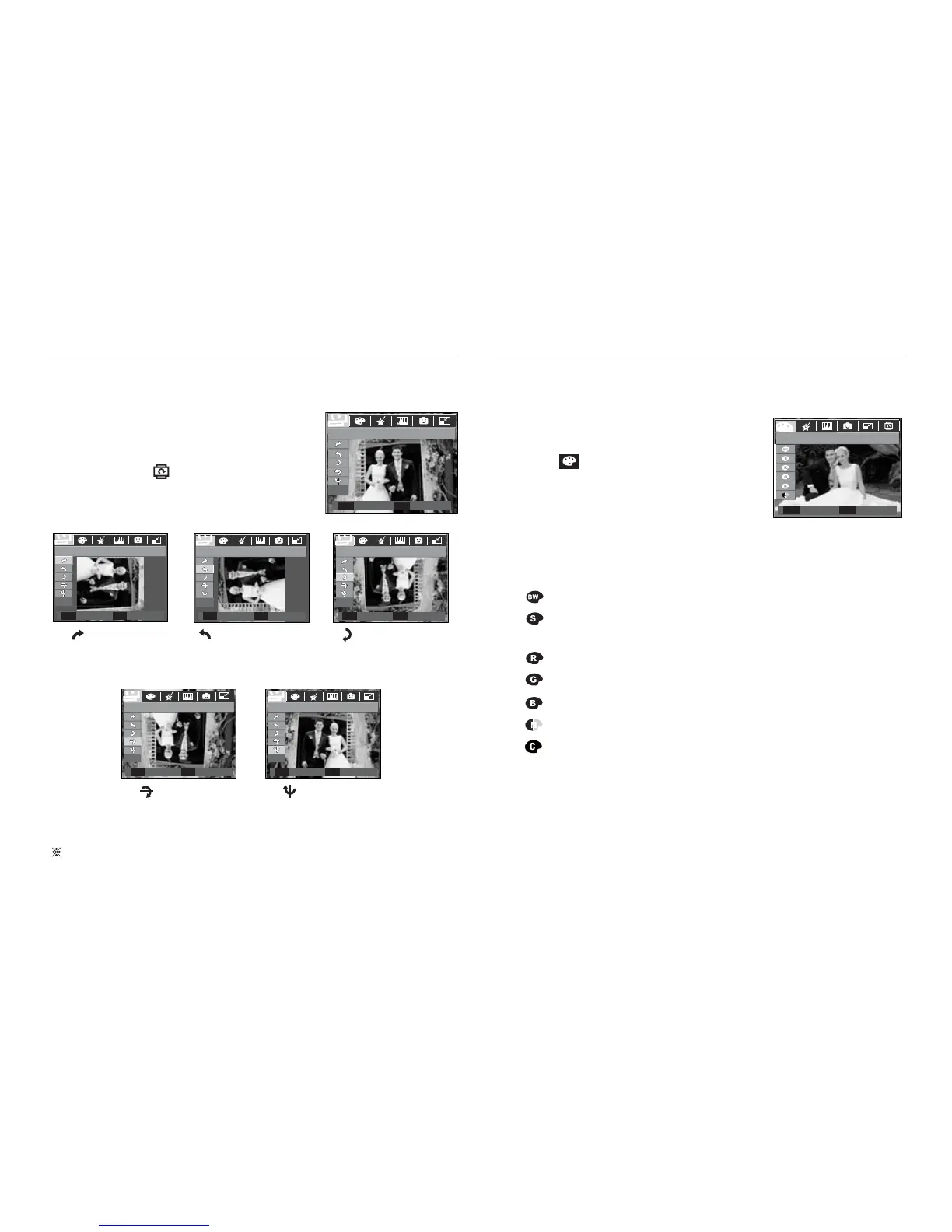
You can rotate the stored images by various degrees.
1. Press the play mode button and press the
E button.
2. Press the LEFT / RIGHT button and select
the [ROTATE] (
) menu tab.
3. Select a desired sub menu by pressing the
UP / DOWN button.
If you display the rotated image on the LCD monitor, empty spaces
may appear to the left and right of the image.
ROTATE
Move Exit
E
[ : Horizontal]
: Rotate picture horizontally
Set Back
OK
E
Horizontal
[ : Vertical]
: Rotate picture vertically
Set Back
OK
E
Vertical
3. Select a desired sub menu by pressing the Up / Down button and
press the OK button.
: Captured images will be stored in black and white.
: Captured images will be stored in a sepia tone
(a gradient of yellowish brown colours).
: Captured images will be stored in a red tone.
: Captured images will be stored in a green tone.
: Captured images will be stored in a blue tone.
: Save the image in negative mode.
: Captured images will be stored in set RGB tone.
4. The changed image is saved as a new file name.
[ : Right 90˚]
: Rotate picture in a
clock-wise direction
[ : Left 90˚]
:
Rotate picture in a counter-
clock-wise direction
[ : 180˚]
: Rotate picture 180 degrees
Set Back
OK
E
Right 90°
Set Back
OK
E
Left 90°
Set Back
OK
E
180°
It is possible to add colour effects to your images by using this button.
1. Press the play mode button and press
the E button.
2. Select ( ) menu tab by pressing the
Left / Right button.
COLOR
Move Exit
E





 To Next Page