EasyManua.ls Logo

Samsung LE32R74BD - User Manual

Samsung LE32R74BD
71 pages
Print Icon
To Next Page IconTo Next Page
Loading...
BN68-01007C-00
Contact SAMSUNG WORLD-WIDE
If you have any questions or comments relating to Samsung products,
please contact the SAMSUNG customer care centre.
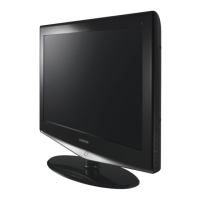
LCD TV
LE26R73BD
LE26R74BD
LE32R73BD
LE32R74BD
LE37R74BD
LE40R73BD
LE40R74BD
Owner’s Instructions
Before operating the unit,
please read this manual thoroughly,
and retain it for future reference.
ON-SCREEN MENUS
PC DISPLAY
PICTURE IN PICTURE (PIP)
TELETEXT
This device is a Class B digital apparatus.
Register your product at www.samsung.com/global/register
Comment contacter Samsung dans le monde
Si vous avez des suggestions ou des questions concernant les produits
Samsung, veuillez contacter le Service Consommateurs Samsung.
Country
BELGIUM
CZECH REPUBLIC
DENMARK
FINLAND
FRANCE
GERMANY
HUNGARY
ITALIA
LUXEMBURG
NETHERLANDS
NORWAY
POLAND
PORTUGAL
RUSSIA
SLOVAKIA
SPAIN
SWEDEN
U.K
UKRAINE
Customer Care Center
02 201 2418
844 000 844
38 322 887
09 693 79 554
08 25 08 65 65 (€ 0,15/Min)
01805 - 121213 (€ 0,12/Min)
06 40 985 985
199 153 153
02 261 03 710
0900 20 200 88 (€ 0.10/Min)
231 627 22
0 801 801 881
80 8 200 128
8-800-200-0400
0850 123 989
902 10 11 30
08 585 367 87
0870 242 0303
8-800-502-0000
Web Site
www.samsung.com/be
www.samsung.com/cz
www.samsung.com/dk
www.samsung.com/fi
www.samsung.com/fr
www.samsung.de
www.samsung.com/hu
www.samsung.com/it
www.samsung.lu
www.samsung.com/nl
www.samsung.com/no
www.samsung.com/pl
www.samsung.com/pt
www.samsung.ru
www.samsung.com/sk
www.samsung.com/es
www.samsung.com/se
www.samsung.com/uk
www.samsung.com/ur
BN68-01007C-X0Cover.indd 1 2006-02-06 ¿ÀÈÄ 1:27:30

Table of Contents

Other manuals for Samsung LE32R74BD

Question and Answer IconNeed help?

Do you have a question about the Samsung LE32R74BD and is the answer not in the manual?

Summary

Still Image Display Precautions

Included Accessories

List of Parts

Details the items included in the LCD TV package.

Installing the Stand

Instructions for attaching the TV stand to the unit.

Installing the Wall Mount Kit

Guidelines for mounting the TV on a wall.

Control Panel Functions

Source and Menu Buttons

Explains the function of the SOURCE and MENU buttons on the TV.

Volume and Channel Controls

Describes the physical buttons for adjusting volume and channels.

Indicators and Sensors

Details the power indicator and remote control sensor location.

Connection Ports

Rear and Side Panel Jacks

Identifies and describes the various input and output ports on the TV.

Antenna and Cable Connection

Instructions for connecting an antenna or cable television network.

Connecting External Devices

HDMI, DVI, and PC Connections

Guides on connecting digital and computer video sources.

Component and Audio Connections

Instructions for connecting analog video and audio devices.

CI Card and Service Port

Information on common interface card and service connection.

Remote Control Usage

Remote Control Layout and Functions

Overview of all buttons on the remote control and their functions.

Installing Remote Control Batteries

Step-by-step guide for inserting batteries into the remote control.

Getting Started

Powering On;Off and Standby Mode

Instructions for turning the TV on, off, and placing it in standby.

Plug & Play Initial Setup

Guide for the initial automatic setup process including language and country.

Channel Setup

Automatic Channel Storage

Scans for and stores available channels automatically.

Manual Channel Storage

Allows manual storage of up to 100 channels with specific settings.

Channel Management Features

Setting the Channel Manager

Allows deletion, addition, or locking of specific channels.

Activating Child Lock

Prevents unauthorized viewing of unsuitable programmes using a PIN.

Channel Fine-Tuning and Naming

Sorting Stored Channels

Exchanges channel numbers to modify order or assign memorable numbers.

Assigning Channel Names

Allows manual assignment or renaming of channels for easier selection.

Fine Tuning Channel Reception

Manually adjusts a particular channel for optimal signal reception.

Picture Adjustment Menu

LNA (Low Noise Amplifier) Function

Improves reception in weak-signal areas by boosting the incoming signal.

Picture Standard Selection

Selects picture types for optimal viewing requirements (Standard, Movie, Custom).

Custom Picture Adjustment

Allows fine-tuning of contrast, brightness, sharpness, and colour.

Colour Tone Selection

Selects the most comfortable colour tone for visual comfort.

Picture Settings Fine-Tuning

Resetting Picture Settings

Returns picture settings to the factory default values.

Picture Size and Freeze

Allows changing picture aspect ratio and freezing the current image.

Digital Noise Reduction

Reduces static and ghosting on weak broadcast signals.

Picture Enhancements

DNle Demo Feature

Demonstrates how DNIe technology improves image detail and contrast.

Picture-In-Picture (PIP) Operation

Displays a sub picture within the main picture for simultaneous viewing.

Sound and PIP Configuration

PIP Settings Overview

Details which PIP modes operate for different input sources.

Sound Standard Selection

Selects special sound effects for various broadcast types.

Adjusting Sound Settings

Allows personal adjustment of sound settings like equalizer.

Connecting Headphones

Information on connecting headphones for private listening.

Advanced Sound Options

TruSurround XT Setup

Enables virtual surround sound experience through two speakers.

Automatic Volume Adjustment

Automatically adjusts volume based on signal strength.

Internal Mute and Sub Picture Sound

Disables internal amplifier and selects sound source for PIP.

Time and Sound Settings

Resetting Sound Settings

Returns sound settings to their factory default values.

Clock and Timer Setup

Sets the TV clock and configures sleep and on/off timers.

Automatic TV On;Off Timers

Sets the TV to automatically switch on or off at a selected time.

System Setup Options

Choosing Display Language

Selects the language for menus and on-screen indications.

Game Mode Configuration

Optimizes settings for a more realistic gaming experience.

Blue Screen and Melody Settings

Configures blue screen display and startup/shutdown melodies.

Input and Energy Saving

Using Energy Saving Feature

Adjusts TV brightness to reduce power consumption.

Selecting Input Sources

Chooses among external sources connected to the TV's input jacks.

Editing Input Source Names

Renames connected devices for easier input source selection.

DTV Menu Navigation

Previewing DTV Menu System

Illustrates how to navigate the on-screen DTV menu system.

Updating Channel List Automatically

Updates the channel list when broadcasters add new services or locations change.

Channel List Management

Updating Channel List Manually

Specifies channels or frequencies for fast channel searching.

Editing Favourite Channels

Allows adding, deleting, or previewing favourite channels.

Channel List Control

Managing Favourite Channels

Provides options to move, preview, or delete favourite channels.

Selecting Channel Manager

Excludes scanned channels to customize the displayed channel list.

Channel Viewing Options

Viewing All and Favourite Channels

Displays all scanned channels or only those marked as favourites.

Choosing Display Language

Selects the language for menus and on-screen indications.

Preference and Parental Controls

Adjusting Translucency Level

Sets the transparency level of the on-screen menu.

Setting Up Parental Lock

Prevents viewing of unsuitable programmes using a 4-digit PIN.

Subtitle, Audio, and System Info

Setting Subtitles

Activates or deactivates subtitle display for programmes.

Selecting Preferred Language

Changes default subtitle and audio languages for incoming streams.

Product and Signal Information

Displays product details, software versions, and signal status.

Software and CI Module

Software Upgrade Options

Installs available software upgrades to enhance TV features.

Viewing Common Interface Information

Displays information about the CAM inserted in the CI slot.

CI Menu, Reset, and Teletext Basics

Selecting CI Menu

Enables selection from the CAM-provided menu options.

Factory Reset Operation

Resets all settings and user preferences to factory defaults.

Teletext Decoder Overview

Explains the structure and categories of teletext pages.

Teletext Functionality

Displaying Teletext Information

Activates teletext mode and displays content pages.

Selecting Specific Teletext Pages

Enters page numbers directly or uses display options for teletext.

PC and Advanced Teletext

Using Fastext for Teletext Pages

Selects teletext topics using colour-coded buttons.

PC Software Setup (Windows XP)

Guides on configuring display settings for PC connection.

Display Modes and PC Resolution

Details recommended resolutions and frequencies for PC input.

PC Screen Tuning

Image Tuning (Coarse;Fine)

Removes or reduces picture noise for optimal clarity.

Position and Auto Adjustment

Adjusts screen positioning and performs automatic screen self-adjustment.

Image Settings Reset

Replaces all image settings with factory default values.

Security and Problem Solving

Anti-Theft Kensington Lock

Secures the TV physically in public places using a locking device.

Troubleshooting Common Issues

Provides solutions for common problems like no sound or picture.

Technical and Environmental Specs

Correct Product Disposal

Samsung LE32R74BD Specifications

General IconGeneral
BrandSamsung
ModelLE32R74BD
CategoryLCD TV
LanguageEnglish

Related product manuals