Settings
Section 2B. Settings 41
Changing the Display Screen Contrast
Adjust your screen’s contrast to suit your surroundings.
1. Press Menu > Settings > Display > Contrast.
2. Press your navigation key left or right to adjust the
screen contrast and press .
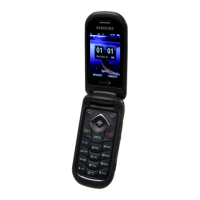
Changing the Outer Screen
Choose what you see on the outer screen when the
phone is closed.
1. Press Menu > Settings > Display > Outer Screen >
Screen Saver. (A list of available images will be
displayed.)
2. Select Digital 1/2 or Analog 1/2 and press .
3. Press Assign (left softkey) to assign an image.
Changing the Outer Screen Brightness
Adjust your Outer screen’s contrast (brightness) to suit
your surroundings.
1. Press Menu > Settings > Display > Outer Screen > Sub
Contrast.
2. Press your navigation key left or right to select a
level (
Level 1 - Level 10) and press .
Activating the Power Save Mode
1. Press Menu > Settings > Display > PowerSave Mode.
2. Select On or Off, and press .
Changing the Phone’s Menu Style
Choose how your phone’s menu is displayed on the
screen.
1. Press Menu > Settings > Display > Menu Style.
2. Select an option and press .
䡲 3x3 White to view the menu as a grid with three
rows and three columns with each menu item as
a single screen icon.
Sprint M220.book Page 41 Wednesday, May 6, 2009 3:06 PM



 To Next Page