Wireless network setup
29
2. Using a network-connected machine
Choosing your type
There are two methods available to connect your machine to a
wireless network using the (WPS) button on the control panel.
The Push Button Configuration (PBC) method allows you to
connect your machine to a wireless network by pressing both the
(WPS) button on the control panel of your machine and the WPS
(PBC) button on a Wi-Fi Protected Setup™ (WPS)-enabled access
point (or wireless router) respectively.
The Personal Identification Number (PIN) method helps you
connect your machine to a wireless network by entering the
supplied PIN information on a Wi-Fi Protected Setup™ (WPS)-
enabled access point (or wireless router).
Factory default in your machine is PBC mode, which is
recommended for a typical wireless network environment.
To change the WPS mode , press (Menu) > Network >
Wireless > OK > WPS Setting.
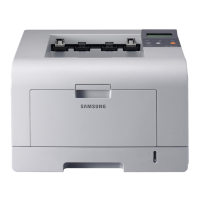
Machines with an display screen
► Connecting in PBC mode
1
Press and hold the (WPS) button on the control panel for
more than 2 seconds.
The machine starts waiting for up to two minutes until you
press the WPS (PBC) button on the access point (or wireless
router).
2
Press the WPS (PBC) button on the access point (or wireless
router).
The messages are displayed on the display screen in the order
below:
a Connecting: The machine is connecting to the access
point (or wireless router).
b Connected: When the machine is successfully connected
to the wireless network, the WPS LED light stays on.
c AP SSID: After completing the wireless network
connection process, the AP’s SSID information appears on
the display.


 To Next Page
 Loading...