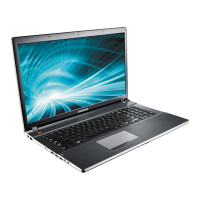
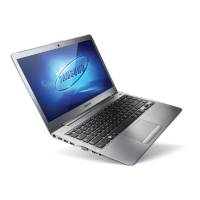
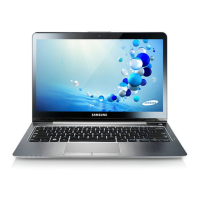
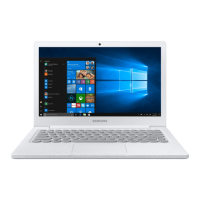
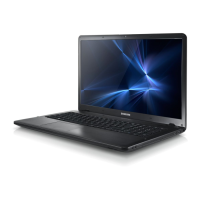
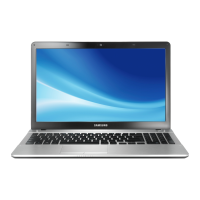
This document is a user manual for a Samsung computer, providing detailed instructions on its operation, maintenance, and troubleshooting.
Function Description
The Samsung computer is a personal computing device designed for various tasks, including general use, presentations, and media consumption. It runs on the Windows 10 operating system and supports a range of applications and connectivity options.
Important Technical Specifications
Operating Environment:
- Temperature:
- Storage: -5–40 °C
- Operating: 10–35 °C
- Humidity:
- Storage: 5–90 %
- Operating: 20–80 %
AC/DC Rating:
- Input: 100-240 VAC, 50–60 Hz
- Output: 19 VDC/2.1 A, 19 VDC/3.16 A
PC Rating:
- 19 VDC/2.1 A (40 W)
- 19 VDC/3.16 A (60 W)
Storage Capacity:
The manufacturer calculates storage device capacity (HDD, SSD) assuming 1 KB = 1,000 Bytes, while Windows calculates it as 1 KB = 1,024 Bytes. This difference means the available capacity in Windows will appear smaller than the actual capacity. Some programs, like Samsung Recovery, may also reside in a hidden area, further reducing reported capacity. Models with less than 64 GB of storage may not include Samsung Recovery.
Memory Capacity:
The available memory capacity in Windows is less than the actual installed capacity, as some memory is reserved for regular system operations.
Wireless Connectivity:
- Wi-Fi: Supports 2.4 GHz and 5 GHz bands.
- Bluetooth: Bluetooth® is a registered trademark of Bluetooth SIG, Inc. worldwide.
- Wired LAN: Supports 10/100/1000 Mbps connections.
Ports:
- USB 2.0 port
- Security slot
- DC jack
- Wired LAN port
- HDMI port
- USB 3.0 port
- Earpiece/Headset jack
Usage Features
Getting Started:
- Turning On/Off: The computer can be turned on by opening the LCD panel or pressing the Power button. It can be turned off via the Start menu by selecting "Shut down."
- Windows Activation: Requires activation upon first use. Date and time settings may need adjustment.
- Unlocking Screen: Can be unlocked using the mouse, keyboard, or touchpad.
- Windows Settings: Basic system settings, app management, and account settings can be configured via the Windows Settings screen.
- Action Center: Provides system notifications, updates, and quick access to settings like network options, volume, and screen brightness.
Keyboard:
- Hot Keys: Functions like Samsung Settings launch (F1), screen brightness control (F2, F3), LCD/external monitor switch (F4), touchpad on/off (F5), mute/unmute (F6), volume control (F7, F8), and LCD on/off (F9). The Fn Lock key can activate hot keys without pressing Fn.
Touchpad:
- Basic Functions: Moving the cursor, clicking (single and double tap/press), right-clicking.
- Gesture Functions: Swiping with two fingers for scrolling, pinching for zooming in/out.
- Touchpad Lock: Can be locked by pressing Fn + F5.
External Display:
- Connects via HDMI cable. Supports various display modes: PC screen only, Duplicate, Extend, and Second screen only.
Wired LAN (WOL):
- Connects to the internet via an Ethernet cable. Supports Wake on LAN (WOL) feature for remote activation from sleep mode. Power saving features may reduce wired LAN speed on battery.
Wireless LAN:
- Connects to Wi-Fi networks. Can be deactivated to save battery. Supports Airplane mode to disable all wireless functions.
Security Slot:
- Allows securing the computer with an optional lock and cable.
Applications:
- Samsung Settings: Integrated settings application for system, power management, network, display, audio, and quick settings.
- Samsung Security: Features a privacy folder to hide files, a secret screen to prevent privacy invasion, and block recording for camera and microphone.
- Samsung Update: Installs and updates Samsung applications, BIOS, and drivers. Requires internet connection.
- Online Support (S Service): Provides online chat and remote control support for Samsung software issues.
- Samsung PC Help: Self-help application for smartphones to access help-related content and videos.
- Samsung PC Cleaner: Checks apps, services, and disk usage to remove unnecessary programs and files.
BIOS (Setup Utility):
- Allows defining a boot password, changing boot priority, and configuring chipsets. Access by pressing F2 multiple times during startup. Includes menus for SysInfo, Advanced, Security, and Boot settings.
Battery:
- Charging: Connects to AC adapter and electric socket.
- Status/Usage: Current battery charge can be viewed on the taskbar. Battery saver mode can be activated.
- Battery Life: Batteries are consumable parts. Instruction messages related to battery life are displayed via Samsung Settings.
Troubleshooting:
- Samsung Recovery: Restores the computer to factory default settings or a previously backed-up point. Back up data regularly. Not available on models with less than 64 GB storage.
- Windows Recovery Function: Reinstalls Windows if Samsung Recovery is not supported. Erases all data.
- Q&A: Provides solutions for common problems, including uninstalling applications and resolving camera/microphone issues.
Maintenance Features
Battery Charging:
- Use only Samsung-approved AC adapters, batteries, and cables.
- Connect the power cable to the AC adapter, then to the DC jack of the computer, and finally to an electric socket.
- Disconnect the AC adapter from the computer and unplug from the socket when fully charged.
- Do not allow the adapter to contact skin for long periods to avoid low-temperature burns.
Battery Disposal:
- Do not dispose of rechargeable batteries in the garbage.
- Contact a Samsung Service Center for proper disposal.
- Risk of explosion if replaced incorrectly; use only the same or equivalent type.
Cleaning:
- Disconnect all cables before cleaning.
- Keep the computer away from water or liquid.
- Use recommended computer cleansing solutions and ensure the product is completely dry.
General Safety Precautions:
- Read and follow all safety instructions.
- Set up the system on a stable work surface.
- Operate with the power source indicated on the rating label.
- Ensure electrical outlets are easily accessible.
- Provide adequate ventilation space (at least 6 inches/15 cm) around the system.
- Do not block vents or insert objects into openings.
- Avoid touching the computer's surface or vents for extended periods when on.
- Do not carry the device in back pockets.
- Do not use on heated floors, electric pads, beds, blankets, or cushions that block ventilation.
- Avoid hot or humid locations.
- Keep plastic bags away from infants and children.
- Never heat the computer or battery or put them into fire or microwaves.
- Do not drop or hit the computer.
- Do not use damaged or illegally modified CDs.
- Do not insert fingers into ports, card slots, or vents.
- Do not use a paper clip for emergency disc ejection unless the Optical Disc Drive has stopped.
- Do not place heavy objects on the product.
- Properly shut down, disconnect, and secure cables before moving.
- Do not operate or look at the computer while driving.
- Discharge and separate the battery for long periods of inactivity (for external/removable types).
Ergonomic Tips:
- Use an adjustable chair with firm support.
- Adjust chair height so thighs are horizontal and feet are flat.
- Ensure backrest supports the lower back.
- Sit back fully, straighten back and neck, avoid leaning forward.
- Avoid using on lap if temperature increases.
- Relax shoulders, form a right angle with upper arm and forearm when typing.
- Use a light touch when typing, keep hands and fingers relaxed.
- Use an external keyboard and mouse for long periods.
- Position screen at least 50 cm away, top edge at eye level or just below.
- Avoid excessive screen brightness, keep screen clean.
- Use a static paper holder for printed content.
- Ensure volume is not too loud, especially with headsets.
- Turn volume down before plugging in earphones.
- Avoid using headphones for long periods.
Data Precautions:
- Samsung Electronics is not liable for data loss; back up important data regularly.
- Changing the factory OS or installing unsupported software may lead to technical support refusal, data loss, or system malfunction.
- Back up data frequently to prevent loss from physical impacts, power failures, viruses, or sudden shutdowns.

 Need help?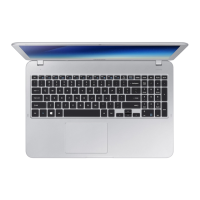

 To Next Page
 General