EasyManua.ls Logo

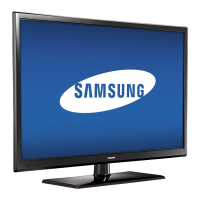
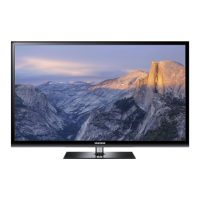
Samsung PN51E490B4F - User Manual

Samsung PN51E490B4F
23 pages
Print Icon
To Next Page IconTo Next Page
Loading...
Plasma TV
user manual
E-MANUAL
© 2012 Samsung Electronics Co., Ltd. All rights reserved.
BN68-03981A
BN68-03981A-01
Contact SAMSUNG WORLDWIDE
If you have any questions or comments about your Samsung TV, please contact the SAMSUNG customer care center.
Comment contacter Samsung dans le monde
Si vous avez des suggestions ou des questions concernant les produits Samsung, veuillez contacter le Service Consommateurs
Samsung.
Comuníquese con SAMSUNG WORLD WIDE
Si desea formular alguna pregunta o comentario en relación con los productos de Samsung, comuníquese con el centro de
atención al cliente de SAMSUNG.
Country CANADA U.S.A
Address
Samsung Electronics Canada Inc.,
Customer Service
55 Standish Court Mississauga
Ontario L5R 4B2 Canada
Samsung Electronics America, Inc.
85 Challenger Road
Ridgefield Park, NJ 07660-2112
Customer Care
Center
1-800-SAMSUNG (726-7864)
Web Site www.samsung.com
Thank you for purchasing this Samsung product.
To receive more complete service, please register
your product at
www.samsung.com/register
Model _____________ Serial No. _____________
If you have any questions, please call us at 1-800-SAMSUNG (1-800-726-7864) for assistance.
[PE490-ZA]BN68-03981A-Cover.indd 1 2012-04-02 �� 9:32:54

Other manuals for Samsung PN51E490B4F

Questions and Answers

  • T
    Todd LesterSep 23, 2025
    Why do I see purple or green rolling bars and buzzing noise from my Samsung PN51E490B4F?
    • S
      Steven JohnsonSep 23, 2025
      Remove the left and right audio connections from the set-top-box. If the buzzing stops, this indicates that the set-top-box has a grounding issue. Replace the Component video cables with an HDMI connection.
  • D
    Dakota PageAug 23, 2025
    What to do if my Samsung PN51E490B4F TV will not turn on?
    • S
      sthompsonAug 25, 2025
      If your Samsung TV won't turn on, ensure the AC power cord is securely plugged into both the wall outlet and the TV. Verify that the wall outlet is working. You can also try pressing the POWER button on the TV itself to rule out a remote control issue. If the TV then turns on, the problem is with the remote.
  • P
    pzamoraAug 25, 2025
    What to do if there is no picture on my Samsung PN51E490B4F TV?
    • L
      Lindsay HenryAug 26, 2025
      If there is no picture on your Samsung TV, check the cable connections by removing and reconnecting all cables connected to the TV and any external devices. Make sure your external device’s video outputs match the TV input. Ensure all connected devices are powered on. Select the correct source on your TV by pressing the SOURCE button on the remote control. You can also reboot the connected device by reconnecting its power cable.
  • S
    shelly82Aug 27, 2025
    Why does my Samsung PN51E490B4F turn off automatically?
    • M
      Michael DixonAug 27, 2025
      If your Samsung TV turns off automatically, check that the Sleep Timer is set to Off in the System menu. If a PC is connected to the TV, review your PC's power settings. Also, make sure the AC power cord is securely plugged into the wall outlet and the TV. When watching antenna TV programs, the TV will turn off after 10-15 minutes if there's no signal.
  • M
    Michael GrayAug 27, 2025
    What to do if my Samsung PN51E490B4F is not receiving all channels?
    • J
      Juan MorganAug 27, 2025
      If your Samsung TV isn't receiving all channels, first ensure the coaxial cable is securely connected. Then, run Auto Program to add available channels to the channel list. This can be found in MENU - Channel - Auto Program. Select Auto and make sure to select the correct Cable TV signal type (STD, HRC, or IRC; most cable systems use STD). Also, verify that the antenna is positioned correctly.
  • J
    Jacob Heath MDSep 15, 2025
    What does it mean if I see small particles when I look closely at the edge of the frame of my Samsung PN51E490B4F TV?
    • G
      George BellSep 15, 2025
      If you see small particles when you look closely at the edge of the frame of your Samsung TV, this is part of the product’s design and is not a defect.
  • A
    Austin VazquezSep 12, 2025
    What to do if my Samsung TV is tilted to the right or left side?
    • M
      mbennettSep 12, 2025
      If your Samsung TV is tilted to the right or left side, remove the stand base from the TV and reassemble it.
  • S
    Sheila HowardSep 14, 2025
    What does it mean when POP appears on the screen of my Samsung TV?
    • M
      Michael RushSep 14, 2025
      If POP (TV’s internal banner ad) appears on the screen, select Home Use under Setup mode.
  • D
    David CabreraSep 5, 2025
    How to adjust color and brightness on Samsung TV?
    • E
      Elizabeth AnthonySep 5, 2025
      To adjust the color and brightness on your Samsung TV, go to the Picture options in the TV menu and adjust the Picture Mode, Color, Brightness, and Sharpness settings. You can also adjust the Energy Saving option in the TV menu by navigating to MENU - System - Eco Solution - Energy Saving. Additionally, you can reset the picture to the default settings by going to MENU - Picture - Reset Picture.
  • T
    Teresa AndersonSep 2, 2025
    Why does my Samsung TV image not look as good as in store?
    • W
      William VincentSep 2, 2025
      The picture quality of your Samsung TV may not look as good as it did in the store because store displays are usually tuned to digital, HD channels. If you have an analog cable/satellite box, consider upgrading to a digital set-top box and use HDMI or Component cables for HD picture quality. Cable/Satellite subscribers can try HD channels. If using an antenna connection, try HD channels after performing an Auto program. Adjust the Cable/Set top box video output resolution to 1080i or 720p.

Summary

Important User Information

Screen Image Retention

Information on preventing screen image retention or burn-in on Plasma TVs by limiting static images.

Providing Proper Ventilation for Your TV

Connecting to AV Devices

HDMI or HDMI to DVI for HD Connection

Recommends HDMI for HD picture quality and explains using HDMI to DVI with separate audio cables.

Connecting Audio Devices

Connecting to a PC

Connecting to a Network

Wireless Network Connection

Steps to connect wirelessly using a Samsung Wireless LAN Adapter.

The Wired Network Connection

The Remote Control Buttons

Button Functions Overview

Describes the functions of various remote control buttons, including power, source, volume, channel, menu, and navigation.

Configuring Basic Settings (Initial Setup)

Network Settings Configuration

Steps to configure network settings, including connecting to wireless or wired networks.

Wireless Network Setup

Detailed steps for connecting the TV to a wireless network using security keys or WPS.

Wired Network Setup

Steps to configure the TV's wired network connection using DHCP for automatic IP configuration.

Auto Program Setup

Guide to automatically finding and storing TV channels based on signal source and search options.

Auto Program (1): Signal Source

Step to select the TV signal source (antenna or cable) for channel scanning.

Auto Program (2): Search Options

Instructions for selecting between Air/Cable and digital/analog cable signal formats.

Changing the Input Source

How to Navigate Menus

Operating the Main Menu (OSD)

Detailed steps on how to access and operate the main on-screen display menus for TV settings.

Using the TVs Controller (Panel Key)

Using Contents Home

Contents Home Features

Outlines the four main functions of Contents Home: Channel List, AllShare Play, Schedule Manager, and Source.

Installing the Wall Mount (Optional)

Installing the Wall Mount Kit

Instructions for installing the optional wall mount kit, including ordering and professional assistance.

Configuring Network Connections (Post-Setup)

Wireless Network Configuration

Detailed instructions for connecting to a wireless network using DHCP or manual IP settings.

Wired Network Configuration

Steps for configuring a wired network connection using DHCP or manual IP settings.

How to View the e-Manual

Viewing e-Manual Contents

Troubleshooting Common Issues

Securing the TV to the Wall

Wall or Ceiling Mounting Precautions

Safety warnings regarding secure mounting to prevent the TV from falling and causing injury or damage.

Product Specifications

Jack Panel Detail; Rear View

Samsung PN51E490B4F Specifications

General IconGeneral
BrandSamsung
ModelPN51E490B4F
CategoryTV
LanguageEnglish

Related product manuals