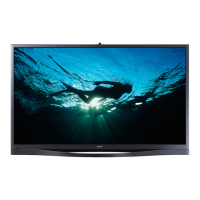
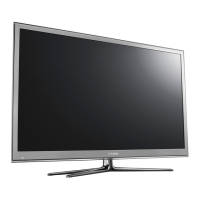
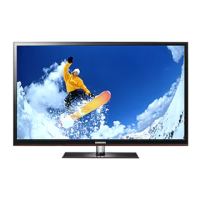
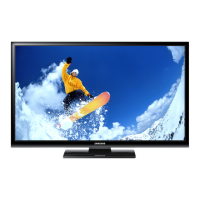
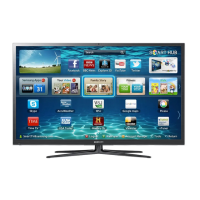
This document is a user manual for a Samsung Plasma TV, specifically from the Series 4+. It provides comprehensive instructions for setup, operation, and maintenance, along with important safety information.
General Safety and Important Notices
The manual begins with crucial safety instructions, emphasizing the risk of electric shock and the importance of not opening the TV's cabinet. It highlights symbols indicating high voltage and the presence of important literature. Users are warned against blocking ventilation slots, placing the TV near heat sources or water, and overloading electrical outlets. It advises unplugging the TV during lightning storms or extended periods of disuse to prevent damage. Proper battery disposal is also mentioned, adhering to environmental regulations. The manual stresses the importance of using a properly grounded plug and receptacle and ensuring the power cord is firmly inserted. It also warns against touching the power cord with wet hands and advises contacting an authorized service center if the TV operates abnormally. For cleaning, users should unplug the TV and wipe it with a soft, damp cloth, avoiding harsh chemicals. Children should be prevented from hanging on the TV or accessing accessories.
Regarding digital TV, the manual clarifies that DVB functionalities are only available in regions broadcasting DVB-T or DVB-C signals. It notes that some advanced features like EPG or VOD may not be available and that compatibility with future broadcasts is not guaranteed. Users are advised to contact their local Samsung customer care center for more information on reception quality and potential reconfigurations.
The manual also addresses common user instructions and potential issues. It warns against "screen image retention" or "screen burn" from displaying still images for extended periods, recommending reduced brightness and contrast in such cases. It explains that the top of the Plasma TV may become hot after prolonged use, which is normal, and that a "cracking" noise due to temperature changes is also normal. The presence of a few bright or dark pixels on the screen is described as a normal characteristic of PDP panels, not affecting performance. Operating the TV below 41°F (5°C) is not recommended. Permanent damage to the PDP panel can occur if a still image is displayed too long, especially in 4:3 format, which can leave traces of borders. After-images from video games or PC use can also occur, and reducing brightness and contrast is suggested to mitigate this. Warranty does not cover damages caused by image retention or burn-in. The manual also includes information on the correct disposal of waste electrical and electronic equipment and batteries, adhering to European Union guidelines.
List of Features
The Samsung Plasma TV offers several key features:
- 3D: This feature allows viewing of 3D content from broadcasts or 3D BD players.
- Media Play: This function connects the TV with compatible Samsung mobile phones/devices through a network and allows playing music files, pictures, and movies saved on a USB device.
- e-Manual: An on-screen full manual for easy access to instructions.
Accessories
The TV comes with a remote control and batteries (AAA x 2), 3D Active Glasses, a power cord, a regulatory guide, owner's instructions, and a cleaning cloth. It also includes a holder-wire stand and two ferrite cores for shielding cables from interference. An administration fee may be charged if a service call reveals no defect or if the user has not read the manual.
Viewing the Remote Control
The remote control is designed with Braille points on the Power, Channel, and Volume buttons for visually impaired users. It includes buttons for:
- Power: Turns the TV on and off.
- Source: Displays and selects available video sources.
- Numeric buttons (0-9): Direct channel access.
- TTX/MIX: Selects Teletext modes.
- PRE-CH: Returns to the previous channel.
- Mute: Cuts sound temporarily.
- Volume (+/-): Adjusts volume.
- P (Channel up/down): Changes channels.
- CH LIST: Displays channel lists.
- MEDIA.P: Displays Media Play.
- MENU: Displays the main on-screen menu.
- GUIDE: Displays the EPG (Electronic Programme Guide).
- TOOLS: Quickly selects frequently used functions.
- INFO: Displays information on the TV screen.
- Selection buttons (up/down/left/right/enter): Navigates menus.
- RETURN: Returns to the previous menu.
- EXIT: Exits the menu.
- Color buttons (A, B, C, D): Used for interactive TV features.
- E-MANUAL: Displays the e-Manual guide.
- 3D: Sets video with 3D signal.
- AD/SUBT.: Audio Description selection/digital subtitles.
- Playback controls (rewind, play, fast forward, pause, stop): Used for specific features.
Instructions for installing two AAA/R6 batteries are provided, emphasizing correct polarity and removal during long periods of disuse to prevent leakage.
Using the TV's Controller (Panel Key)
A small joystick-like button on the rear left side of the TV allows control without the remote. It can be used to select Media Play, Menu, Source, and power off the TV. Some PIN-code protected functions may not be available via the panel key.
Initial Setup
Upon initial power-on, the TV guides the user through basic settings. The setup is available only when the source is set to TV. If a set-top box is connected to HDMI IN 1(STB) before setup, the channel source will automatically default to "Set-top box." Users can reset the setup via the System menu, requiring a 4-digit PIN (default "0-0-0-0"). A sequence of remote control buttons in Standby mode (MUTE→8→2→4→ POWER) can reset a forgotten PIN.
Connections
The manual details various connection types:
- AV connection (BD Player): Audio Out (R-AUDIO-L), Video Out, R-AUDIO-L.
- Component connection (BD Player): Component Out (PR, PB, Y), Audio Out (R-AUDIO-L). This port supports both Component and AV connections.
- HDMI connection (Set-top Box / BD Player / PC): DVI Out, HDMI Out.
- TV Side Panel: USB (5V 0.5A), HDMI IN 2 (DVI), Common Interface (CI CARD).
- TV Rear Panel: Digital Audio Out (Optical), EXT (RGB), Component/AV IN (Y, Video, PB, PR, Audio R), LAN, Air/Cable ANT IN.
- Ferrite Core: Instructions for attaching ferrite cores to the power cord to shield against interference.
Notes include that PC(D-Sub) and PC/DVI AUDIO IN are not supported, and if a DVI to HDMI cable is used with HDMI IN 2 (DVI), there will be no audio. For set-top box connections, HDMI IN 1(STB) is recommended. The LAN port is for Digital Text. The TV may interfere with amateur radio or AM radio.
Connecting to a COMMON INTERFACE Slot
To watch paid channels, a "CI or CI+ CARD" must be inserted. The manual explains that pairing information will display, and if an error occurs, the service provider should be contacted. Users must obtain the card from a local cable service provider and insert it carefully. The location of the slot may vary by model.
The SOURCE button allows selection of TV or external input sources like DVD/Blu-ray players, cable boxes, or STB satellite receivers. Connected inputs are highlighted. PC(D-Sub) is not supported, but PC can be connected via HDMI to DVI cable to HDMI IN 2(DVI). The TOOLS button provides "Edit Name" to customize input source names and "Information" for details on connected devices.
Network Connection
- Wireless: Connects the TV to a LAN via a standard wireless router or modem using a "Samsung Wireless LAN Adapter" (WIS12ABGNX, WIS09ABGNX) plugged into the USB port. Samsung recommends IEEE 802.11n. Security systems requiring an encrypted access key are mentioned.
- Wired: Connects the TV to the network using an Ethernet cable, either directly to a modem or a LAN port on the wall. The LAN port is for Digital Text. The TV does not support network speeds less than or equal to 10Mbps, and Cat7 cable is recommended.
How to use the e-Manual
The e-Manual is accessed by pressing the E-MANUAL button on the remote or through the MENU → Support → e-Manual path. Users can navigate categories and topics using arrow buttons. Operation buttons include Index, Enter, Exit, Try now (to display corresponding OSD menu), Home, Page (previous/next), and Zoom. Topics can be searched by keyword.
Teletext Feature
The Teletext service provides information via an index page. Pages can be changed using numeric buttons. Remote control buttons for Teletext include:
- (mode): Selects Teletext modes (LIST/FLOF) and List save mode.
- (Teletext on/mix/off): Activates/deactivates Teletext, with an option to overlap with broadcasting.
- (sub-page): Displays available sub-pages.
- (store): Stores Teletext pages.
- (index): Displays the index page.
- (size): Displays text in double-size (upper/lower half of screen).
- (hold): Holds the display on the current page.
- (page up/down): Displays next/previous Teletext pages.
- (reveal): Displays hidden text.
- (cancel): Shrinks Teletext display.
- Color buttons (red, green, yellow, blue): Used for FASTEXT system to select color-coded topics.
Teletext pages are organized into categories: selected page number, broadcasting channel identity, current page number/search indications, date and time, text, and status/FASTEXT information.
3D Active Glasses - SSG-5100GB
These glasses enable viewing 3D images on Samsung 3D TVs (D, E, and F series, 2011-2013 models) via a 2.4GHz RF band. They are not compatible with other Bluetooth devices.
- Parts: Battery Cover, LED Indicator & Power Button, Liquid crystal shutter.
- Pairing: The process of connecting glasses to the TV for data exchange. Users must turn on the TV, move glasses within 19.5 inches (50 cm), and briefly press the power button on the glasses. A message confirms successful pairing. If pairing fails, power cycling the TV and repeating the process is advised. Re-pairing is needed if glasses malfunction or are used with a different Samsung 3D TV.
- Battery: If the red LED blinks every two seconds, the battery (one 3V lithium/manganese dioxide CR2025) needs replacement. Instructions for opening the cover, replacing the battery with correct polarity, and closing the cover are provided.
- Viewing Guidelines: Warnings about screen flickering under fluorescent lamps, disabling 3D function when switching input modes, and signal disconnection if glasses move outside the working distance (2-6m). Glasses power off after 3D function turns off. Malfunctions can occur due to interference from other 2.4GHz devices. Lying on one's side may affect 3D viewing.
- Safety Precautions: Important health and safety information for 3D viewing, especially for children. Advises against using 3D glasses for other purposes, stopping viewing if discomfort occurs (dizziness, nausea, headaches, eye strain), and not using them while walking or moving. Warnings against placing the product in direct sunlight, heat, fire, or water; applying force to lenses; using incorrect batteries; keeping used batteries from children; spraying water or cleaner directly onto the product; using harsh chemicals for cleaning; disassembling or modifying glasses; and injuring eyes with frame edges.
Troubleshooting
A comprehensive troubleshooting guide is provided for various issues:
- Picture Quality: Issues like poor image quality, distortion, wrong colors, poor brightness, dotted lines, black and white picture, or freezing/delayed picture. Solutions include performing a Picture Test, upgrading to a digital set-top box, using HDMI/Component cables, adjusting video output resolution, checking cable connections, adjusting picture options (Picture Mode, Colour, Brightness, Sharpness), Energy Saving options, and resetting picture settings.
- Sound Quality: Issues like no sound, low volume, or inappropriate noise. Solutions include performing a Sound Test, checking device volume, setting Speaker Select to TV Speaker, checking audio cable connections, checking device audio output options (e.g., HDMI for HDMI connections), using a separate audio cable for DVI to HDMI, rebooting connected devices, and checking signal strength.
- No Picture, No Video: TV not turning on, turning off automatically, no 3D videos from BD players, or no picture/video. Solutions include checking power cord, wall outlet, Sleep Timer settings, PC power settings, and cable connections.
- Aerial (Air/Cable) Connection: TV not receiving all channels or distorted picture. Solutions include checking aerial cable, performing initial setup, and verifying aerial position.
- Others: Picture not displaying in full screen, humming noise, image retention (burn-in), remote control not working, cable/set-top box remote not operating TV, or "Mode Not Supported" message. Solutions include adjusting picture size, checking brightness, rerouting connection cables, replacing remote batteries, cleaning remote sensor, programming cable/set-top box remote, and adjusting external device's output resolution.
The manual also addresses plastic smell, unavailable TV Signal Information, tilted TV, difficulties assembling the stand, greyed-out Broadcasting menu, lost settings, intermittent audio/video loss, small particles at frame edge, unavailable PIP menu, TV turning on automatically, "Scrambled Signal" or "Weak or No Signal" messages, recurrent picture/sound issues, reaction between rubber cushion pads and furniture, and "This file may not be playable properly" messages. It suggests upgrading firmware via USB for optimum operating condition.
Installing the Wall Mount
Instructions for installing a wall mount kit (sold separately) are provided, emphasizing that Samsung is not responsible for damage if the user installs it themselves. It details VESA specifications for screws and warns against using non-compliant screws or fastening them too strongly. The TV should be mounted on a solid wall, perpendicular to the floor.
Securing the TV to the Wall
This section provides steps to prevent the TV from falling, especially important for children. It involves fastening screws into clamps on the wall, then attaching the TV to these clamps with screws, and finally tying the TV to the wall clamps with a strong string. Notes advise installing the TV close to the wall, ensuring wall clamps are equal to or lower than TV clamps, and untying the string before moving the TV. Regular checks for connection security are recommended.
Securing the Installation Space
Required distances between the TV and other objects (e.g., walls) must be maintained for proper ventilation to prevent fire or product problems due to overheating. Only Samsung-provided parts should be used for stand or wall-mount installations.
Anti-theft Kensington Lock
The Kensington Lock (not supplied by Samsung) is a physical security device for public places. Users should refer to the lock's manual for specific instructions. The TV has a "" icon on the rear, beside which the Kensington slot is located. Steps include wrapping the cable around a stationary object, sliding the cable end through the looped end, inserting the locking device into the slot, and locking it.
Storage and Maintenance
Users are advised to clean residues from stickers on the screen before watching TV. The exterior and screen should be cleaned carefully with a soft cloth to prevent scratches. Warnings against spraying water or cleaner directly onto the product and using flammable liquids or harsh chemicals are reiterated.
Warranty Card
The warranty covers the product for twelve months from the original purchase date against defective materials and workmanship. Users should return the product to the retailer or contact Samsung Authorised Service Centres. The warranty is valid only if the warranty card is fully completed and presented with the original invoice or sales slip, and the serial number is not defaced. Samsung's obligations are limited to repair or replacement. Repairs must be carried out by Authorised Samsung Dealers or Service Centres. The warranty does not cover adaptations for national/local technical standards, damage from accident, misuse, unauthorized modification, transit, neglect, power surge, lightning, water, fire, acts of God, normal wear and tear, or differences in broadcasting methods. The warranty applies to any legal owner during the period and does not affect consumer statutory rights.



 To Next Page
 General