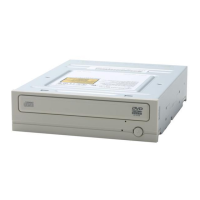
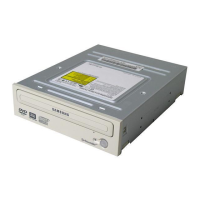
System Requirements
4 5
1
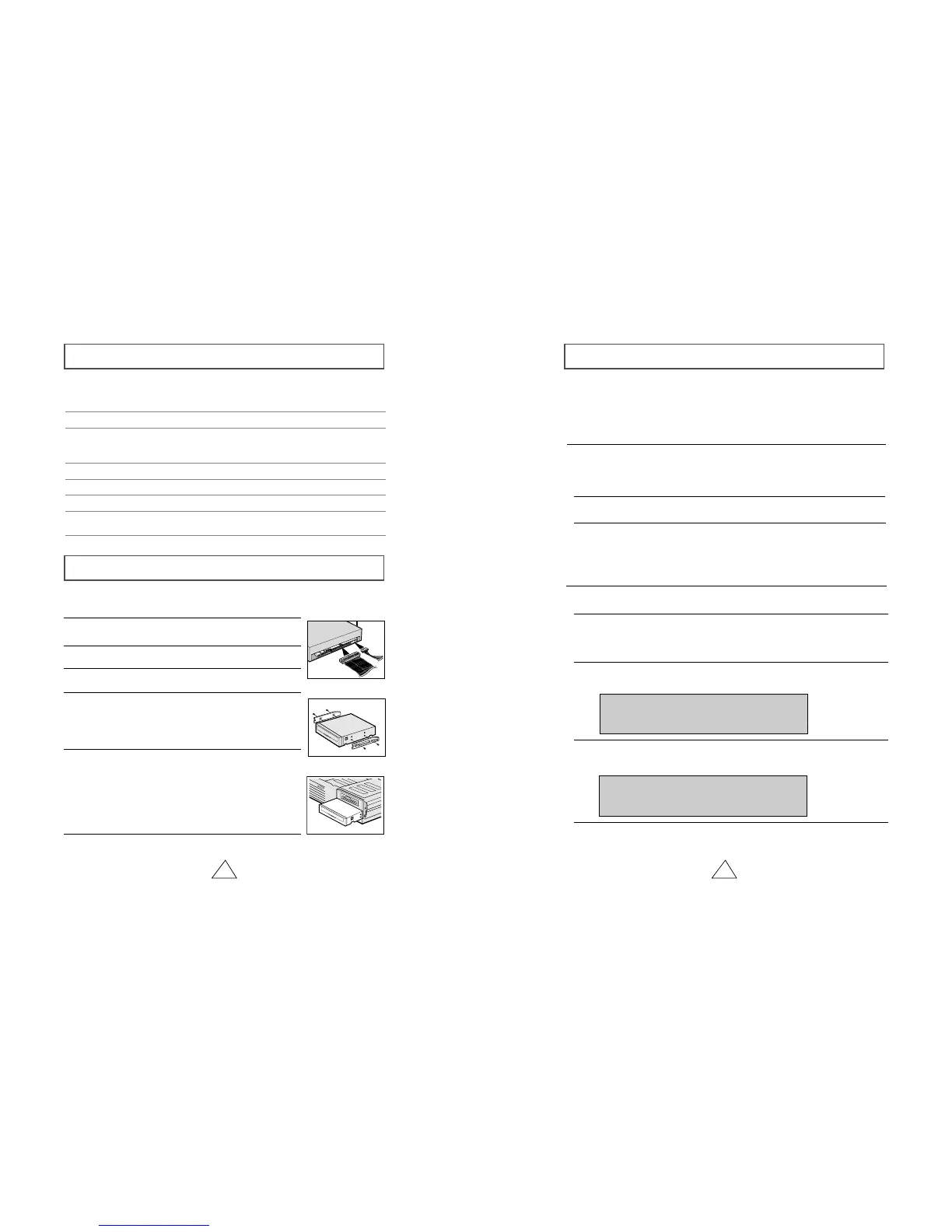
Turn OFF your computer. Remember to verify the
configuration jumper on the rear of the CD-ROM drive.
2
Remove the cover of your PC(main unit of the computer)
3
Remove the blank cover panel of the 5.25 inch unit in
which the CD-ROM drive is to be installed.
6
Put the cover back on your PC.
5
Install the CD-ROM drive into the unit and secure it with
mounting screws (recommended standard M3x6x4)
☛
◆
Depending on your PC model, you may need to
attach guide rails to the drive, so that the drive is
held firmly in place.
☛
◆
If you use screws that are longer than the
recommended standard, you may damage the
drive.
Before you install the CD-ROM drive, we strongly recommend that you make certain
that your set-up meets the system requirements listed below.
Installing the CD-ROM Drive
Install the CD-ROM drive in your computer horizontally, making sure that the Open/Close
button is on the right.
To install the drive, proceed as follows.
4
Connect the CD-ROM drive to the IDE interface and power
cables Iocated inside your computer.
☛ Connectors are keyed so it is impossible to put them in
an incorrect position. Do not force the connectors, if they
do not seem to fit.
Item
Windows version
MS-DOS version
Disk space
Free expansion unit
Type of computer
Description
Windows 95 OSR2 / 98 / 2000 / ME / XP
Windows NT 4.0 (or higher)
5.0(or higher)
100KB minimum
5.25 inch
IBM 486SX 20MHz (or higher) with
an IDE interface(or a 100% IBM-compatible
computer)
Setting Up the Device Driver
It is not necessary to set up additional device driver for Window
95/98/2000/NT because it uses the device driver provided by the Window.
◆
Automatic Setup
◆
Manual Setup
LAST DRIVE = Z
- - - - - - - - - - - - - - - - - - - - - - - - - - - - - - - - - - - -
- - - - - - - - - - - - - - - - - - - - - - - - - - - - - - - - - - - -
DEVICE = C :\SAMSUNG\SSCDROM.SYS /D : SSCD000 /V
- - - - - - - - - - - - - - - - - - - - - - - - - - - - - - - - - - - -
- - - - - - - - - - - - - - - - - - - - - - - - - - - - - - - - - - - -
C :\SAMSUNG\MSCDEX /D:SSCD000
1Insert the setup diskette in the diskette drive and change the directory to A:,
where A: is the diskette drive.
To do so, type A: after the C:\ prompt and press [Enter].
2Type CDSETUP and press [Enter].
3Reboot the computer.
1Make the C:\SAMSUNG directory.
2Copy the files from the diskette to the C:\SAMSUNG directory.
To do so, type COPY A:
*
.
*
C:\SAMSUNG after the C:\ prompt and press
[Enter].
3Edit the CONFIG.SYS file.
Add the DEVICE=C:\SAMSUNG\SSCDROM.SYS \D:SSCD000 /V entry.
4Edit the AUTOEXEC.BAT file.
Add the C:\SAMSUNG\MSCDEX /D:SSCD000 entry.
5Reboot the computer.


 To Next Page