EasyManua.ls Logo

Samsung SC-DX205 - User Manual

Samsung SC-DX205
147 pages
Print Icon
To Next Page IconTo Next Page
Loading...
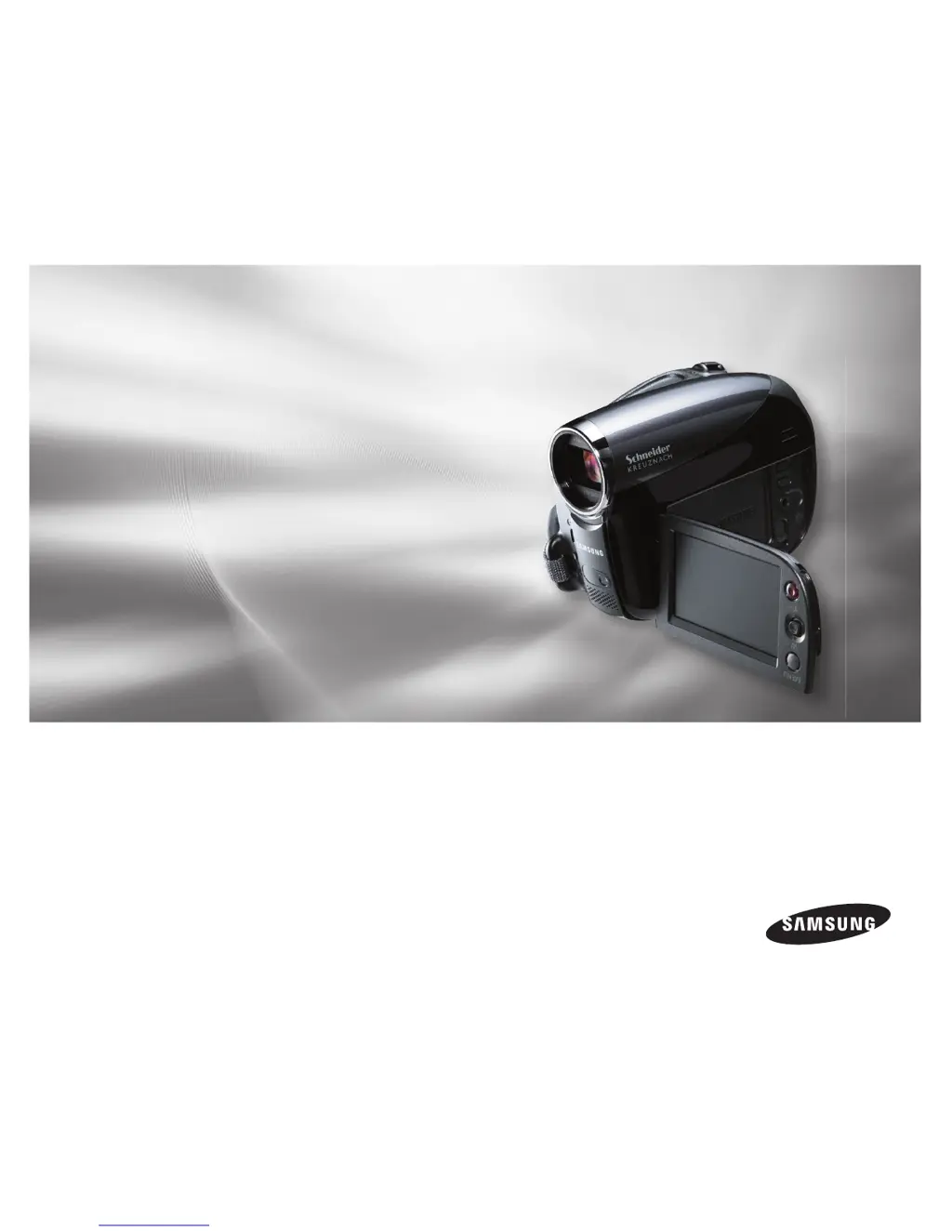
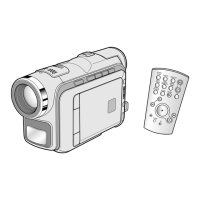
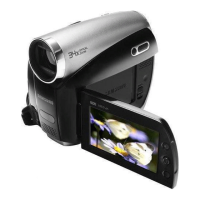
DVD Camcorder
user manual
imagine the possibilities
Thank you for purchasing this Samsung product.
To receive more complete service, please
register your product at
www.samsung.com/register
SC-DX200
SC-DX205

Table of Contents

Questions and Answers

  • D
    danalongSep 23, 2025
    Why playback function is not working on Samsung SC-DX205?
    • P
      Patrick WilsonSep 23, 2025
      If using the playback (Play/Pause) function does not start playing on your Samsung Camcorder, press the MODE button to set to the Play mode. Images recorded using another device may not be played.
  • A
    Angela SchmidtAug 25, 2025
    What to do if my Samsung SC-DX205 Camcorder says card full?
    • Z
      zsummersAug 25, 2025
      If your Samsung Camcorder displays 'Card Full', delete unnecessary files from your memory card or switch to another storage media to continue recording.
  • A
    angela12Aug 25, 2025
    What to do if my Samsung SC-DX205 Camcorder says disc full?
    • J
      jean83Aug 26, 2025
      If your Samsung Camcorder displays 'Disc Full', switch to a new disc. If you are using a DVD-RW disc in VR mode, you can erase recorded videos to free up space.
  • B
    brownjacobAug 26, 2025
    Why does my Samsung SC-DX205 power off automatically?
    • E
      Ethan WrightAug 26, 2025
      If your Samsung Camcorder turns off automatically, charge the battery pack or replace it with a charged one. Alternatively, use the AC power adapter. This issue may occur if the 'Auto Power Off' setting is enabled or the battery is low.
  • J
    Jeremy BellSep 23, 2025
    What to do if Samsung Camcorder power cannot be turned off?
    • E
      edwardjonesSep 23, 2025
      To turn off the power on your Samsung Camcorder, remove the battery pack or unplug the AC power adapter. Then, reconnect the power supply before turning it on again.
  • M
    marshalljacobSep 13, 2025
    What to do if Samsung SC-DX205 disc is not recognized?
    • K
      Kimberly CarterSep 13, 2025
      If your Samsung Camcorder does not recognize the disc, replace it with a new one. The disc may be damaged.
  • S
    Samantha NormanSep 12, 2025
    Why are menu items greyed out on Samsung SC-DX205 Camcorder?
    • A
      Amber SchwartzSep 12, 2025
      Greyed out menu items on your Samsung Camcorder indicate that they cannot be selected in the current recording/playback mode. Some functions cannot be activated simultaneously.
  • K
    Katie Harris PhDSep 12, 2025
    What to do if disc cannot be removed from Samsung SC-DX205?
    • K
      Kevin LopezSep 12, 2025
      If the disc cannot be removed from your Samsung Camcorder, turn off the camcorder and leave it for about 1 hour in a cool and dry place. The camcorder may be damp inside (condensation), or the internal temperature may be unusually high.
  • D
    Diane ReevesSep 4, 2025
    What to do if my Samsung SC-DX205 Camcorder says cover is opened?
    • R
      Ronald LopezSep 4, 2025
      If your Samsung Camcorder indicates that the cover is open, close the cover.
  • E
    Erin DavisSep 1, 2025
    How to fix card error on Samsung SC-DX205?
    • K
      Kathleen CalderonSep 1, 2025
      If your Samsung Camcorder displays a 'Card Error', the memory card may be damaged or the controller may be corrupted. Try using a different memory card.

Summary

Getting Started

Key Features of Your DVD Camcorder

Details the main features of the camcorder.

Quick Start Guide

Provides essential steps for initial setup and operation.

Preparation and Setup

Covers essential preparation steps like battery charging and initial settings.

Camcorder Operations

Disc Mode Operations

Covers recording, editing, and managing content on DVD discs.

Card Mode Operations (SC-DX205)

Details on recording, playback, and file management using memory cards.

Using the Menu Items

Guide to accessing and utilizing the camcorder's various menu options.

Connectivity and Data Transfer

Connecting to AV Devices

Instructions for connecting the camcorder to TVs and other AV equipment.

Connecting to Computers

Steps for connecting the camcorder to computers via USB for data transfer.

Maintenance and Troubleshooting

Camcorder Maintenance

General tips for cleaning, storing, and caring for the camcorder.

Troubleshooting

Solutions for common operational problems, warnings, and errors.

Technical Information

Specifications

Technical details and system requirements of the camcorder.

Warranty

Information regarding the limited warranty and its exclusions.

Samsung SC-DX205 Specifications

General IconGeneral
Filter size30.5 mm
Digital zoom2200 x
Optical zoom34 x
Image stabilizerYes
Focal length range2.3 - 78.2 mm
Sensor typeCCD
Total megapixels0.68 MP
Optical sensor size1/6 \
I/O ports- Composite output: 1Vp-p (75 Om) - Audio output: -7.5dBs (600 Om) - USB output: Mini-B
Minimum RAM64 MB
Minimum processorPower PC G5
Power requirementsAC 100 - 240V 50/60Hz, DC 8.4 V
Aperture range (F-F)1.6 - 4.3
Minimum system requirementsUSB2.0
Power consumption (typical)3 W
Compatible operating systemsWindows 2000, XP MAC OS X v 10.4+
Display diagonal2.7 \
Display resolution720 x 480 pixels
Video formats supportedH.264
Analog signal format systemNTSC
Camera shutter speed1/60 - 1/10000 s
Minimum illumination2 lx
Product colorBlack
Operating temperature (T-T)0 - 40 °C
Weight and Dimensions IconWeight and Dimensions
Depth121.5 mm
Width56.5 mm
Height91 mm
Weight365 g

Related product manuals