EasyManua.ls Logo

Samsung SC-MX20 - User Manual

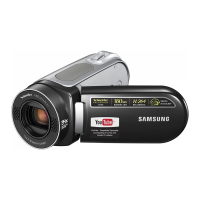
Samsung SC-MX20
125 pages
Print Icon
To Next Page IconTo Next Page
Loading...
imagine the possibilities
Thank you for purchasing this Samsung product.
To receive more complete service, please
register your product at
www.samsung.com/global/register
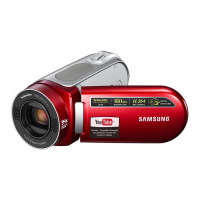
Memory Camcorder
user manual
SC-MX20
SC-MX20B
SC-MX20H
SC-MX20L
SC-MX20R
SC-MX20C
SC-MX20CH
SC-MX20E
SC-MX20EL
SC-MX20ER

Table of Contents

Other manuals for Samsung SC-MX20

Questions and Answers

  • S
    Susan FinleySep 17, 2025
    Why image cannot be deleted on Samsung Camcorder?
    • J
      Jacqueline HansonSep 17, 2025
      If you cannot delete an image on your Samsung Camcorder, it might be protected by another device. Release the protection on that device. Also, check the write-protect tab on the memory card (SDHC memory card, etc.) and release the lock if there is one.
  • K
    kellyrossAug 25, 2025
    Why can't I play a movie file properly on a PC from my Samsung SC-MX20?
    • F
      Francisco MatthewsAug 25, 2025
      If your Samsung Camcorder cannot play a movie file properly on a PC, a video codec may be needed. Install the software provided with your camcorder using the software CD that came with it.
  • K
    Kurt MendezAug 25, 2025
    How to fix low battery on Samsung SC-MX20?
    • K
      kerrjoshuaAug 26, 2025
      To address a low battery on your Samsung Camcorder, either switch to a charged battery or use the AC adapter. Also, ensure you charge the battery pack.
  • T
    Theresa WalshAug 27, 2025
    Why does my Samsung SC-MX20 Camcorder power automatically turn off?
    • S
      Sydney MckinneyAug 27, 2025
      If your Samsung Camcorder power automatically turns off, check if "Auto Power Off" is set to "5 Min". Also, try charging the battery pack, replacing it with a charged one, or using the AC power adapter.
  • M
    Maria HansenSep 18, 2025
    Why the recording stops automatically on Samsung SC-MX20 Camcorder?
    • R
      rblevinsSep 18, 2025
      If the recording on your Samsung Camcorder stops automatically, there may not be enough free space on the storage media. Back up important files to your PC and format the storage media or delete unnecessary files. If you frequently record and delete files, the performance of the built-in flash memory may degrade; in this case, format the built-in memory again.
  • D
    dianaknightSep 23, 2025
    Why you cannot dub correctly using the AV cable on Samsung Camcorder?
    • C
      christinakruegerSep 23, 2025
      If you cannot dub correctly using the AV cable with your Samsung Camcorder, ensure the AV cable is properly connected to the correct jack, specifically the input jack of the device used for dubbing the image from your camcorder.
  • V
    valerie63Sep 9, 2025
    What to do if Samsung SC-MX20 Camcorder says release the easy q?
    • J
      joseph49Sep 9, 2025
      If your Samsung Camcorder displays 'Release the EASY Q', release the EASY Q function.
  • P
    Philip WilsonSep 10, 2025
    What to do if my Samsung SC-MX20 says number of video files is full?
    • S
      Shannon KellySep 10, 2025
      If your Samsung Camcorder displays 'Number of video files is full. Cannot record video.', format the storage media using the menu item after backing up important files to your PC or another storage device. You can also set "File No." to "Reset."
  • J
    Joshua ClarkSep 3, 2025
    What to do if Samsung SC-MX20 says low speed card?
    • A
      Amy EatonSep 3, 2025
      If your Samsung Camcorder displays 'Low speed card. Please record a lower resolution', record your movie at a lower resolution or change the memory card to a faster one.
  • J
    Jeffrey JacksonSep 1, 2025
    Why is my Samsung Camcorder battery pack quickly discharged?
    • J
      Juan CarrilloSep 1, 2025
      If your Samsung Camcorder's battery pack is quickly discharging, it may be due to low ambient temperature or the battery pack not being fully charged. Try charging the battery pack again. If the battery pack has reached its lifespan, replace it with another one.

Summary

Memory Camcorder User Manual

Key Features of Your Memory Camcorder

Safety Warnings and Instructions

Understanding Safety Icons and Warnings

Explains warning symbols and provides crucial safety precautions for operation.

Electrical, Environmental, and Operational Safety

Covers precautions for power, environment, servicing, and handling.

Precautions for Use and Maintenance

General Usage and Handling Precautions

Covers trial recording, data compensation, format compatibility, and battery handling.

LCD Display and Environmental Care

Details LCD handling, environmental conditions, and cleaning procedures.

Recording Your Videos

Basic Recording Procedures

Basic steps for recording movie images.

EASY Q Mode for Beginners

Explains the easy recording mode and its features/limitations.

Recording Options and Settings

Menu Navigation and Item Overview

How to navigate menus and lists available settings for recording.

Scene, White Balance, and Exposure Settings

Adjusting scene modes, color balance, and image brightness.

Shutter Speed, Focus, and Anti-Shake

Settings for shutter speed, focus modes, and image stabilization.

Playback and File Management

Movie Images Playback Basics

How to play back movies, adjust volume, and use playback operations.

Playback Menu Options

Lists menu items for playback, including setting play options and deleting files.

Introduction to Basic Features

Connecting to PC and YouTube Upload

Guides for PC connection and uploading recorded videos to YouTube.

Getting to Know Your Memory Camcorder

Whats Included with Your Memory Camcorder

Lists all accessories provided with the camcorder.

Preparation

Connecting Power and Handling Battery Pack

How to connect power and install/eject the battery pack.

Charging the Battery Pack

Detailed procedure for charging the camcorder's battery pack.

Charging Indicators and Auto Power Off

Explains charging status lights and the auto power off function.

Battery Performance Times

Provides estimated charging, recording, and playback times with a fully charged battery.

About and Handling Battery Packs

Information on battery characteristics and safe handling practices.

Using Household Power and AC Adaptor

Guidance on using AC power sources and the AC power adaptor.

Basic Operation: Power and Modes

Covers turning the camcorder on/off and switching operating modes.

LCD Screen Indicators Explained

Explains the meaning of various icons displayed on the LCD screen.

Checking Battery and Memory Capacity

How to check battery and storage status without powering on.

Using the Control Buttons

Explains the functions of the camcorder's control buttons.

Control Button Functions Detailed

Detailed explanation of control button operations in different modes.

Initial Setting: Time Zone, Date;Time, OSD Language

Guides through initial setup for time, date, and language.

About the Storage Media

Recordable Time and Capacity

Details recording times based on resolution and media capacity.

Camcorder Settings and Customization

Storage, Format, and File Number Management

Options for selecting storage, formatting media, and managing file numbering.

Connecting to a Computer

USB Connection and Software Installation

Guides for USB connection, MediaShow4 installation, and system requirements.

File Transfer and PC Playback

Procedures for copying files to a PC and playing them back.

Uploading Videos to YouTube

Guide for uploading videos to YouTube using MediaShow4 or iMovie.

Connecting to Other Devices

Recording to External Devices

How to record video from the camcorder to a VCR or DVD/HDD recorder.

Maintenance and Additional Information

Battery Pack Care and Safety

Details about battery packs, including safety, handling, and life-prolonging tips.

Troubleshooting Common Issues

Warnings, Power, and Storage Media Problems

Solutions for warnings, power issues, and storage media errors.

Recording and Playback Issues

Solutions for problems during recording, playback, and condensation.

Camcorder Specifications

Warranty Information

SAMSUNG Limited Warranty Details

Information on the limited warranty coverage and terms.

Samsung SC-MX20 Specifications

General IconGeneral
Filter size30 mm
Digital zoom1200 x
Optical zoom32 x
Image stabilizerYes
Focal length range1.6 - 4.3 mm
Sensor typeCCD
Total megapixels11.2 MP
Compatible operating systemsWindows 7, Vista, XP SP2
Display diagonal2.7 \
Maximum video resolution720 x 480 pixels
Image formats supportedJPG
Still image resolution(s)800 x 600
Audio formats supportedAAC
Camera shutter speed1/60 - 1/10000 s
PictBridgeNo
USB 2.0 ports quantity1
Firewire (IEEE 1394) ports0
Compatible memory cardsSD, SDHC
Battery typeIA-BP85ST
Weight and Dimensions IconWeight and Dimensions
Depth60 mm
Width125 mm
Height60.5 mm
Weight270 g

Related product manuals