EasyManua.ls Logo

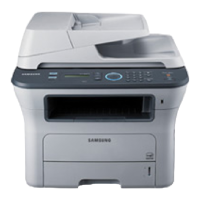
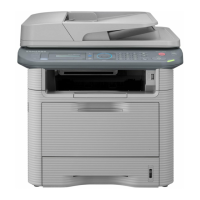
Samsung SCX-4824FN - User Manual

Samsung SCX-4824FN
143 pages
Print Icon
To Next Page IconTo Next Page
Loading...
SCX-4x24 Series
SCX-4x28 Series
Multi Functional Printer
User’s Guide
imagine the possibilities
Thank you for purchasing a Samsung product.

Table of Contents

Other manuals for Samsung SCX-4824FN

Questions and Answers

  • K
    ksimsJul 26, 2025
    Why does the paper keep jamming in my Samsung SCX-4824FN?
    • S
      Stephanie HicksJul 26, 2025
      If the paper keeps jamming in your Samsung All in One Printer: * Remove excess paper from the tray. If you are printing on special materials, use the manual tray. * Use only paper that meets the specifications required by the machine. See page 31. * Open the front cover and remove any debris inside the machine. * If an original does not feed into the machine, the ADF rubber pad may require to be replaced. See page 62.
  • M
    Martin MasonJul 31, 2025
    Why paper does not feed into Samsung All in One Printer?
    • D
      Daniel RamirezJul 31, 2025
      To resolve the issue of paper not feeding into your Samsung All in One Printer: * Remove any obstructions from inside the machine. * Remove the paper from the tray and reload it correctly. * Remove excess paper from the tray if there is too much. * Ensure that you are using paper that meets the specifications required by the machine. See page 31. * If an original does not feed into the machine, the ADF rubber pad may require to be replaced. See page 62.
  • M
    Melissa BentleyAug 5, 2025
    What to do if Samsung All in One Printer says toner low?
    • T
      Timothy RobinsonAug 5, 2025
      If your Samsung All in One Printer indicates 'Toner Low', prepare a new cartridge for replacement. You may temporarily increase the printing quality by redistributing the toner; see page 60 for instructions.
  • S
    Stephanie JonesAug 9, 2025
    Why Samsung All in One Printer is pulling multiple sheets of paper?
    • K
      Karen HamiltonAug 9, 2025
      To address the issue of multiple sheets of paper not feeding in your Samsung All in One Printer: * Ensure that you load paper of only one type, size, and weight. * If multiple sheets have caused a paper jam, clear the paper jam. See page 64.
  • K
    Katherine GoodAug 15, 2025
    How to stop paper sticking together in Samsung SCX-4824FN All in One Printer?
    • M
      Melanie Perez DDSAug 15, 2025
      To prevent paper from sticking together in your Samsung All in One Printer: * Ensure there is not too much paper in the tray. The tray can hold up to 250 sheets of paper, depending on the thickness of your paper. * Make sure that you are using the correct type of paper. See page 36. * Remove paper from the tray and flex or fan the paper. * Note that humid conditions may cause some paper to stick together.
  • S
    Shaun DuncanAug 19, 2025
    How to fix envelopes skewing in Samsung SCX-4824FN?
    • T
      tammy71Aug 19, 2025
      To correct envelopes skewing or failing to feed correctly in your Samsung All in One Printer, ensure the paper guides are against both sides of the envelopes.

Summary

Introduction

Getting Started

Setting Up the Hardware

Step-by-step guide for initial physical setup of the machine.

Setting Up the Network

Instructions for configuring network connectivity and protocols.

Installing the Software

Guide to installing printer drivers and utility programs.

Safety Information

Important Safety Symbols and Precautions

Explains warning icons and safety precautions for safe operation.

Laser Safety Statement

Provides information regarding the machine's Class I laser product certification.

Loading Originals and Print Media

Basic Printing

Printing a Document

General steps for printing documents from applications.

Faxing

Sending a Fax

Procedures for sending faxes, including header and document settings.

Receiving a Fax

How to manage incoming faxes and receiving modes.

Using USB Flash Memory (SCX-4 x28 Series Only)

Scanning to a USB Memory Device

Steps for saving scanned documents directly to a USB drive.

Printing from a USB Memory Device

How to print files stored on a USB flash drive.

Maintenance

Cleaning Your Machine

Guidance on cleaning the printer's exterior, interior, and scan unit.

Replacing the Toner Cartridge

Step-by-step instructions for replacing the toner cartridge.

Troubleshooting

Tips for Avoiding Paper Jams

Recommendations to prevent paper jams during operation.

Clearing Paper Jams

Detailed steps for removing paper jams from various machine locations.

Installing Accessories

Precautions to Take When Installing Accessories

Safety guidelines and preparation steps before installing accessories.

Software Section

Installing Printer Software in Windows

Guide for installing printer software on Windows systems.

Basic Printing

Explanation of printing options and common tasks in Windows.

Samsung SCX-4824FN Specifications

General IconGeneral
Print technologyLaser
Time to first page (black, normal)9.5 s
Print speed (black, normal quality, A4/US Letter)24 ppm
Number of print cartridges1
Maximum scan resolution4800 x 4800 DPI
Optical scanning resolution600 x 600 DPI
PC free copyingYes
Copy speed (black, normal quality, A4)24 cpm
Maximum input capacity250 sheets
Sound power level (standby)26 dB
Dimensions (WxDxH)445.2 x 410.5 x 395.3 mm
Networking featuresFast Ethernet
All-in-one functionsCopy, Fax, Scan
Standard media sizes66 x 127mm (2.6\
Maximum internal memory384 GB
Color all-in-one functionsscan, n
Compatible operating systemsWindows 2000/2003/2008 Server/XP/Vista Linux Mac X 10.3 - 10.5
Duty cycle letter size (maximum)50000 pages per month
Supported network protocols (IPv4)10/100BaseTX
Standard interfacesUSB 2.0
Paper tray media typesBond paper, Card stock, Labels, Plain paper, Recycled paper
FaxingMono faxing
Market positioningBusiness

Related product manuals