Menu functions
80
Taking a photo
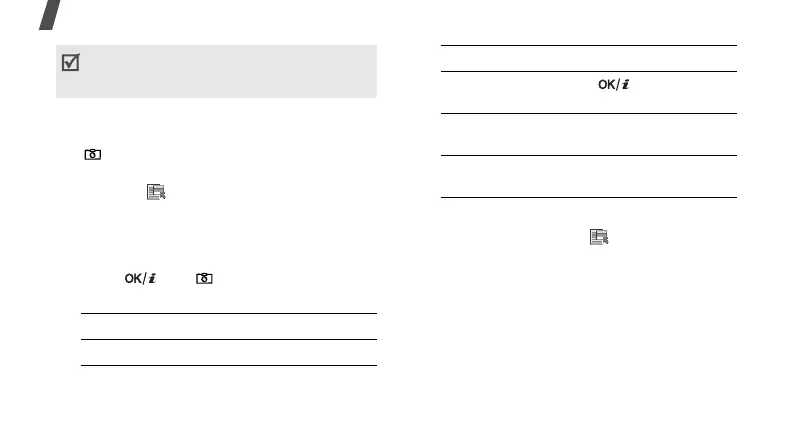
1. Access the
Camera
menu or press and hold
[ ] to turn on the camera.
2. Make any desired adjustments.
• Press < > to access camera options.
next section
• Use the keypad to change the camera
settings or switch to other modes.
p. 81
3. Press [ ] or [ ] to take a photo. The
photo is saved in the
My photos
folder.
Using camera options in Capture mode
In Capture mode, press < > to access the
following options:
•
Record video
: switch to Record mode.
•
Shooting mode
: take a photo in the
following modes:
Single shot
: take a photo in Normal mode.
You can select whether or not the camera
automatically saves the photo.
When you take a photo in direct sunlight or in
bright conditions, shadows may appear on the
photo.
4.
To Press
access photo options <
Options
>.
send the photo via
MMS
[].
delete the photo [
C
] and then
<
Yes
>.
return to Capture
mode
<
Preview
>.
4.
To Press



 To Next Page