Menu functions
68
Viewing a message
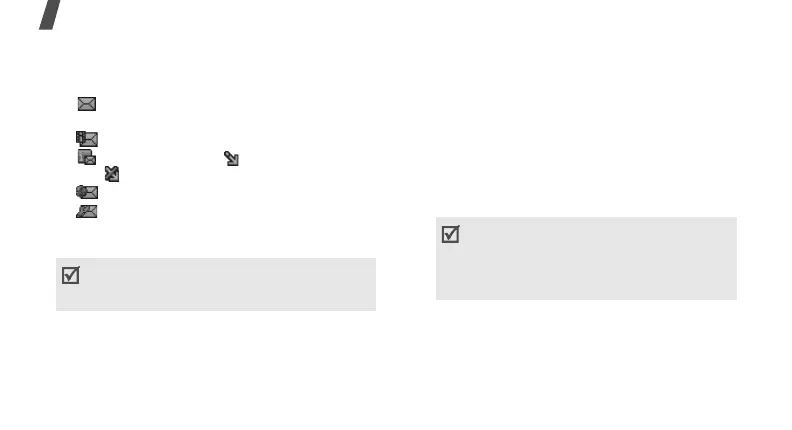
The following icons may appear on the message
list to show the message type:
• SMS or delivery report for your sent
message
• MMS message
• MMS notification ( : Being retrieved,
: Failed to be retrieved)
• Push message from web servers
• Configuration message, containing
network parameters from your service
provider
Using message options
While viewing a message, press <
Options
> to
access the following options:
SMS messages
•
Reply via
: send a reply to the sender via
SMS or MMS.
•
Forward
: forward the message to other
people.
•
View as vivid message
/
View as text
message
: view the message in 3D view
mode or switch back to normal view mode.
This option is available only when the
message consists of a single page.
•
Delete
: delete the message.
•
Move to phone
/
Move to SIM
: move the
message between the SIM card and the
phone’s memory.
A
!
icon next to a message icon means that the
message is of high priority. A grey-coloured
message icon indicates low priority.
Text in the phone’s current language can only
be converted into graphics. For example, if
French is the current language, then only
French words can be converted to the
matching graphics.



 To Next Page