80
Menu functions
•
Protection
: protect the file from being deleted.
•
Print via Bluetooth
: print the file by connecting
the phone to a printer via Bluetooth. Some printers
may not be compatible with the phone.
•
Details
: access the file properties.
Taking a photo with the phone closed
1. Press and hold [
]
.
3. Press [
]
to take a photo. The photo is
automatically saved.
Recording a video
You can record a video of what is displayed on the
camera screen and save it.
1. In Capture mode, press [
1
].
2. Make any desired adjustments.
• Press < > to access camera options.
next section
• Use the keypad to change the camera settings
or switch to other modes.
p. 81
3. Press [ ]or [
]
to start recording.
4. Press [ ], < >, or [
]
to stop recording. The
video is automatically saved in the
My video clips
folder.
2.
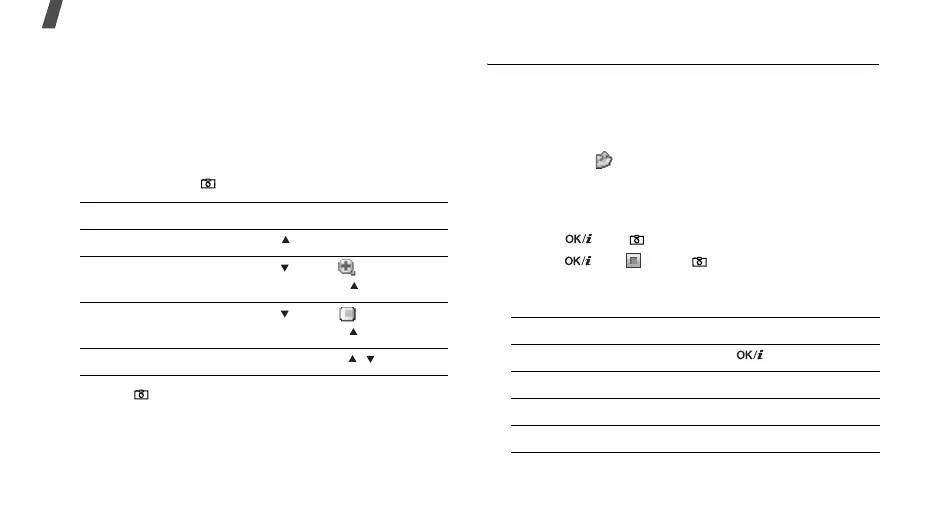
To Press
switch to Record mode [ ].
zoom in or out [ ] until appears
and then [ ].
adjust the brightness [ ] until appears
and then [ ].
turn the flash on or off and hold [ / ].
5.
To Press
play back the video clip [ ].
access video options <
Options
>.
p. 82
delete the video clip [
C
] and then <
Yes
>.
return to Record mode <
Preview
>.



 To Next Page