EasyManua.ls Logo

Samsung SPF-107H - User Manual

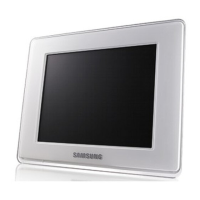
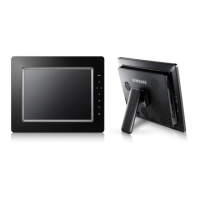
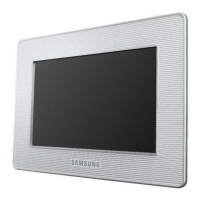
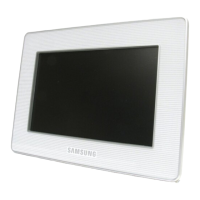
Samsung SPF-107H
38 pages
Print Icon
To Next Page IconTo Next Page
Loading...
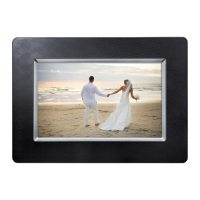
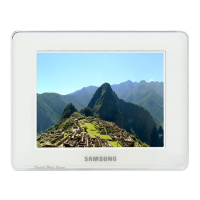
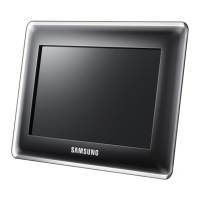
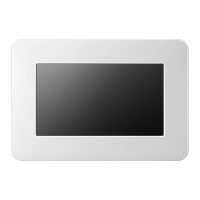
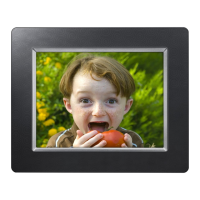
Digital photo frame
User manual
SPF-87H
SPF-107H
The images and screen shots used in this manual are from the SPF-87H.
Read this manual thoroughly for proper
use and maintenance instructions.
Contents
Safety precautions
Get started
Play a slideshow
Browse and manage photos
Customize clock settings
Customize settings
Appendix
Index
Click

Other manuals for Samsung SPF-107H

Questions and Answers

  • M
    michaeljonesSep 4, 2025
    Why is my Samsung SPF-107H not recognized as a removable disk?
    • B
      Brian GilbertSep 4, 2025
      If your Samsung Digital Photo Frame is not recognized as a removable disk when connected to a PC via USB, ensure that you connect both USB connectors, not just the supplementary power connector.
  • R
    Richard JensenSep 18, 2025
    How are photos ordered on a memory card in Samsung SPF-107H?
    • C
      Corey PalmerSep 18, 2025
      Photos are arranged by file names on a memory card in your Samsung Digital Photo Frame, in the order of number – upper case letter – lower case letter.
  • M
    Matthew PhillipsSep 16, 2025
    How to reset my Samsung SPF-107H Digital Photo Frame?
    • T
      thomas83Sep 16, 2025
      To reset your Samsung Digital Photo Frame, select Reset Settings in Settings ? Update/Reset.
  • J
    Jared PattonSep 14, 2025
    Why is the slideshow effect applied even with one photo on my Samsung Digital Photo Frame?
    • C
      Caleb DixonSep 14, 2025
      Even when there is only one photo on the memory card or the slideshow is paused, the slideshow effect is applied to protect the panel of your Samsung Digital Photo Frame.
  • W
    William KennedySep 12, 2025
    Why does the preview play slowly on my Samsung Digital Photo Frame?
    • T
      Tina CharlesSep 12, 2025
      If the preview plays slowly on your Samsung Digital Photo Frame, it may be due to a large number of photos or large file sizes.
  • S
    Sandra HerreraSep 12, 2025
    Why doesn't the Auto Picture On/Off feature work on my Samsung SPF-107H Digital Photo Frame?
    • E
      Erin FieldsSep 12, 2025
      If you've activated the Auto Picture On/Off feature on your Samsung Digital Photo Frame, but the screen doesn't turn on automatically, the screen turns on automatically only when the screen was turned off automatically via the Off Time setting. If you manually turned it off, it won't turn back on automatically.
  • S
    Sheri LloydSep 9, 2025
    Why is the clock displaying on my Samsung SPF-107H when it shouldn't?
    • D
      Douglas GrahamSep 9, 2025
      If the clock displays on the screen of your Samsung Digital Photo Frame even when Photo & Clock view mode is not selected, check if Screen Saver is set to Clock in Settings ? Preference.
  • J
    Jessica NavarroSep 7, 2025
    Why does it take so long for images to display on my Samsung SPF-107H?
    • A
      Angela TurnerSep 7, 2025
      If it takes a long time for images to display on your Samsung Digital Photo Frame, either when turning it on or during a slideshow, it could be because the photo resolution is high or the file size is large.
  • A
    Alejandra PetersenSep 5, 2025
    Why some photos will not display in a slideshow on my Samsung Digital Photo Frame?
    • H
      heidioconnellSep 5, 2025
      If some photos won't display in a slideshow on your Samsung Digital Photo Frame, it might be because your frame can only read up to 4,000 photos. Photos exceeding this limit will not display.
  • D
    debbie73Aug 21, 2025
    What to do if external devices are not working properly with my Samsung Digital Photo Frame?
    • S
      Stephanie PhillipsAug 21, 2025
      If external devices aren't functioning correctly with your Samsung Digital Photo Frame: * Ensure the devices are properly connected. * Verify that the photos stored on the external memory devices are in JPEG format. * The device may not be supported; try using another device.

Summary

Safety Precautions

General Safety Warnings

Detailed warnings and precautions to prevent hazards like electric shock, fire, and overheating, and guidelines for safe operation and placement.

Get Started

Whats in the box

Lists and illustrates the components included with the digital photo frame, such as the frame, adapter, and cables.

Frame Overview and Buttons

Identifies and describes the physical parts and buttons of the digital photo frame for user interaction and control.

Frame Setup and Power Connection

Provides step-by-step instructions for physically setting up the frame and connecting the power adapter to turn it on.

Connecting External Devices

Explains how to connect USB memory devices or SD memory cards to the frame for photo storage and access.

Connecting to a PC

Details how to connect the frame to a computer for photo transfer or using it as a mini-monitor.

Accessing Main Menus

Guides users on how to navigate and access the main menu options of the digital photo frame.

Setting Screen Language

Instructions on how to select and set the desired language for the digital photo frame's display interface.

Transferring Photos from a PC

Step-by-step guide on how to copy photos from a computer to the digital photo frame using a USB connection.

Play a Slideshow

Select Memory Device for Slideshow

Instructions on choosing the source (internal memory, SD, USB) for photos to be displayed in a slideshow.

Select Slideshow View Mode

Explains how to choose different display layouts for slideshows, such as single photo, clock, or multi-photo views.

Select Slideshow Effects

Details how to customize slideshow transitions, speed, and play modes for a personalized viewing experience.

Use Slideshow Menus

Guides users on controlling slideshow playback and adjusting settings like brightness, rotation, and aspect ratio.

Browse and Manage Photos

Browse Photos

Instructions on how to view photos stored in the frame's internal memory or connected external devices.

Copy Photos

Step-by-step guide on copying photos between the frame's memory and external storage devices like SD cards or USB drives.

Delete Photos

Instructions on how to remove unwanted photos from the frame's memory or external storage devices.

Use Photo Menus

Explains how to use context-sensitive menus for managing photos, including copying, deleting, and setting backgrounds.

Customize Clock Settings

Clock Settings and Formats

Guides on setting the current date and time, choosing time/date formats, and selecting different clock display types.

Customize Settings

Options Menus

Details settings for language, brightness, portrait photo display, frame memory copy, and USB communication modes.

Preference Menus

Covers settings for starting mode, screensaver, home background image, and automatic picture on/off features.

Update;Reset Menus

Information on updating the device firmware, resetting settings to default, and viewing product information.

Appendix

Use as PC Mini-Monitor

Instructions on using the digital photo frame as a secondary display monitor for a PC.

Firmware Update

Guide on downloading and installing the latest firmware to update the digital photo frame's software.

Troubleshooting

Provides solutions for common issues encountered while using the digital photo frame, covering power, display, and connectivity.

Specifications

Lists the technical specifications for the digital photo frame models, including dimensions, resolution, and power requirements.

Correct Disposal of the Frame

Guidelines on how to properly dispose of the digital photo frame according to environmental regulations.

Regulatory Compliance Statements

Details compliance information with various regulatory bodies and standards for different regions.

Contact Information of SAMSUNG WORLDWIDE

Provides contact details, including phone numbers and websites, for Samsung customer support across different countries.

Index

Index Entries

An alphabetical listing of topics and their corresponding page numbers for quick reference within the manual.

Samsung SPF-107H Specifications

General IconGeneral
Display diagonal10 \
Display brightness250 cd/m²
Display resolution1024 x 600 pixels
Contrast ratio (typical)500:1
InterfaceUSB 1.1
USB 2.0 ports quantity1
Internal memory1000 MB
Compatible memory cardsSD
Built-in speaker(s)No
Power consumption (typical)5.9 W
Weight and Dimensions IconWeight and Dimensions
Depth23 mm
Width280 mm
Height188 mm
Weight600 g

Related product manuals