Playback/Editing
94
Viewing files on a TV
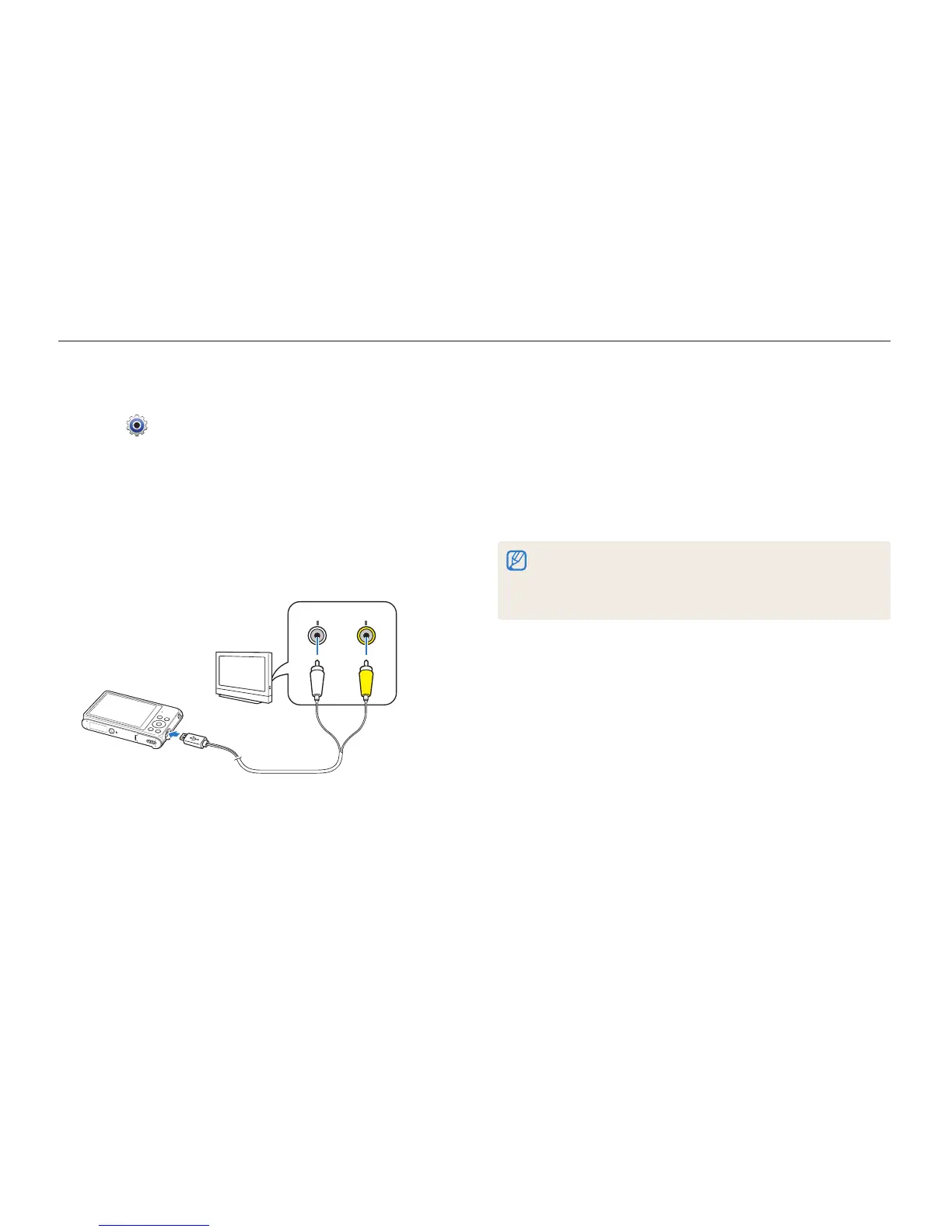
Play back photos or videos by connecting your camera to a TV with the A/V cable.
7
Turn on your TV, and then select the A/V video source
with the TV remote control.
8
Turn on your camera.
•
The camera automatically enters into Playback mode when
you connect it to a TV.
9
View photos or play videos using the camera buttons.
•
Depending on the TV model, you may see some digital noise or part
of an image may not appear.
•
Images may not be centered on the TV screen depending on your
TV settings.
1
On the Home screen, scroll to <Basic>.
2
Select .
3
Select Connectivity → Video Out.
4
Select the video signal output for your country or region.
(p. 126)
5
Turn off your camera and TV.
6
Connect your camera to your TV with the A/V cable.
VideoAudio



 To Next Page