EasyManua.ls Logo

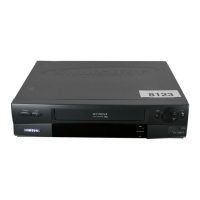
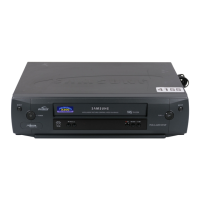
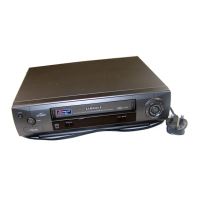
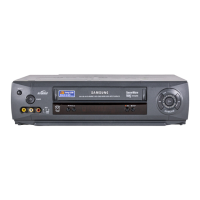
Samsung SV-140G - User Manual

Samsung SV-140G
2 pages
Print Icon
To Next Page IconTo Next Page
Loading...
Accessories
You have just purchased a Video Cassette Recorder.
Together with your VCR, you will find the following accessories in the box.
1.5V
1.5V
R
E
P
E
A
T
S
T
A
N
D
B
Y
/
O
N
D
I
S
P
L
A
Y
C
N
T
.R
E
S
E
T
II
P
/S
S
L
O
W
TR
K
R
E
C
M
E
N
U
REMOTE CONTROL BA
TTERIES “AA”
COAXIAL CABLE
ENGLISH
AC68-01341A
Only cassettes marked can be used with the
VCR.
The unit is not disconnected from the AC power
source as long as it is connected to the wall outlet,
even if the unit itself has been turned off.
WARNING:
TO PREVENT FIRE OR SHOCK HAZARD, DO NOT
EXPOSE THIS APPLIANCE TO RAIN OR MOISTURE.
TO PREVENT ELECTRIC SHOCK, DO NOT OPEN
THE CABINET. REFER SERVICING TO QUALIFIED
PERSONNEL ONLY.
1
You must insert or replace the batteries in the remote control when
you:
Purchase the video cassette Recorder
Find that the remote control is no longer working correctly
1 Push the tab in the direction of the arrow to release the battery
compartment cover on the rear of the remote control.
2 Insert two AA, R6 or equivalent batteries, taking care to respect the
polarities:
+ on the battery with + on the remote control
on the battery with on the remote control
3 Replace the cover by aligning it with the base of the remote
control and pushing it back into place.
Do not mix different battery types (manganese and alkaline for
example).
Infrared Remote Control
Inserting Batteries in the Remote Control
Make sure that both the television and the VCR are switched of
f before connecting the cables.
Connecting Your VCR to the TV
Tuning Your Television for the
VCR
Selecting the RF OUT Sound
Mode (G, K, I)
You must tune your television for the VCR only if
you are not using a RCA cable.
To view pictures from your VCR when a RCA
cable is used, the television must be set to the
audio/video mode (AV).
1 Switch on the television.
2
Switch on the VCR by pressing STANDBY/ON on the
front of the VCR or STANDBY/ON on the remote control.
3 Select a programme position on the television to be
reserved for use with your VCR.
4
Insert the video cassette in the VCR. Check that the
VCR starts reading the cassette; if not, press
button
.
5 Start a scan on your television or set the television to
UHF channel 36.
6 Fine tune the television until the pictures and sound
are obtained clearly.
7
If you cannot find the pictures and sound, or there is
interference from nearby channels, change the VCR
OUTPUT CHANNEL to adjust the frequency.
8
When the picture and sound are perfectly clear store this
channel at the desired programme position on the television.
Result: That programme is now reserved for use with
your VCR.
You must choose the sound mode (G, K or I)
according to the TV set connected to your VCR.
1 Press MENU on the remote control.
Result
: The programming menu is displayed.
2 Press the corresponding or buttons, until the
cursor is placed in front of the USER SET option.
3 Press button to select this option.
Result: The USER SET menu is displayed.
4 Press the corresponding or buttons, until the
cursor is placed in front of the TV SYSTEM option.
5 Press the
or
buttons to select G, K or I.
6 On completion, press MENU twice to exit the menu.
Then tune your television again.
Your VCR output channel may need to be changed
if the pictures suffers from interference or if your
TV cannot find the pictures. Also, you can change
the VCR output channel to adjust the frequency in
which information is displayed on the screen.
1 Press MENU on the remote control.
Result
: The programming menu is displayed.
2 Press the corresponding
or
buttons, until the
cursor is placed in front of the USER SET option.
3 And then press button to select this option.
Result: The USER SET menu is displayed.
4 Press the
or
buttons, until the cursor is placed
in front of the VCR OUTPUT CH option.
5 Select the required output channel (CH21~CH69) by
pressing the or buttons.
6 On completion, press MENU twice to exit the menu.
Then tune your television again.
Setting the VCR Output Channel
Playing a Cassette
Selecting the Appropriate
System Standard
This function allows you to play back any pre-recorded cassette.
1
Switch on both the television and your VCR.
2
Select the AV input on the television for use with your VCR.
3
Insert the video cassette to be played. If the safety tab on
the cassette is intact, press button.
Otherwise, the cassette is played automatically.
When a cassette is loaded, the tape position is
optimized automatically to reduce disturbance
(Digital Auto Tracking). When playing a cassette, if
the end of the tape is reached, the cassette is
rewound automatically.
4
To... Then press...
Stop the playback
(
STOP).
Eject the cassette
(
EJECT).
Adjusting Picture Alignment
Manually
The Fine Adjustment feature allows you to adjust the
alignment manually to obtain the best possible picture.
When noise bars or streaks appear during playback, adjust
alignment manually by pressing the TRK ( or ) buttons
until the picture is clear and stable.
Result
: The tracking bar appears.
The image is adjusted.
The tracking bar disappears when you
release the button.
Intelligent Picture Control
Before recording a cassette, you can select the
required system standard. Otherwise, the system
automatically selects the reception standard when
you select AUTO.
When playing back a cassette, the standard is
automatically selected by the VCR.
When you playback an NTSC-recorded tape on this
VCR make a setting on the color system according
to your TV. If your TV is a PAL system only TV, set
NTPB. If your TV is Multi System TV (NTSC 4.43
compatible), set NT4.43 and you can record NT4.43.
1 Press MENU on the remote control.
Result
: The programming menu is displayed.
2
Press the corresponding or buttons, until the
cursor is placed in front of the USER SET option.
3
Press the button to select this option.
Result: The USER SET menu is displayed.
4
Press the corresponding or buttons, until the
cursor is placed in front of the COLOUR SYSTEM option.
5
Press the button to select AUTO PAL
MESECAM B/W or NT3.58 NT4.43 NTPB.
AUTO When playing back a cassette, the system
standard is automatically selected by the VCR.
B/W Black and White
6
On completion, press MENU twice to exit the menu.

R
E
P
E
A
T
STANDBY/ON DISPLAY
CNT.RESET SPEED
IIP/S IPC
TRK
REC MENU
STANDBY/ON BUTTON
COUNTER RESET BUTTON
PAUSE/STILL BUTTON
RECORD BUTTON
PLAY BUTTON
(INTERVAL REPEAT BUTTON)
(MENU SELECTION UP BUTTON)
REWIND/REVERSE PICTURE
SEARCH BUTTON
(MENU SELECTION BUTTON)
STOP BUTTON
(MENU SELECTION DOWN BUTTON)
DISPLAY BUTTON
RECORDING SPEED SELECTION
BUTTON
TRACKING BUTTONS
IPC (INTELLIGENT PICTURE
CONTROL) BUTTON
MENU BUTTON
FAST-FORWARD/FORWARD
SEARCH BUTTON
(MENU SELECTION BUTTON)
6
To adjust the sharpness manually, press the
button
to turn the IPC mode OFF.
7
Press the or buttons until the picture is displayed
according to your preferences.
To adjust the sharpness manually press the
SHARPNESS
or
button on the front of the VCR.
If you do not press a button within ten seconds, the
PICTURE menu disappears automatically.
8
On completion, press the MENU button again.
ELEC
REC STOP
SHARPNESS
EJECT
STANDBY/ON
REW F.F
PLAY
STANDBY/ON
PLAY / STOP
RECREPEAT
EJECT
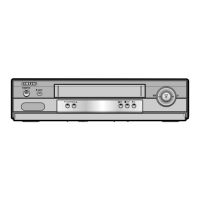
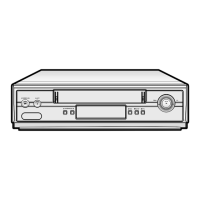
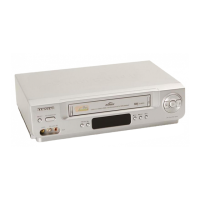
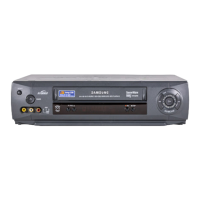
SV-140G/SV-140GS
SV-143GS SV-142G/SV-142GS
Intelligent picture control feature allows you to
adjust the sharpness of the image automatically
according to your own preferences.
1
During playback, press the MENU button on the remote
control.
Result: The menu is displayed.
2
Press the corresponding or buttons, until the
cursor is placed in front of the USER SET option.
3
Press the button to select this option.
Result
: The USER SET menu is displayed.
4
Press the corresponding or buttons, until the
cursor is placed in front of the IPC option.
5
Press the button to select the IPC (intelligent picture
control) option.
Press the IPC button on the remote control.
Result: The PICTURE menu appears on the display.
When intelligent picture control mode is ON, the
sharpness of the image is adjusted automatically.
EJECT
STANDBY/ON
REW F.F
PLAY
REC STOP
SHARPNESS
TV
LINE IN 1
VIDEO AUDIO
LINE OUT
AV Output
Aerial (Not supplied)
TV Set (Not supplied)
Aerial Connector
Aerial input
Coaxial Cable
RCA Cable (Not supplied)
AV input
OWNER’S MANUAL
Video Cassette Recorder (VCR)
- Line Recorder
SV-140G/SV-140GS/SV-142G/
SV-142GS/SV-143GS
Question and Answer IconNeed help?

Do you have a question about the Samsung SV-140G and is the answer not in the manual?

Summary

Infrared Remote Control Overview

Inserting Batteries in the Remote Control

Instructions for inserting or replacing batteries in the remote control for proper operation.

Connecting and Tuning Your VCR to the TV

Connecting Your VCR to the TV

Steps for connecting the VCR to a television using various cables.

Tuning Your Television for the VCR

How to tune your television to receive the VCR signal.

Selecting the RF OUT Sound Mode

Choose the correct sound mode based on your TV system (G, K, or I).

Setting the VCR Output Channel

Adjust the VCR's output channel to avoid interference or adjust frequency.

VCR Playback Functions

Playing a Cassette

Instructions for playing back pre-recorded video cassettes.

Adjusting Picture Alignment Manually

Manually align the picture for optimal clarity using tracking controls.

Intelligent Picture Control

Automatically adjust image sharpness for preferred viewing.

Selecting the Appropriate System Standard

Set the color system standard for recording and playback.

Advanced VCR Features

Playing a Sequence Frame by Frame

How to play back a cassette one frame at a time.

Selecting the Recording Speed

Choose between SP and LP recording speeds for different recording durations.

Auto Power Off Feature

Configure the VCR to automatically turn off after a period of inactivity.

Auto Repeat Play

Set the VCR to continuously repeat playback of a cassette.

Using the Tape Counter

Understand and utilize the tape counter for locating sequences.

Selecting the Cassette Type

Specify cassette type for accurate tape counter readings.

Interval Repeat Play

Set the VCR to repeat playback for specific intervals.

Displaying;Hiding On-Screen Information

Control the visibility of on-screen display information on the television.

Recording Operations

Recording From TV

Instructions for recording television broadcasts directly.

Recording from Another VCR

Step-by-step guide to copying content from another VCR.

Technical Specifications

Summary

Infrared Remote Control Overview

Inserting Batteries in the Remote Control

Instructions for inserting or replacing batteries in the remote control for proper operation.

Connecting and Tuning Your VCR to the TV

Connecting Your VCR to the TV

Steps for connecting the VCR to a television using various cables.

Tuning Your Television for the VCR

How to tune your television to receive the VCR signal.

Selecting the RF OUT Sound Mode

Choose the correct sound mode based on your TV system (G, K, or I).

Setting the VCR Output Channel

Adjust the VCR's output channel to avoid interference or adjust frequency.

VCR Playback Functions

Playing a Cassette

Instructions for playing back pre-recorded video cassettes.

Adjusting Picture Alignment Manually

Manually align the picture for optimal clarity using tracking controls.

Intelligent Picture Control

Automatically adjust image sharpness for preferred viewing.

Selecting the Appropriate System Standard

Set the color system standard for recording and playback.

Advanced VCR Features

Playing a Sequence Frame by Frame

How to play back a cassette one frame at a time.

Selecting the Recording Speed

Choose between SP and LP recording speeds for different recording durations.

Auto Power Off Feature

Configure the VCR to automatically turn off after a period of inactivity.

Auto Repeat Play

Set the VCR to continuously repeat playback of a cassette.

Using the Tape Counter

Understand and utilize the tape counter for locating sequences.

Selecting the Cassette Type

Specify cassette type for accurate tape counter readings.

Interval Repeat Play

Set the VCR to repeat playback for specific intervals.

Displaying;Hiding On-Screen Information

Control the visibility of on-screen display information on the television.

Recording Operations

Recording From TV

Instructions for recording television broadcasts directly.

Recording from Another VCR

Step-by-step guide to copying content from another VCR.

Technical Specifications

Overview

This document describes the Samsung Video Cassette Recorder (VCR), a line recorder model available in several variations: SV-140G, SV-140GS, SV-142G, SV-142GS, and SV-143GS. The VCR is designed to play and record video on VHS cassettes.

Function Description

The VCR's primary function is to play back and record video from VHS cassettes. It can be connected to a television set to display video content. The device supports various playback modes, including standard play, long play, and interval repeat. It also offers recording capabilities, allowing users to record television programs or other video sources onto VHS tapes.

Playback Features:

  • Standard Playback: The VCR plays pre-recorded cassettes. When a cassette is inserted, if the safety tab is intact, playback begins automatically. The tape position is optimized automatically to reduce disturbance, and if the end of the tape is reached, the cassette is automatically rewound.
  • Stopping and Ejecting: Playback can be stopped by pressing the "STOP" button and cassettes can be ejected by pressing the "EJECT" button.
  • Picture Alignment (Manual): Users can manually adjust picture alignment during playback to reduce noise bars or streaks. This is done by pressing the "TRK" (tracking) buttons until the picture is clear and stable. A tracking bar appears on the screen during adjustment and disappears when the button is released.
  • Intelligent Picture Control (IPC): This feature automatically adjusts the sharpness of the image based on user preferences. When IPC mode is ON, image sharpness is automatically adjusted. Users can also manually adjust sharpness by turning IPC mode OFF.
  • Auto Power Off: The VCR automatically turns off after a set period of inactivity (e.g., 2 hours, 4 hours, or 6 hours) to save energy. This feature can be enabled or disabled, and the duration can be selected through the menu.
  • Auto Repeat Play: The VCR can continuously repeat playback of a cassette. Users can set the number of repetitions (e.g., 1, 2, 3, 4, 5, 10, 15, or off) through the menu.
  • Interval Repeat Play: This feature allows for repeated playback of a specific interval within a cassette. Users can set the start and end points of the interval, and the VCR will continuously repeat that segment. The number of repetitions can also be set.
  • Displaying/Hiding On-Screen Information: Users can choose to display or hide information on the screen, such as the current time or other operational details.
  • Playing a Sequence Frame by Frame: This function allows users to play back a sequence of frames at a given frame (image) or sound. This is useful for detailed analysis or reviewing specific moments.
  • Selecting the Recording Speed: The VCR supports different recording speeds: SP (Standard Play) and LP (Long Play). SP mode offers higher picture quality but shorter recording time, while LP mode offers longer recording time at a slightly reduced picture quality.
  • Using the Tape Counter: The tape counter helps users locate specific points on a cassette. It can be reset to zero at any point, and the VCR can automatically stop at a preset counter value during recording or playback.

Recording Features:

  • Recording from TV: The VCR can record television programs. Users need to tune their television to the VCR's output channel and then initiate recording.
  • Selecting the Appropriate System Standard: Before recording, users can select the required system standard (e.g., AUTO, PAL, MESECAM, B/W, NT3.58, NT4.43, NTPB). If AUTO is selected, the system automatically chooses the reception standard. When playing back a cassette, the VCR automatically selects the standard.

Usage Features

Initial Setup:

  • Connecting to TV: The VCR connects to a TV via a coaxial cable or RCA cables. Both the TV and VCR should be switched off during connection. For RCA cable connections, the TV must be set to audio/video (AV) mode.
  • Tuning Television for VCR: If using a coaxial cable, the television needs to be tuned to the VCR's output channel (e.g., UHF channel 36). Fine-tuning is required to obtain clear pictures and sound. If interference occurs, the VCR's output channel can be adjusted.
  • Selecting RF OUT Sound Mode: Users must select the sound mode (G, K, or I) that matches their connected TV set. This is done through the VCR's menu under "USER SET" and "TV SYSTEM."
  • Setting VCR Output Channel: If pictures suffer from interference or the TV cannot find the pictures, the VCR's output channel can be changed (CH21-CH69) through the "USER SET" menu.

Remote Control:

  • Battery Installation: The remote control requires two AA, R6, or equivalent batteries. Care must be taken to respect polarities during installation. Batteries should be replaced when the remote control stops working correctly or when the VCR is first purchased. Different battery types should not be mixed.

General Operation:

  • Cassette Compatibility: Only cassettes marked "VHS" can be used with this VCR.
  • Power Management: The unit remains connected to the AC power source as long as it is plugged into a wall outlet, even if the unit itself is turned off.
  • Menu Navigation: The remote control's "MENU" button accesses the programming menu. Navigation within menus is done using the arrow buttons (up, down, left, right) and selection buttons.

Maintenance Features

Safety Precautions:

  • Hazard Warning: To prevent fire or shock hazards, the appliance should not be exposed to rain or moisture. The cabinet should not be opened to prevent electric shock; servicing should be referred to qualified personnel only.

Copyright Information:

  • Copyright Protection: It is an infringement of copyright laws to copy pre-recorded cassettes or to re-record them in any form without the permission of the copyright owner. Users are advised to respect copyright laws.
  • Cassette Safety Tabs: Video cassettes have a safety tab to prevent accidental erasure. When this tab has been removed, recording is no longer possible. To record on a cassette with a removed safety tab, users can cover the hole with adhesive tape.

This VCR offers a comprehensive set of features for both playback and recording, with user-friendly controls and customizable settings to enhance the viewing and recording experience.

Samsung SV-140G Specifications

General IconGeneral
TypeVCR
BrandSamsung
ModelSV-140G
Number of heads4
Playable formatsVHS
Remote controlYes
TunerYes
Playback SpeedSP, LP
Power SupplyAC 120V, 60Hz

Related product manuals