On-Screen Display
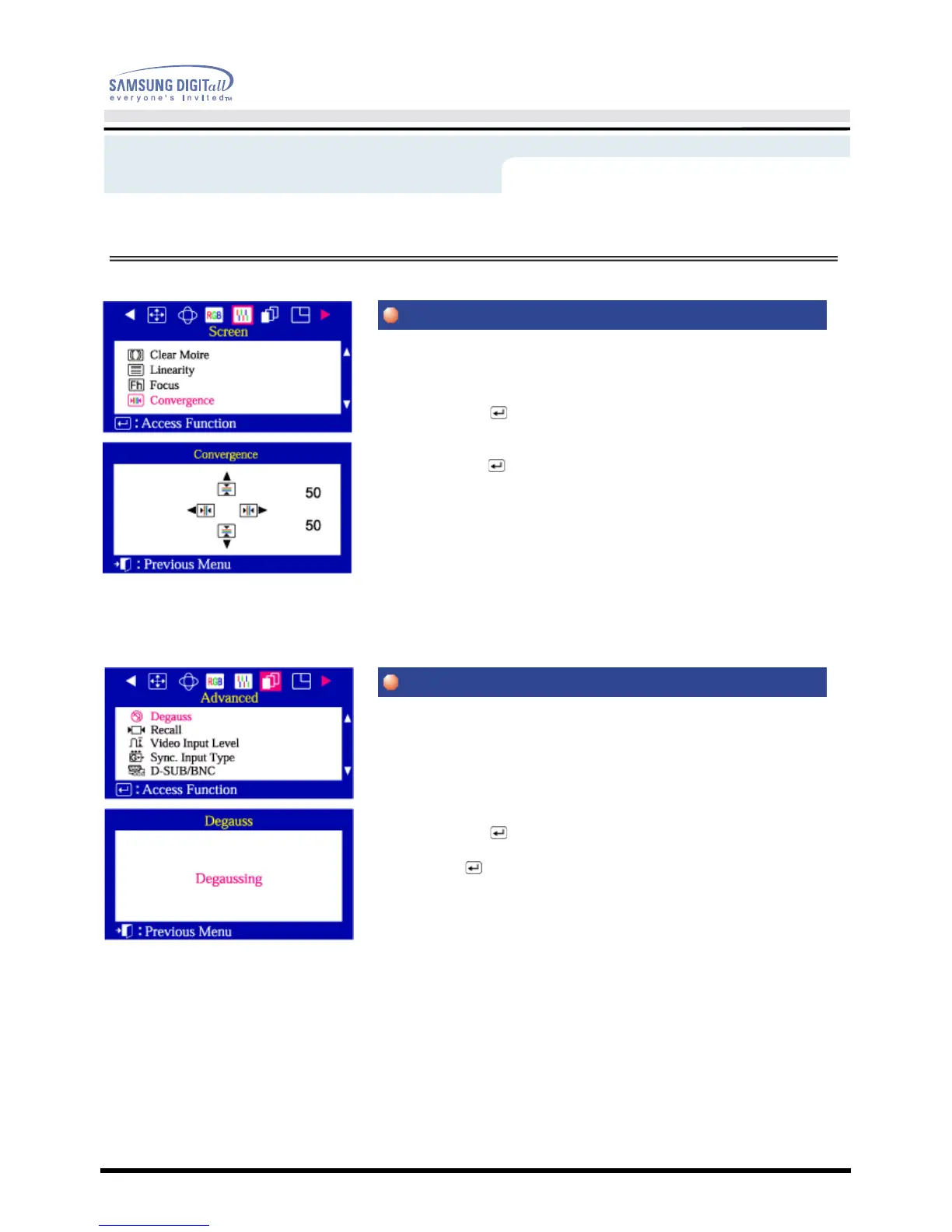
Convergence affects picture clarity. Adjust the horizontal or vertical
convergence to properly align the color dots that make up the image.
1 Push the Menu( ) button.
2 Push the
◀
button or
▶
button until the Screen OSD is displayed.
Push the
▲
button or
▼
button to select Convergence.
3 Push the Menu( ) button to open the convergence adjustment screen.
4 Use the
◀
button or
▶
button to adjust the horizontal convergence.
Use the
▲
button or
▼
button to adjust the vertical convergence.
The Degauss feature will remove color impurities caused by magnetic fields. Do
not use the Degauss feature more than once within a 30-minute period.
Note: The monitor may buzz momentarily, the image colors may change and the
image will jiggle for a few seconds. These effects are normal.
1 Push the Menu( ) button.
2 Push the
◀
button or
▶
button until the Advanced screen is displayed.
Push the Menu( ) button to execute the degauss function.
The degaussing screen will appear. After a few seconds, the degauss main
menu will return.
Menu
How to adjust




 To Next Page