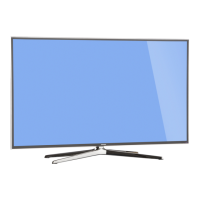
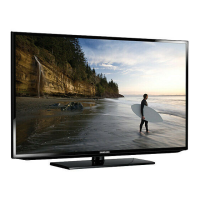
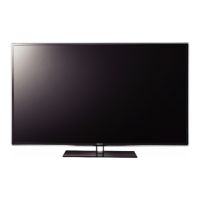
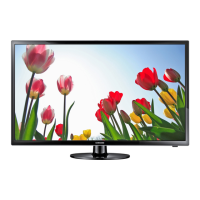
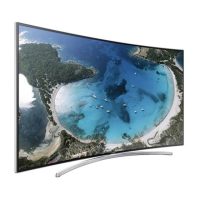
This document is a user manual for a Samsung Series 6 & 7 TV, providing essential information for setup, operation, and maintenance.
Function Description
The Samsung TV is a display device designed for viewing various video sources and accessing online services. It features a high-resolution display and integrates with Samsung's Smart Hub for online content and software updates. The TV can be controlled using either a standard remote control or a Samsung Smart Remote (Voice Interaction version), offering multiple ways to navigate menus and select content.
Usage Features
Remote Control Operation:
The TV can be operated using a standard remote control with a comprehensive set of buttons. Key functions include:
- Power (O): Turns the TV on and off.
- SOURCE: Displays and selects available video sources.
- Number buttons (0-9): Provide direct access to channels and allow for numeric input (e.g., PINs, ZIP codes).
- TTX/MIX: Alternately selects Teletext ON, Double, Mix, or OFF.
- PRE-CH: Returns to the previous channel.
- VOL (+/-): Adjusts the volume. Pressing the button mutes the sound.
- CH (∧/∨): Changes the current channel.
- CH LIST: Launches the Channel List.
- SPORTS: Turns Soccer Mode on or off.
- (Smart Hub): Launches the Home Screen, providing access to online services and applications.
- GUIDE: Displays the Electronic Programme Guide (EPG).
- EXTRA: Displays related information about the current programme.
- INFO: Displays information about the current programme or content.
- (Enter): Selects or runs a focused item.
- Directional pad (∧/∨/left/right): Moves the cursor, selects on-screen menu items, and changes values.
- RETURN: Returns to the previous menu or channel.
- EXIT: Exits the menu.
- SETTINGS: Sets Quick Settings from the Home Screen.
- AD/SUBT.: Displays Accessibility Shortcuts.
- REC: Records current content.
- ■: Stops playing content.
Samsung Smart Remote (Voice Interaction version):
This remote offers additional features for enhanced interaction:
- Power (ن): Turns the TV on and off.
- (Voice Recognition): Runs Voice Interaction. Press, speak a command, then release. A guide to Voice Interaction appears when pressed once.
- 123 (Number pad): Displays a number strip on screen for channel changes, PIN entry, etc. Pressing for 1 second or more shows the TTX menu.
- 4 colour buttons: Access additional options specific to the feature in use.
- EXTRA: Displays extra information from the content provider while watching content.
- Directional pad (up/down/left/right): Moves focus and changes values in TV menus.
- Select: Selects or runs a focused item. Displays detailed programme information when watching content.
- (Return): Returns to the previous menu. Terminates running functions if pressed for 1 second or more. Shows the previous channel when watching a programme.
- (Smart Hub): Returns to the Home Screen.
- (Play/Pause): Displays playback controls for media content.
- VOL (Volume): Adjusts volume up/down. Pressing mutes sound. Pressing for 1 second or more shows Accessibility Shortcuts.
- CH (Channel): Changes channel up/down. Pressing shows the Guide screen.
TV Controller:
Located at the bottom of the TV, the TV Controller allows basic operation:
- Press: Moves through menu options.
- Press & Hold: Selects an item.
- Control menu: Includes Power off, Channel Up/Down, Volume Up/Down, and Source selection.
Network Connectivity:
The TV can connect to a network wirelessly or via a wired connection, enabling access to Smart Hub and software updates.
- Wireless: Connects to the Internet via a standard router or modem with a DHCP server.
- Wired: Connects to the network using a LAN cable (CAT 7 *STP type recommended). The TV supports network speeds greater than 10 Mbps.
e-Manual:
An embedded e-Manual provides information on key TV features. It can be accessed via Settings > Support > Open e-Manual. Features include Search, Index, Recent pages, Try Now (to access menu items directly), and Link (to reference pages).
Initial Setup:
The initial setup dialogue box appears upon first activation. It can be manually accessed later via Settings > System > Start Setup.
Troubleshooting:
The manual provides solutions for common issues such as the TV not turning on, no picture/sound from external devices, or the remote control not working. It suggests checking cable connections, input sources, performing self-diagnosis, and rebooting devices. For remote control issues, it advises checking batteries and pairing Bluetooth remotes. Intermittent Wi-Fi issues can be resolved by checking network connection, Wi-Fi password, distance to router, and reducing interference. Video app problems may require changing DNS settings or resetting Smart Hub.
Remote Support:
Samsung offers remote support where a technician can diagnose, adjust settings, perform factory resets, and install firmware updates remotely.
Maintenance Features
Eco Sensor and Screen Brightness:
The Eco Sensor automatically adjusts TV brightness based on ambient light to optimize power consumption. Users can turn this feature off via Settings > System > Eco Solution > Eco Sensor. It's advised not to block the sensor.
Still Image Warning:
To prevent image burn-in on the LED screen, users are advised to avoid displaying still images (e.g., JPEG files, channel logos, news crawls, 4:3 format content) for long periods. Recommendations include:
- Avoiding long display of the same TV channel.
- Using full screen display whenever possible.
- Reducing brightness and contrast.
- Utilizing TV features designed to reduce image retention and screen burn.
Caring for the TV:
- Remove any sticker debris from the screen before watching.
- Clean the exterior and screen carefully with a soft, dry micro-fiber cloth to prevent scratches.
- For stubborn smudges, a small amount of screen cleaner can be used on the cloth.
- Do not spray water or any liquid directly onto the TV to prevent electric shock or fire.
- Do not use flammable liquids (benzene, thinners, alcohol, insecticides, aerial fresheners, lubricants, or detergents) as they can damage the TV's appearance or printing.
Installation:
- When wall-mounting, follow manufacturer instructions precisely to prevent injury or damage.
- For models with wall mount adapters, install them before the wall mount kit.
- Maintain at least 10 cm distance between the TV and other objects for proper ventilation to prevent overheating and potential fire hazards.
- Use only Samsung-provided parts for stand or wall mount installation.
- Do not install the wall mount kit while the TV is on.
- Do not use screws longer than standard VESA specifications.
- Do not fasten screws too firmly.
- Do not mount the TV at more than a 15-degree tilt.
- Always have two people mount the TV.
Preventing the TV from Falling:
- Secure the TV to the wall using brackets and a durable, heavy-duty string to prevent tipping, especially important for households with children.
- Ensure the TV is placed on stable furniture that can safely support its weight and is not overhanging the edge.
- Anchor tall furniture (e.g., cupboards) and the TV to a suitable support.
- Educate children about the dangers of climbing on furniture.
Decreasing Power Consumption:
Unplug the power cord when the TV is not in use for extended periods to reduce standby power consumption.



 To Next Page
 General