EasyManua.ls Logo

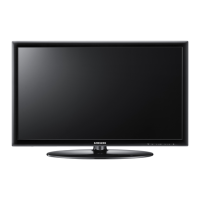
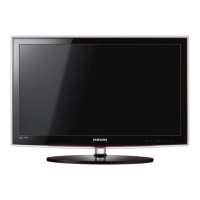
Samsung UE19D4010NW - User Manual

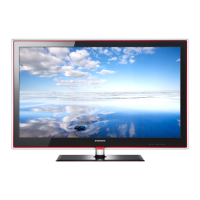
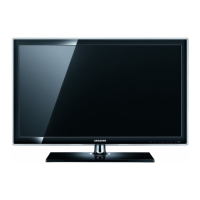
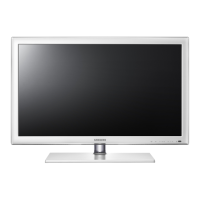
Samsung UE19D4010NW
19 pages
Print Icon
To Next Page IconTo Next Page
Loading...
LED TV
User Manual
imagine the possibilities
Thank you for purchasing this Samsung product.
To receive more complete service, please register
your product at
www.samsung.com/register
Model _____________ Serial No. _____________
E-MANUAL
© 2011 Samsung Electronics Co., Ltd. All rights reserved.
Contact SAMSUNG WORLDWIDE
If you have any questions or comments relating to Samsung products, please contact the SAMSUNG customer care centre.
Country
Customer Care Centre
Web Site
EIRE 0818 717 100 www.samsung.com
U.K 0330 SAMSUNG (7267864) www.samsung.com
BN68-03420J
BN68-03420J-03
[UD4000-XU]BN68-03420J.indb 1 2011-4-28 13:56:37

Other manuals for Samsung UE19D4010NW

Questions and Answers

  • A
    Audrey DavisAug 19, 2025
    What to do if my Samsung UE19D4010NW LED TV will not turn on?
    • M
      Mary MartinezAug 19, 2025
      If your Samsung LED TV won't turn on, ensure the AC power cord is securely plugged into both the wall outlet and the TV. Verify that the wall outlet is working. You can also try pressing the POWER button on the TV itself to rule out a remote issue.
  • R
    rickywatsonAug 21, 2025
    Why is there no picture on my Samsung UE19D4010NW?
    • J
      John HeathAug 21, 2025
      If there is no picture or video on your Samsung LED TV, check the cable connections by removing and reconnecting all cables connected to the TV and external devices. Ensure your external devices’ video outputs match the connections to the TV input. Also, make sure your connected devices are powered on. Select the correct source on your TV by pressing the SOURCE button on the remote. Reboot the connected device by reconnecting the device’s power cable.
  • E
    Elizabeth AtkinsAug 23, 2025
    Why is there no sound on my Samsung UE19D4010NW LED TV but the picture is fine?
    • B
      Brian DillonAug 25, 2025
      If you have picture but no sound on your Samsung LED TV, first set the Speaker Select option to TV Speaker in the sound menu. If you are using an external device, ensure the audio cables are connected to the correct audio input jacks on the TV and check the device’s audio output option. If using a DVI to HDMI cable, a separate audio cable is required. Reboot the connected device by reconnecting the device’s power cable. Also, if your TV has a headphone jack, ensure nothing is plugged into it.
  • J
    Joshua HayesAug 26, 2025
    Why does my Samsung UE19D4010NW keep turning off by itself?
    • K
      Kevin EspinozaAug 26, 2025
      If your Samsung LED TV turns off automatically, ensure the Sleep Timer is set to Off in the Time menu. If your PC is connected to the TV, check your PC power settings. Make sure the AC power cord is plugged in securely to the wall outlet and the TV. When watching TV from an antenna or cable connection, the TV will turn off after 10 to 15 minutes if there is no signal.
  • M
    Michelle BellAug 28, 2025
    How to fix low sound on my Samsung LED TV?
    • S
      Samantha CaldwellAug 28, 2025
      If there is no sound or the sound is too low at maximum volume on your Samsung LED TV, check the volume of the device (Cable/Sat Box, DVD, Blu-ray etc) connected to your TV.
  • A
    Amy AndradeAug 30, 2025
    How to improve picture quality on Samsung LED TV?
    • C
      Charles SantosAug 30, 2025
      If the image quality of your Samsung LED TV isn't as good as it was in the store, consider upgrading to a digital set-top box if you're using an analogue cable/set-top box. Use HDMI or Component cables for HD picture quality. Cable/Satellite subscribers should try HD stations. Antenna users should try HD stations after performing Auto tuning. Adjust the Cable/Set top box video output resolution to 1080i or 720p. Ensure you're watching the TV at the minimum recommended distance based on the screen size and signal definition.
  • M
    Michele MillsSep 1, 2025
    How to fix poor color and brightness on Samsung LED TV?
    • S
      Sabrina PowersSep 1, 2025
      If the colour or brightness is poor on your Samsung LED TV, adjust the Picture options in the TV menu. Also, adjust the Energy Saving option in the TV menu. You can also try resetting the picture to view the default picture settings.
  • D
    deborah76Sep 3, 2025
    How to fix wireless network connection failed on Samsung LED TV?
    • P
      pnelsonSep 3, 2025
      If the wireless network connection failed on your Samsung LED TV, a Samsung Wireless USB dongle is required to use a wireless network. Ensure the Network Connection is set to Wireless. Make sure the TV is connected to a wireless IP sharer (Router).
  • R
    Rachel BakerSep 5, 2025
    How to fix Samsung UE19D4010NW LED TV not receiving all channels?
    • C
      Cody CaldwellSep 5, 2025
      If your Samsung LED TV is not receiving all channels, ensure the Antenna cable is connected securely. Try Plug & Play (Initial setup) to add available channels to the channel list. Verify the Antenna is positioned correctly.
  • K
    Kyle HaneySep 7, 2025
    Why is the picture distorted on my Samsung UE19D4010NW?
    • K
      Katelyn GilmoreSep 8, 2025
      Picture distortion on your Samsung LED TV, such as macroblock errors or pixelization, can be caused by compression of video content, especially in fast-moving scenes. Low signal level or bad signal quality can also cause picture distortion and is not a TV issue. Mobile phones used close to the TV (cca up to 1m) may cause noise in picture on analogue and digital TV.

Summary

Important Warranty Information Regarding Television Format Viewing

Still image warning

Warning about displaying static images on screen to prevent ghosting.

Securing the Installation Space

Instructions on maintaining clearance for proper ventilation and preventing overheating.

Product and Battery Disposal

Guidelines for responsible disposal of the TV, accessories, and batteries.

Connecting to an Antenna

Connecting to an AV devices

Connecting to a PC and Audio device

Connecting to a PC via HDMI, DVI, or D-sub

Changing the Input Source

How to View and Use the e-Manual

Navigating the e-Manual

Instructions on accessing and browsing the TV's electronic manual content.

Installing the Wall Mount

VESA Mounting Specifications

Details on VESA standards, screw types, and dimensions for wall mounting.

Wall Mount Installation Safety

Precautions for safely installing the wall mount kit to prevent accidents.

Troubleshooting

Common Issues and Solutions

List of common TV problems and their troubleshooting steps.

Securing the TV to the Wall

Anti-Fall Device Installation

Step-by-step guide for installing an anti-fall device for wall-mounted TVs.

Warning! Important Safety Instructions

General Safety Precautions

Essential safety guidelines for ventilation, liquids, heat, and electrical safety.

Fire Prevention

Warning to keep open flames away from the product to prevent fire hazards.

Mains Power Plug Wiring (UK)

Samsung UE19D4010NW Specifications

General IconGeneral
Comb filter2D
Display diagonal19 \
Display resolution1366 x 768 pixels
Native refresh rate60 Hz
Supported video modes720p
Screen format adjustments16:9
Visible diagonal screen size48.26 cm
Supported graphics resolutions1366 x 768
3DNo
Product colorWhite
Tuner typeDigital
Analog signal format system-
Digital signal format systemDVB-C, DVB-S2, DVB-T, DVB-T2
Audio systemDolby Digital +, Dolby Pulse
RMS rated power6 W
Number of speakers2
DVI-D ports quantity0
USB 2.0 ports quantity1
Number of OSD languages29
Smart modesGame, Standard
AC input voltage220 V
AC input frequency50 - 60 Hz
Power consumption (standby)0.3 W
Power consumption (typical)35 W
Power consumption (PowerSave)15 W
Package weight5200 g
Weight and Dimensions IconWeight and Dimensions
Depth (with stand)144.8 mm
Height (with stand)339.5 mm
Weight (with stand)3400 g
Depth (without stand)29.9 mm
Width (without stand)455.4 mm
Height (without stand)285.6 mm
Weight (without stand)3100 g

Related product manuals