EasyManua.ls Logo

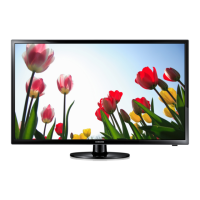
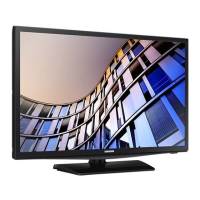
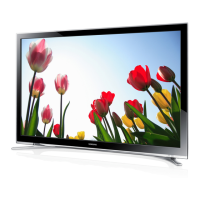
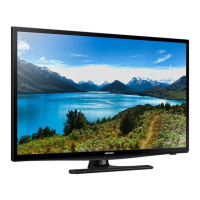
Samsung UE28J4100A - User Manual

Samsung UE28J4100A
100 pages
Go to English
Print Icon
To Next Page IconTo Next Page
Loading...
Благодарим за приобретение продукта
компании Samsung. Для получения более
полного обслуживания зарегистрируйте
свое устройство по адресу:
www.samsung.com/register
Модель
___
Серийный номер.
_____________
LED ТЕЛЕВИЗОР
руководство пользователя
Благодарим за приобретение продукта
UE28J4100A / UE32J4100A /
UE32J5100A / UE40J5100A / UE48J5100A / UE50J5100A /
UE32J5120A / UE40J5120A
[UJ4100_5100-RU]BN68-06489Q-00L04.indb 1 2015-03-19 오후 4:06:19

Table of Contents

Questions and Answers

  • C
    Candice RoyAug 18, 2025
    What to do if my Samsung UE28J4100A will not turn on?
    • J
      justinwellsAug 18, 2025
      First, ensure the AC power cord is securely plugged into both the wall outlet and your Samsung LED TV. Verify that the wall outlet is functioning correctly. If the issue persists, try pressing the 'P' (Program/Channel) button on the TV itself. If the TV turns on this way, the problem may be with the remote control.
  • S
    stephanie92Aug 20, 2025
    Why is there no picture/video on my Samsung UE28J4100A LED TV?
    • N
      nicholas16Aug 20, 2025
      Begin by checking all cable connections to your Samsung LED TV and any connected external devices, disconnecting and reconnecting them. Ensure that the video outputs of your external devices (like Cable/Set-top Box, DVD, Blu-ray players) match the connections to the TV input. Verify that all connected devices are powered on. Select the correct source on your TV using the SOURCE button on the remote control. As a last resort, try rebooting the connected device by disconnecting and reconnecting its power cable.
  • L
    Lisa GonzalezAug 23, 2025
    Why does my Samsung LED TV turn off automatically?
    • S
      Stephanie SotoAug 23, 2025
      Ensure that the Sleep Timer is set to 'Off' in the Time menu of your Samsung LED TV. If a PC is connected, review its power settings. Make sure the AC power cord is securely connected to both the TV and the wall outlet. Note that the 'No Signal Power Off' feature turns off the TV if no signal is received for a specified time, and the 'Auto Power Off' feature turns off the TV after four hours of no user input.
  • C
    Carlos BellAug 26, 2025
    How to fix a Samsung LED TV remote control that does not work?
    • M
      Mrs. Shirley AndersonAug 26, 2025
      Replace the batteries in the remote control of your Samsung LED TV, ensuring the correct polarity (+/–). Clean the sensor's transmission window on the remote. Try pointing the remote directly at the TV from a distance of 1.5 to 1.8 meters.
  • S
    sallymitchellAug 28, 2025
    Why the image on my Samsung UE28J4100A doesn't look as good as it did in the store?
    • P
      Pamela VangAug 28, 2025
      If you have an analogue cable/set top box connected to your Samsung LED TV, consider upgrading to a digital set top box. Use HDMI or Component cables to ensure HD (high definition) picture quality. Cable/Satellite subscribers should try HD stations from the channel line up. If you're using an aerial connection, try HD stations after performing Auto tuning. Adjust the Cable/Set top box video output resolution to 1080i or 720p. Make sure you are watching the TV at the minimum recommended distance based on the size and definition of the signal.
  • C
    Christopher HoldenAug 30, 2025
    How to fix poor colour or brightness on Samsung UE28J4100A LED TV?
    • C
      Christopher GarciaAug 30, 2025
      Adjust the Picture options in the TV menu of your Samsung LED TV. You can find these options under Picture Mode / Colour / Brightness / Sharpness. Also, adjust the Energy Saving option in the TV menu under MENU - System - Eco Solution - Energy Saving. You may also want to try resetting the picture to the default settings by going to MENU - Picture - Reset Picture.
  • K
    Kevin GarciaSep 2, 2025
    Why is the picture distorted on my Samsung UE28J4100A (macroblock error, small block, dots, pixelization)?
    • H
      Heidi WebbSep 2, 2025
      Compression of video content can cause picture distortion on your Samsung LED TV, especially in fast-moving scenes like sports or action movies. Low signal level or bad quality can also cause picture distortion. Mobile phones used close to the TV (up to 1 meter) may cause noise in the picture on analogue and digital TV.
  • J
    jeffersonjacksonSep 4, 2025
    Why will the picture not display in full screen on my Samsung LED TV?
    • K
      Karen MurphySep 5, 2025
      HD channels may display black bars on either side of the screen when showing upscaled SD (4:3) content on your Samsung LED TV. Black bars may also appear on the top and bottom during movies with different aspect ratios. Adjust the picture size options on your external device or TV to full screen.
  • M
    Mrs. Melissa GonzalezSep 7, 2025
    How to make the cable/set top box remote control turn the Samsung UE28J4100A on or off, or adjust the volume?
    • I
      Isabel ShortSep 7, 2025
      Program the Cable/Set top box remote control to operate your Samsung LED TV. Refer to the Cable/Set top box user manual for the SAMSUNG TV code.
  • R
    Rachel BurnettSep 9, 2025
    What does “Mode Not Supported” message mean on Samsung UE28J4100A LED TV?
    • L
      Larry FergusonSep 9, 2025
      Check the supported resolution of your Samsung LED TV and adjust the external device’s output resolution accordingly.

Summary

Important Safety Instructions

CAUTION: RISK OF ELECTRIC SHOCK DO NOT OPEN

Warning about electric shock risk and not opening the device cover.

Symbol Explanations

Explanation of symbols related to high voltage and included literature.

Important Warranty Information: Television Format Viewing

List of Features

Accessories

Cable Holder

Instructions for arranging cables using the Cable Holder.

Ferrite Core

Details about ferrite cores used to shield cables from interference.

Remote Control Overview

Installing Batteries

Guide on how to install AAA batteries into the remote control.

TV Controller (Panel Key) Usage

Standby Mode Precautions

Advice on avoiding leaving the TV in standby mode for extended periods.

Initial Setup Guide

Input Source Management

Source Selection

How to select TV or external input sources like DVD, cable box, or STB.

Edit Input Source Name

Procedure to set a custom name for external input sources.

Common Interface Slot Connection

Using the CI or CI+ CARD

Instructions for inserting and using a CI or CI+ CARD for paid channels.

Notes on CI;CI+ CARD

Important notes regarding CI/CI+ CARD compatibility, handling, and support.

e-Manual Usage Guide

Screen Display and Operation Buttons

Overview of the e-Manual screen layout and operation buttons.

Viewing the Contents

How to navigate through content topics using e-Manual buttons like Try now, Home, Page, Zoom.

e-Manual and OSD Menu Interaction

Method 1: Using Try now

Steps to use the 'Try now' function to access corresponding OSD menus from an e-Manual topic.

Method 2: Using ENTER button

Steps to access OSD menus by pressing ENTER on an e-Manual topic and confirming.

Searching Topics via Index

Guide to searching for topics using the index page and character selection.

Teletext Feature Overview

Teletext Page Navigation

How to change Teletext pages using numeric buttons and remote control functions.

Teletext Page Organization

Explanation of how Teletext pages are organized into six categories.

Troubleshooting Guide

Picture Quality Problems

Resolving issues related to picture distortion, color, brightness, and image quality.

Sound Issues

Troubleshooting no sound, low volume, and speaker noise problems.

Picture and Channel Issues

Solutions for black and white picture, frozen or delayed channels, and no video.

TV Power and Auto-Off Issues

Troubleshooting TV not turning on, turning off automatically, and related power problems.

Connectivity and Display Issues

Resolving no picture, channel reception, distortion, and full-screen display problems.

Remote Control and Device Communication

Troubleshooting remote control, cable/set-top box interaction, and 'Mode Not Supported' messages.

Minor Issues and Precautions

Addressing plastic smell, signal information unavailability, and TV tilt.

Assembly and Menu Issues

Resolving stand assembly, unavailable broadcasting menu, and lost settings.

Playback and Signal Issues

Troubleshooting intermittent audio/video loss, PIP unavailability, and signal errors.

Performance and Playability

Addressing small particles on screen, auto-on, file playability, and cushion pad reactions.

Installing the Wall Mount

Wall Mount Kit Specifications (VESA)

Details on VESA specifications, standard screw sizes, and quantity for wall mounting.

Safety Precautions for Wall Mounting

Important safety notes and warnings regarding wall mount installation to prevent injury or damage.

Securing the TV to the Wall

To Avoid the TV from Falling

Step-by-step guide on how to secure the TV to the wall using clamps and string.

Screw Specifications for Securing

Specifies the screw sizes (M4, M8) required for securing the TV to the wall.

Installation Space Requirements

Ventilation and Clearance

Ensuring proper ventilation by keeping required distances between the TV and objects.

Storage and Maintenance

Cleaning the TV

Instructions for safely cleaning the TV screen and exterior using a soft cloth and water.

Anti-theft Kensington Lock

How to Use Kensington Lock

Step-by-step instructions for locking the product using a Kensington lock.

Product Specifications

Environmental Considerations

Details on operating temperature, humidity, and storage conditions.

Model Specific Specifications

Technical data including screen size, resolution, sound output, dimensions, and weight for various models.

Supported Video and Subtitle Formats

Video File Details

List of supported video file extensions, containers, codecs, resolution, and decoder capabilities.

Subtitle File Formats

Details on supported external and internal subtitle file formats and their extensions.

Supported Photo and Music Formats

Photo File Types and Resolutions

Supported photo file extensions, types, and maximum resolutions.

Music File Types and Codecs

Supported music file extensions, types, codecs, and remarks.

Licence Information

Dolby and DTS Licensing

Information regarding Dolby and DTS audio technologies used in the product.

HDMI and DivX Certification

Details on HDMI interface and DivX video playback certification.

Open Source Licence Notice

Information on open source software used in the product, available on a webpage.

Still Image Warning

Caution against displaying static images to prevent screen burn-in.

Samsung UE28J4100A Specifications

General IconGeneral
Screen Size28 inches
Resolution1366 x 768 pixels
Display TypeLED
HDMI Ports2
USB Ports1
HD TechnologyHD Ready
Smart TVNo
Sound Output10 W

Related product manuals